Choosing between different types of graphs shapes what your audience notices and remembers, and it influences the action they take next.
A sales leader reviewing quarterly revenue needs a different visual from a product manager comparing feature adoption. The same dataset can make a point clear or confusing, and it can make a recommendation feel persuasive or misleading, depending on the graph you choose.
This guide covers the graphs and charts most commonly used in business reports, stakeholder updates, and classroom presentations. Business teams often use “graph” and “chart” interchangeably, and both terms appear here with one practical goal: helping you pick the visual that gets your point across.
Slide context raises the stakes. A graph that works in a spreadsheet can lose clarity on a presentation slide, and audiences often have only a few seconds to understand it during a pitch deck or quarterly review. Show the numbers that support the takeaway, and make the takeaway obvious.
How to Choose the Right Type of Graph
Choose the right type of graph by defining the decision or insight your slide must communicate, then let the dataset back it up.
1. Choose by analytical goal
Analytical goals map directly to graph types, especially in recurring presentation workflows.
Weak chart choices usually follow familiarity rather than the audience's preferences. Choose the visual that helps a VP approve a budget or compare options.
2. Choose based on the takeaway
Takeaway-first chart selection keeps the same dataset aligned with the slide headline. Suppose your source table shows monthly revenue by product line.
- Revenue is increasing over time → Line graph
- Product A generates the most revenue → Bar graph
- Product A makes up 55% of total revenue → Pie chart or stacked bar
The data point remained the same across the above examples. Only the communication goal changed, and the chart type followed it. Strong presenters write the headline before they choose the chart.
3. Choose by audience and context
Audience context determines chart detail and the amount of narration your slide needs. An analyst slide can carry more detail than an executive update, and a board deck needs more restraint than an internal dashboard.
A few questions help calibrate that: Who is reading this, and how much time do they have? What decision are they making? How familiar are they with the data, and will you explain it live?
On presentation slides, bar graphs and line graphs cover most executive updates. Scatter plots and stacked bars work well for relationship and composition slides. More specialized visuals, like Sankey diagrams or radar charts, need an audience that already knows how to read them.
4. Choose by the number of variables
Variable count determines whether a slide needs a single chart or a multi-view layout.
Teams often force too many variables into a single chart, resulting in clutter rather than decision-ready insight. When a graph needs a long explanation, split it into two clean slides instead of one crowded one.
Common Types of Graphs and When to Use Each One
The 10 chart types below cover most business and classroom presentations. Closely related variants are noted alongside each one, so you get the full picture without 20 separate write-ups.
1. Bar graph
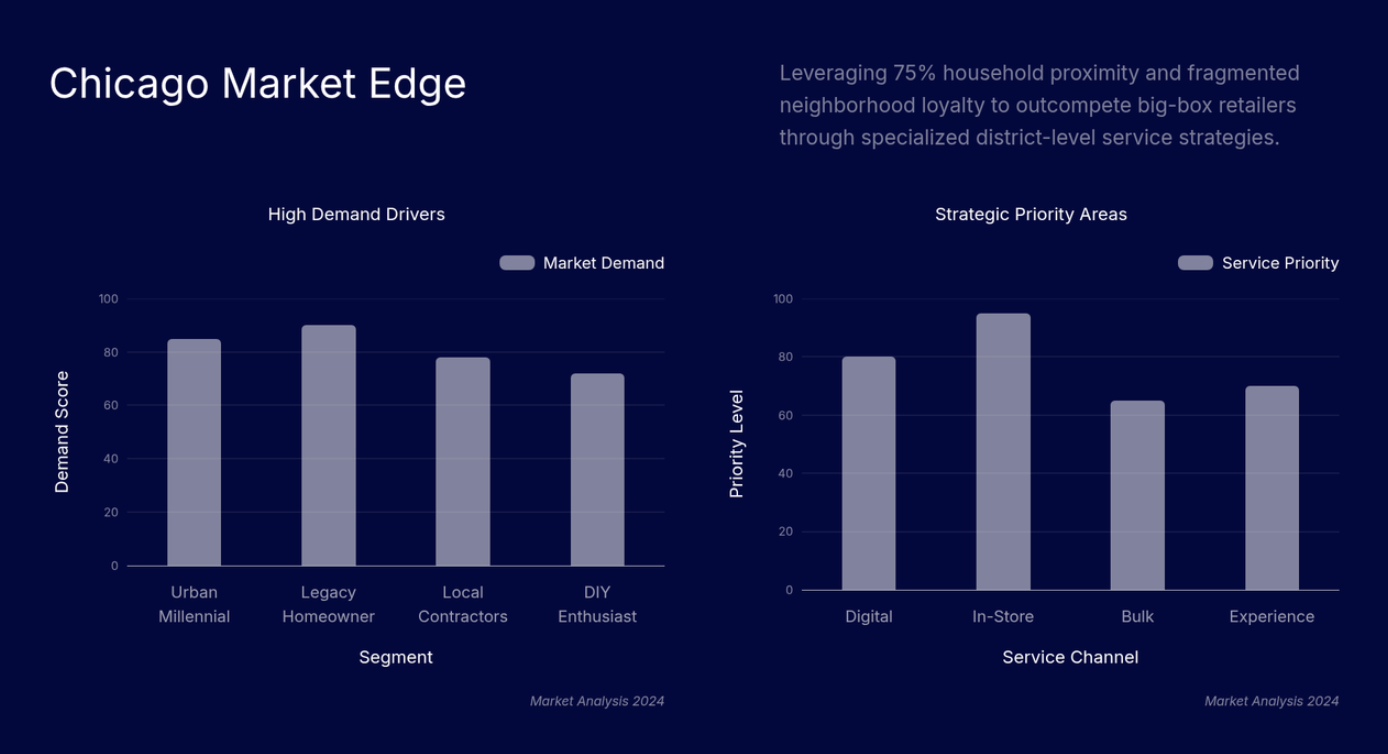
Compares values across categories using bar length, and it is the fastest chart for a business audience to read accurately.
Column charts use the same logic with vertical bars instead of horizontal ones and work best when category labels are short.
Best for: Category comparison and ranking.
Where you can use this:
- Revenue by region or rep
- Survey responses by answer choice
- Ranking from highest to lowest
Pro Tip: Sort bars from largest to smallest unless the data has a natural order, such as a funnel stage.
2. Line graph
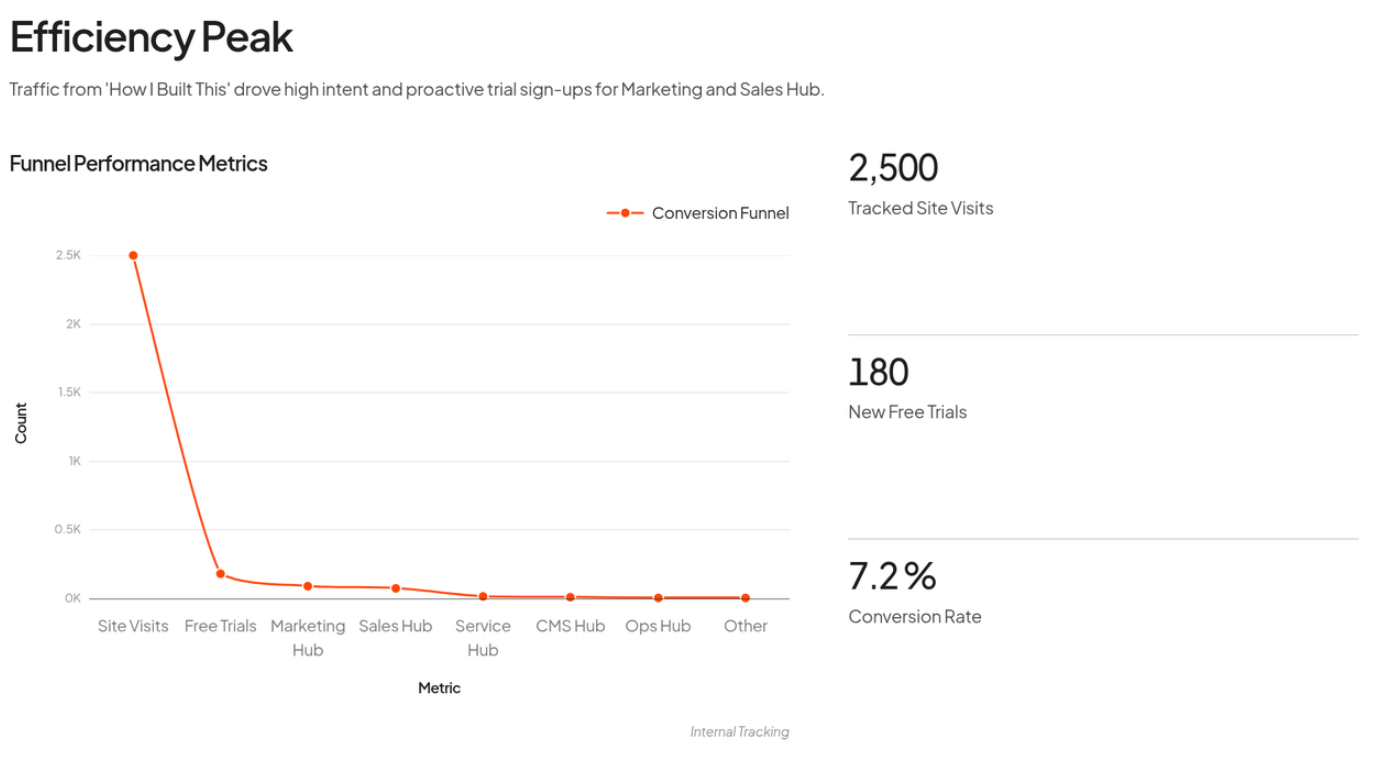
Connects data points to show change over time or sequence, and works best when the trend shape matters more than category comparisons.
Best for: Trends, direction, and time-based change.
Where you can use this:
- Revenue growth over time
- Customer churn by month
- Forecast vs. actual performance
- Performance metrics
Pro Tip: Highlight the most important line and mute the rest, or the key message gets lost.
3. Pie chart
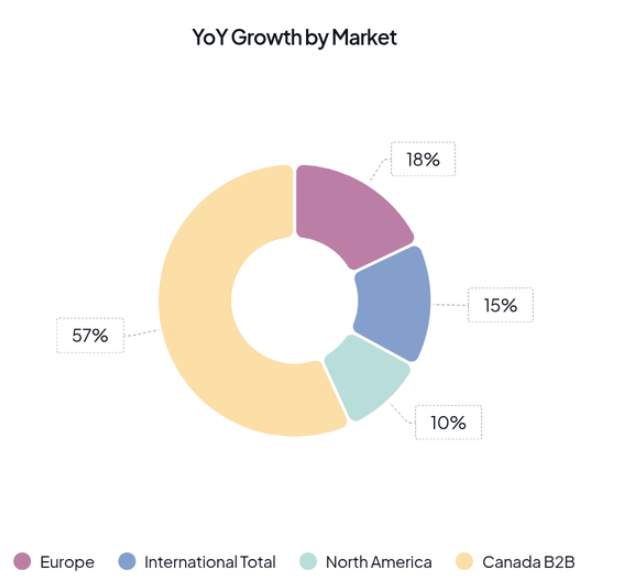
Shows how a whole breaks into parts, with each slice representing a share of the total.
Donut charts work the same way but leave a center space for a headline number, such as a total or completion rate.
Best for: Simple part-to-whole messages with a few clearly different segments.
Where you can use this:
- Market share among a few competitors
- Budget allocation across major categories
- Customer mix by segment
Pro Tip: Keep it to 3 slices or fewer. Beyond that, switch to a bar graph for an accurate comparison.
4. Area chart
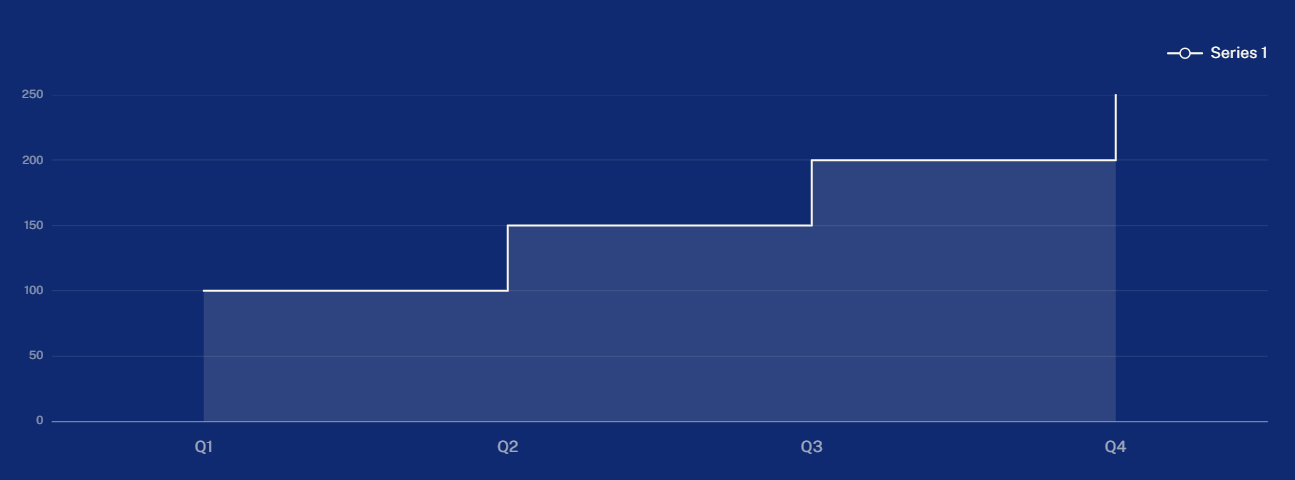
Resembles a line graph, with the area below the line filled in, creating a stronger sense of volume.
A stacked area chart adds composition on top, showing how segments contribute to a growing total over time.
Best for: Showing volume and trend together.
Where you can use this:
- Cumulative signups or revenue
- Total support tickets over time
- Market size expansion
Pro Tip: Use area charts sparingly in executive decks. Overlapping fills can hide data and exaggerate small changes.
5. Scatter plot
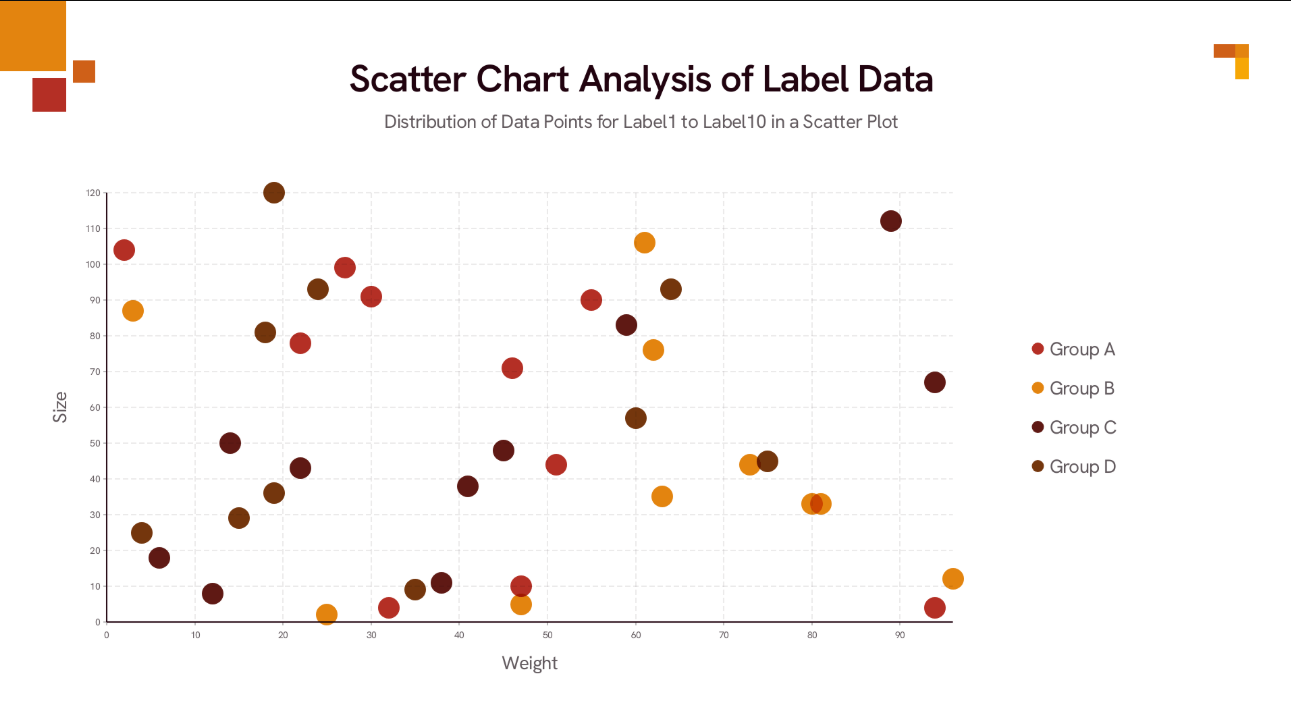
Plots two numerical variables against each other so patterns, clusters, and outliers become visible.
A bubble chart adds a third variable through bubble size, useful for showing scale alongside the relationship.
Best for: Relationships and correlation between two variables.
Where you can use this:
- Marketing spend vs. leads
- Deal size vs. sales cycle length
- Discount rate vs. win rate
Pro Tip: Add a trendline only when it clarifies the pattern, and label the points that drive the decision.
6. Histogram
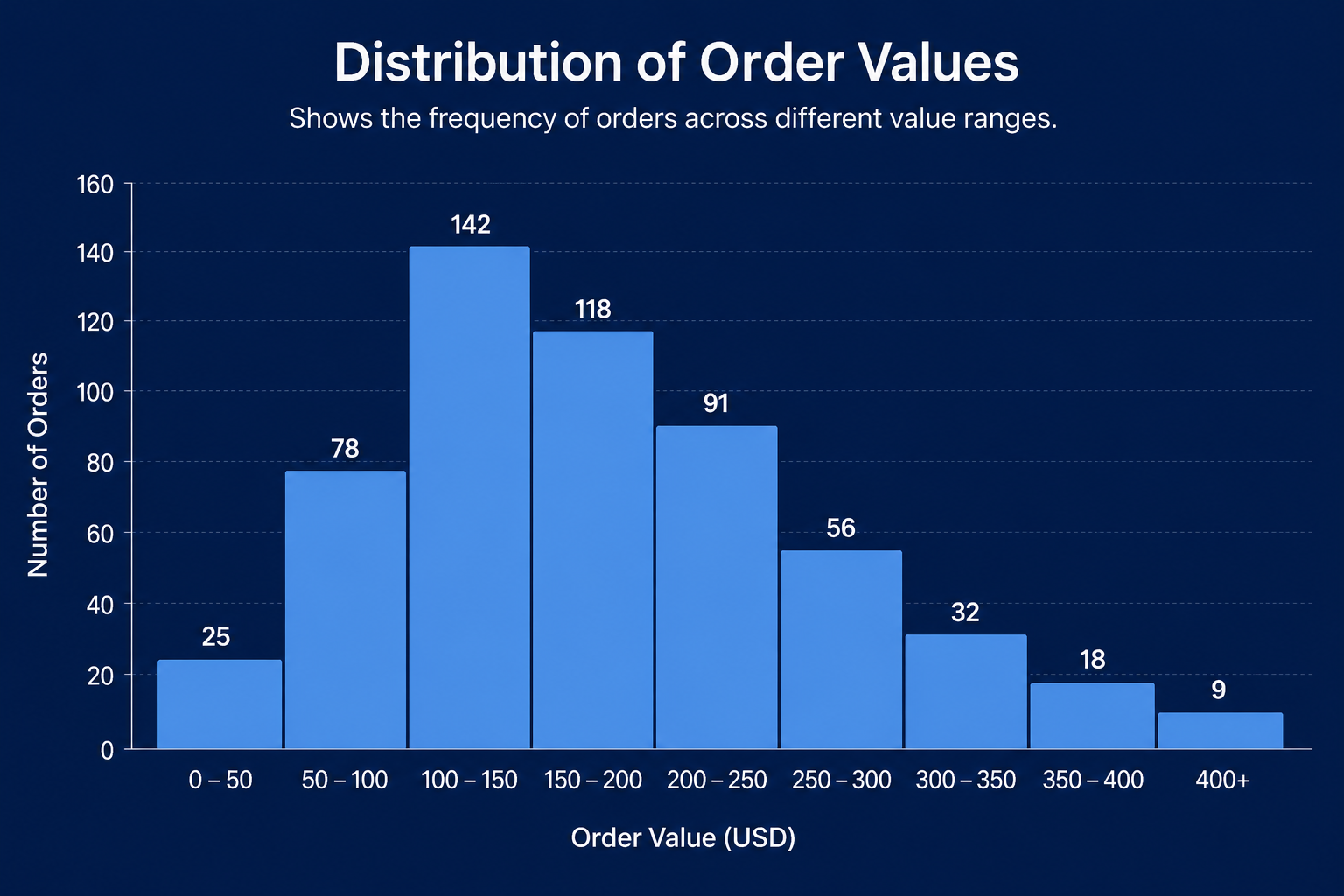
Groups numerical values into ranges, called bins, to show how a single variable is distributed.
Box plots and violin plots cover the same ground for expert or technical audiences, summarizing median, spread, and outliers in a more compact format.
Best for: Frequency and distribution of a single numerical variable.
Where you can use this:
- Deal size distribution
- Time-to-resolution distribution
- Test score distribution
Pro Tip: Choose bins carefully. Too many create noise; too few hide the pattern.
7. Stacked bar chart
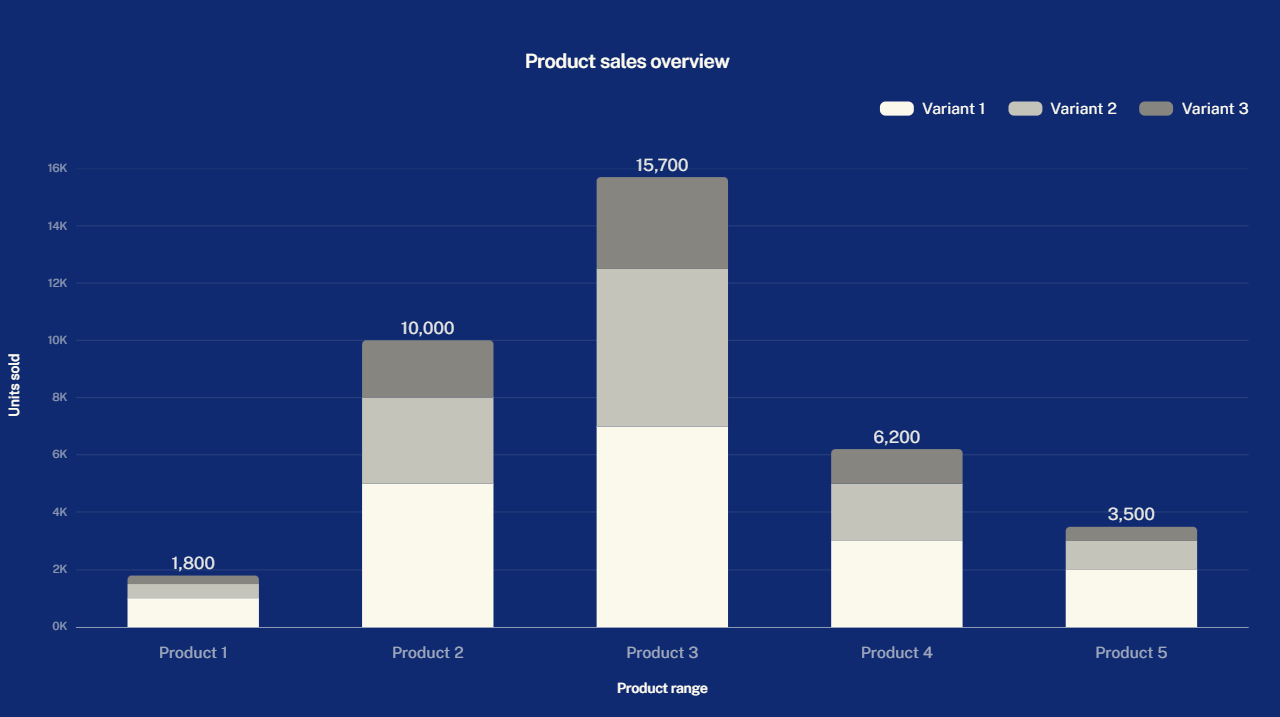
Shows a total and the composition inside it, with each bar divided into segments.
Grouped bar charts place subcategories side by side rather than stacking them, and a 100% stacked bar chart normalizes each bar to the same length to compare mix rather than size.
Best for: Part-to-whole composition across categories.
Where you can use this:
- Revenue by region and product
- Pipeline by stage and team
- Customer mix by plan
Pro Tip: Place the most important segment at the baseline. Floating middle segments are harder to compare.
8. Heatmap
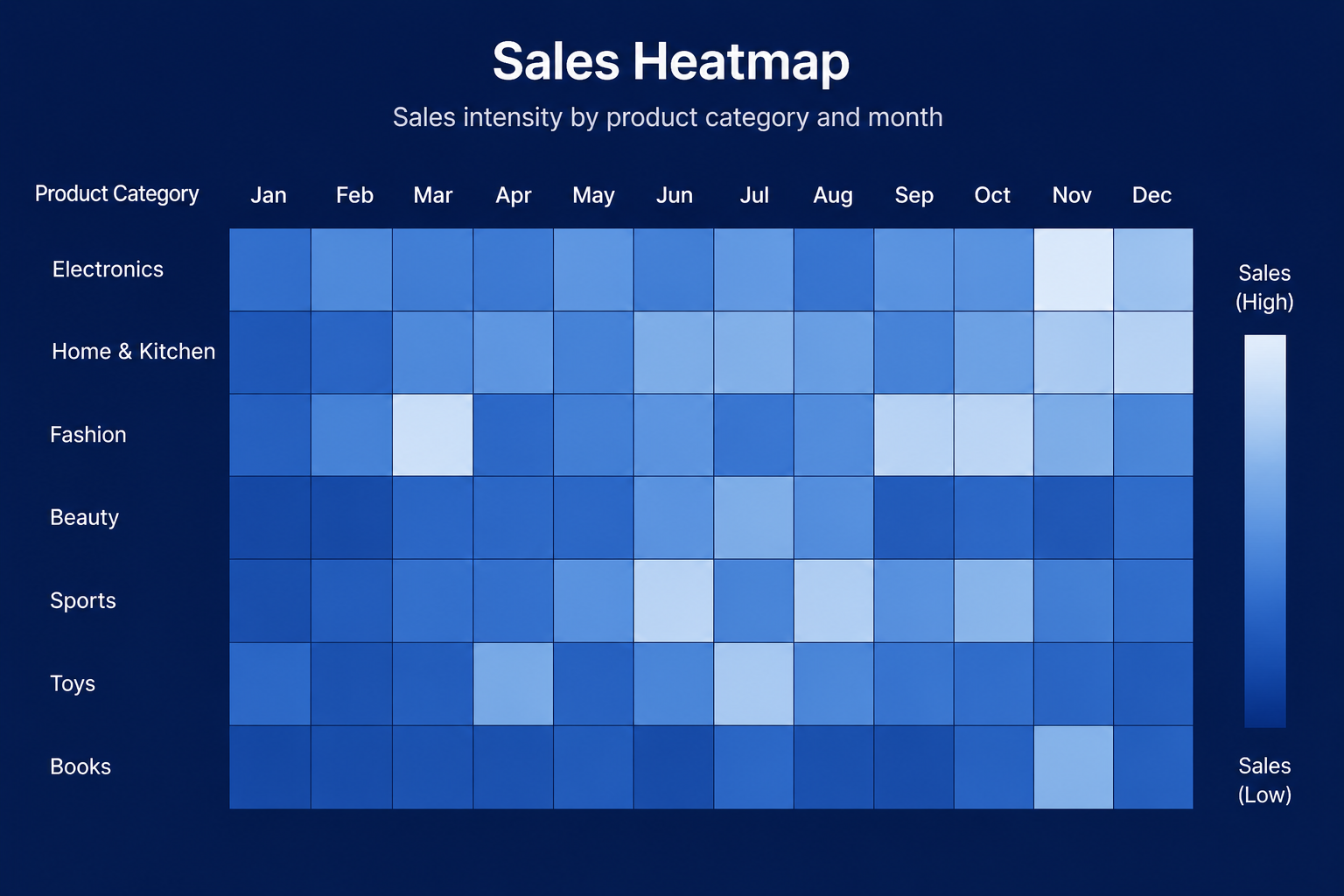
Uses color intensity across a grid to reveal patterns across two dimensions at once.
Best for: Pattern recognition across two dimensions, such as channel by region.
Where you can use this:
- Conversion rate by channel and region
- Sales performance by territory and month
- Survey sentiment by topic
Pro Tip: Add key numbers only where they matter. A fully labeled heatmap becomes hard to read.
9. Funnel chart
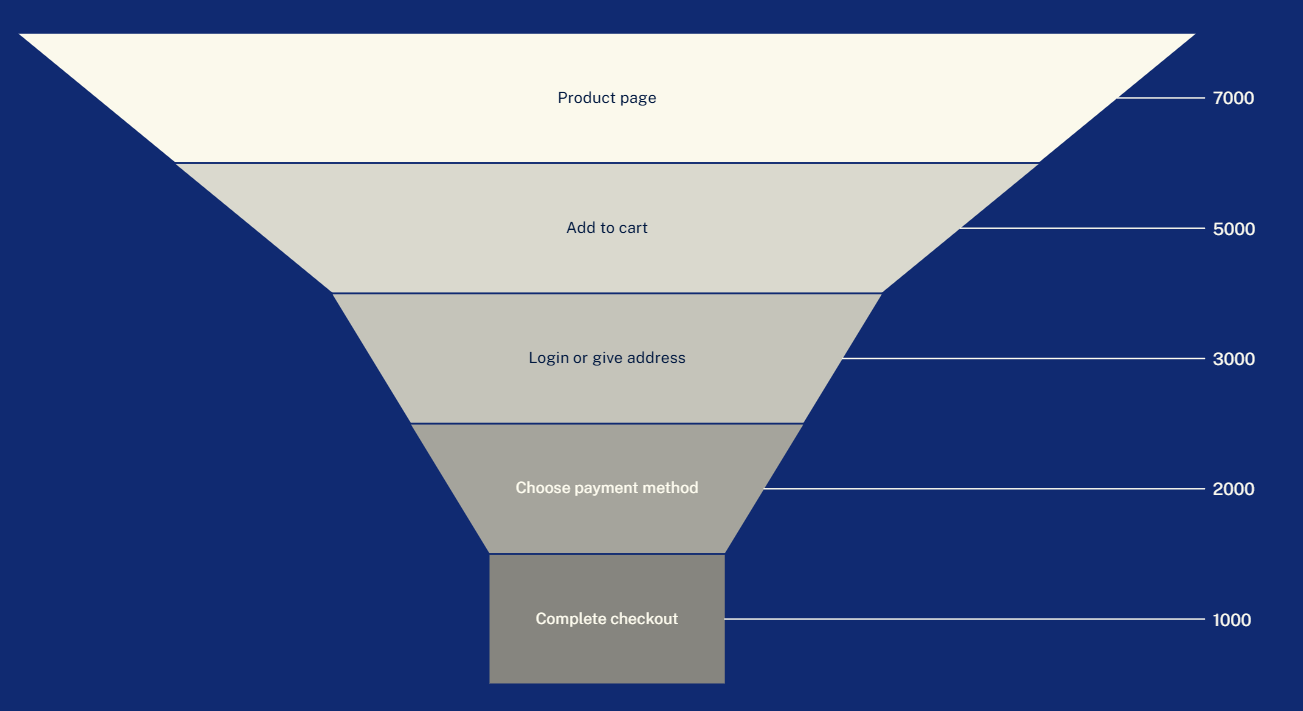
Shows how values decrease across stages in a linear process, making drop-off points easy to spot.
Sankey diagrams cover the same ground as movement branches across multiple paths or sources, rather than a single line.
Best for: Depicting stage-by-stage conversion.
Where you can use this:
- Leads to opportunities to customers
- Trial signups to paid users
- Hiring stage progression
Pro Tip: Label both counts and conversion rates. Rates show where the real issue sits.
10. Map chart
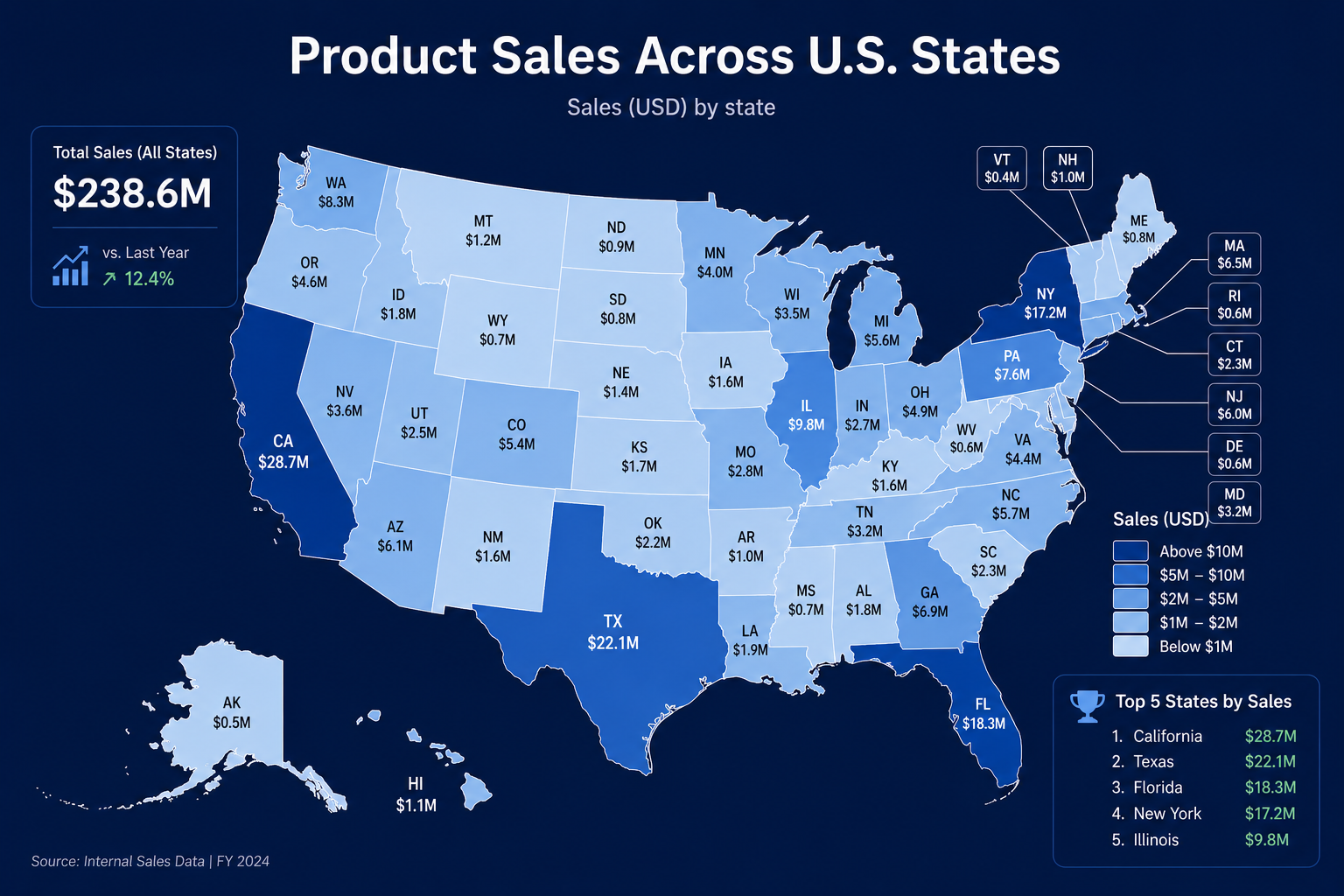
Shows geographic patterns using points, shaded regions, or bubbles placed on a map.
Choropleth maps shade regions by rate or density rather than raw totals, avoiding the default bias toward large regions.
Best for: Geographic concentration and location-based patterns.
Where you can use this:
- Sales or customers by region
- Territory coverage
- Market penetration by geography
Pro Tip: When exact regional ranking matters more than location, a sorted bar chart usually works better.
Other specialized chart types
These charts solve narrower problems and appear less often in everyday reporting, but they are worth knowing about.
Picking the right chart is only the first step. The next two sections cover the mistakes that undercut a good chart choice and how to make any graph genuinely presentation-ready.
Common Graph Mistakes to Avoid
The right graph type can still fail when slide design creates confusion. Watch for these before sharing a report or presentation.
- Using the spreadsheet default. Spreadsheet defaults follow the data structure. Treat them as a draft.
- Overloading one slide. If the legend has more than five or six items or the audience needs ten seconds to find the point, split the story across two slides.
- Using 3D effects. 3D pies, columns, and shadows distort comparisons. Stick to flat, accurate shapes.
- Truncating axes without reason. A bar chart with a baseline above zero can make a small difference look massive. Default to a zero baseline.
- Relying only on color. Pair color with direct labels or patterns, since not every viewer or screen renders color the same way.
- Using a legend when a direct label would work. A label placed right on the data is almost always faster to read than a separate key.
- Choosing complexity for its own sake. Treemaps and radar charts look sophisticated, but a simple ranking or trend usually needs a simple chart.
- Forgetting the recommendation. A takeaway title like “Partner pipeline is now the largest source of qualified opportunities” turns a graph into evidence instead of a raw data dump.
Make Your Graphs Accessible and Executive-Ready
Accessible, executive-ready graphs use readable labels and clear contrast, which matters even more once slides travel beyond the room. These presentation tips cover the same fundamentals for the rest of the deck.
- Use readable text sizes. Small axis labels are one of the quickest ways to lose an audience. Keep titles large and follow a sound approach to presentation font sizing for body and axis text alike.
- Use color with intention. One emphasis color for the data that matters, neutral tones for everything else. Highlighting everything highlights nothing.
- Add alt text for digital decks. Describe the main insight rather than listing every number, so screen readers and quick scanners both get the point.
- Annotate key events. A line graph with one well-placed annotation, like a pricing change or launch date, can replace a paragraph of explanation.
- Keep the appendix separate. The main slide carries the conclusion and the clean graph. Full data tables and methodology belong in the appendix.
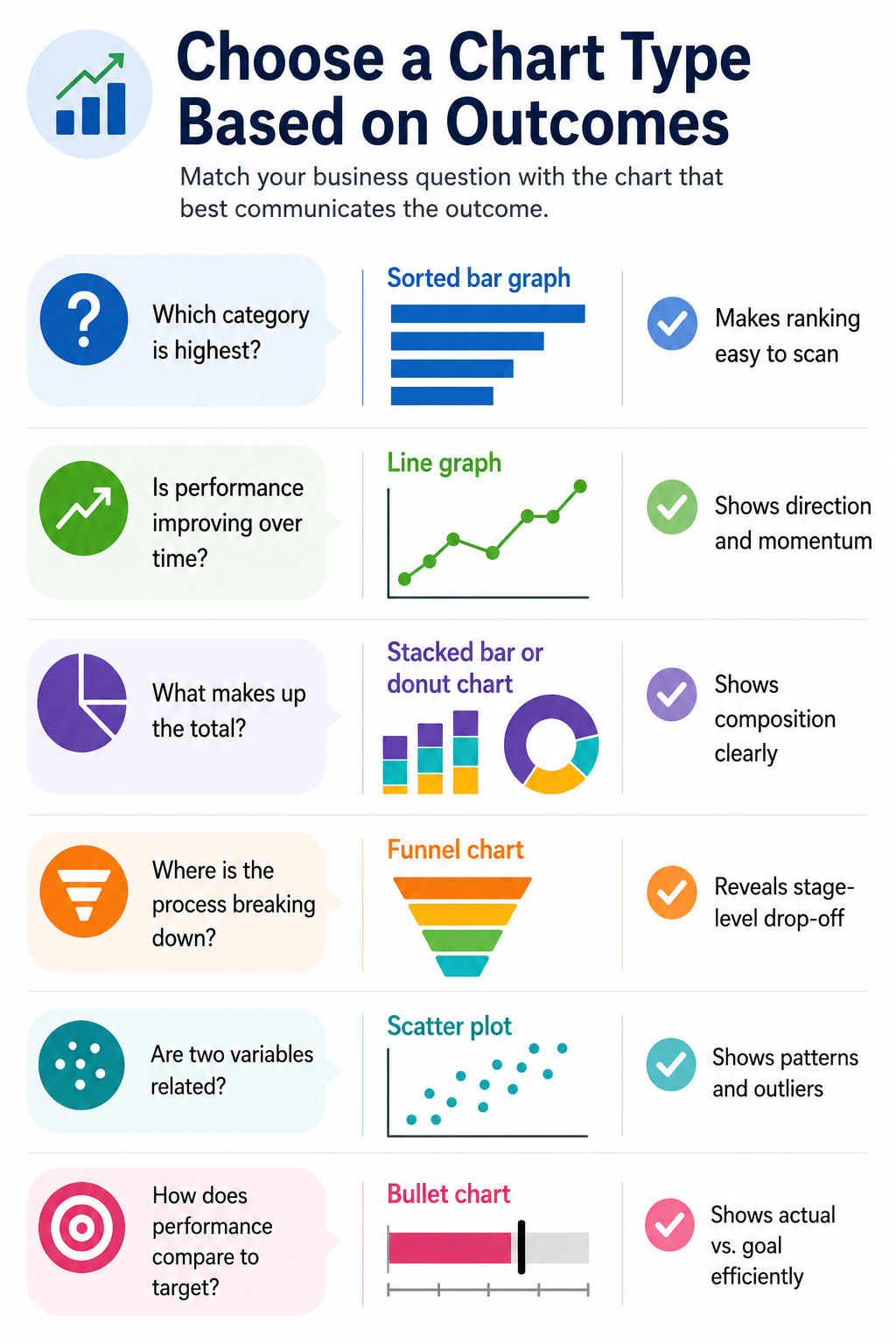
Quick Chart Picker for Common Business Scenarios
A quick chart chooser starts with the business question and works backward to the right graph type.
How to Turn Graphs Into Better Presentation Slides
Graph-heavy decks work best as guided business arguments, with each slide proving one decision point. A simple five-step workflow gets you there.
- Write the slide headline first. State the takeaway the audience needs to retain, such as “Trial conversion drops sharply after the setup step.” Starting from a clear presentation outline makes this step easier.
- Choose the graph that proves it. A trend graph shows change, a comparison graph shows a leader, and a ranking view shows concentration.
- Remove anything that does not support the point. Cut extra gridlines, unused colors, and secondary metrics outside the decision.
- Highlight the decision point. Use color or a callout to mark the quarter, segment, or stage that matters most.
- Match the visual to the deck system. Fonts, colors, and label style should match the rest of the deck. Browsing a library of presentation templates ahead of time helps set those rules.
Build Graph-Heavy Decks Faster With Presentations.AI
Choosing the right graph is only part of the work. Presentations.AI handles the rest by automatically turning raw data into a finished, branded chart. Input your data, and the AI presentation maker picks the best visual format and designs it for you, no spreadsheet expertise required.
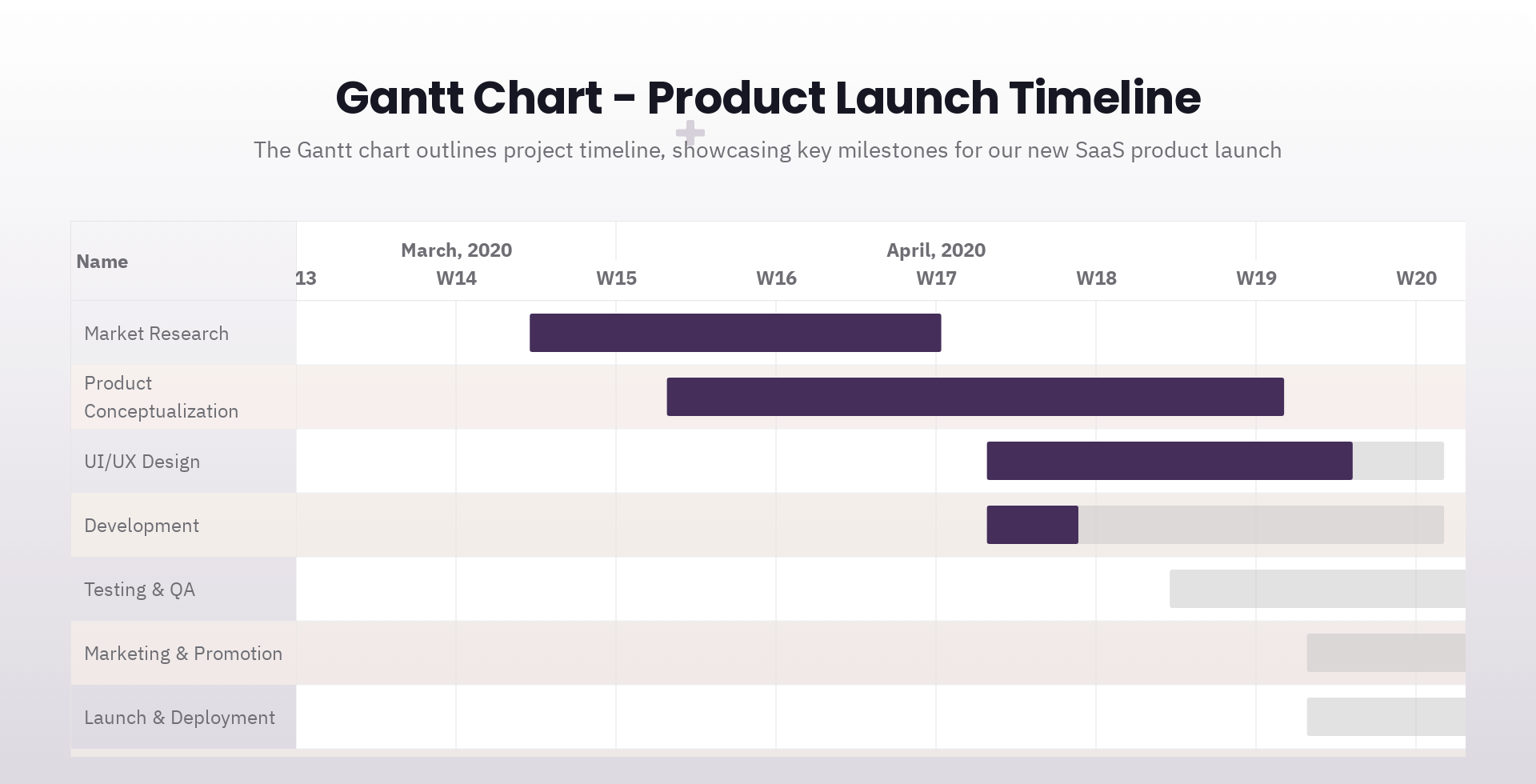
Start from a prompt, a URL, or an uploaded PDF or Word document. Presentations.AI structures the material into a presentation flow, and Clip-E, the conversational AI partner, helps you refine it from there.
- Brand Sync: Automatically pulls brand colors, fonts, and logo assets from your company URL.
- Clip-E: Edits and restructures slides conversationally instead of through manual rebuilding.
- Anti-fragile templates: Layouts adapt as content changes, keeping charts stable when data shifts.
- Clean .pptx export: Full fidelity when you need to keep editing in PowerPoint.
The result is less time formatting charts and more time sharpening the message behind them.
The graph type matters, but the deck around it needs to be just as clear and branded.
Use Presentations.AI to turn prompts, URLs, or uploaded documents into polished, on-brand presentations, with the right chart automatically picked and designed.




![Chronicle Pricing, Plans, Token Limits [2026]](https://cdn.prod.website-files.com/63ca9a06fdc83037fe5f6073/6a4de6cddcee8e4e86939b49_chronicle-pricing.webp)