TL;DR
- Canva is a broad-purpose design platform for social graphics, marketing materials, and general visual content. For simple presentations, it delivers fast results with minimal design effort.
- Magic Studio AI tools are useful for first-draft layouts and copy, though outputs consistently need editorial cleanup before reaching business audiences.
- Pricing runs from a generous Free plan to Pro (around $15/user/month).
- PowerPoint export is available on all paid plans, but users on G2 and Capterra consistently report formatting issues.
- Canva is a strong pick for versatile creative work across multiple content types. For business-critical presentations where PowerPoint handoff, automatic brand enforcement, and AI-driven content iteration matter, a dedicated tool like Presentations.AI is better suited.
Canva has become one of the most widely used design tools in the world. With over 230 million active users across 190 countries and adoption by 95% of Fortune 500 companies, the platform has clearly found a massive audience.
Founded in Australia in 2012, it has grown from a simple drag-and-drop editor into a full creative suite covering presentations, social graphics, videos, documents, websites, and more.
In 2026, the AI presentation space has expanded considerably. Canva is no longer the only accessible option, and teams making real business decisions have more specialized alternatives than ever.
Is Canva the right tool when presentations affect revenue, investment decisions, or executive alignment? General creative output is one thing. High-stakes slide decks are something else.
Three weeks of hands-on testing covered Canva's Free, Pro, and Teams plans across sales pitches, internal reports, investor presentations, and client proposals.
Here is an honest assessment of what Canva delivers in 2026 and where its limits show up for business presentation teams.
Our Review Methodology
The evaluation covered Canva's Free, Pro, and Teams plans over three weeks, with presentations created across a range of real business scenarios, including sales pitches, internal team updates, client proposals, and investor presentations. Testing was conducted internally; materials created were not shared externally.
Evaluation criteria included:
- AI generation speed and output quality for presentation workflows
- Brand Kit setup, enforcement, and team-level brand control
- PowerPoint and PDF export fidelity
- Collaboration features and access permission options
- Integration coverage with common business tools
- Magic Studio AI features across Magic Design, Magic Write, and Magic Media
User reviews from G2 and Capterra were cross-referenced against that hands-on experience. Pricing and feature availability were verified directly from Canva's website.
Canva: Quick Verdict
G2: 4.7/5 (7,500+ reviews) | Capterra: 4.7/5 (13,300+ reviews)
Starting price: Free (Pro from ~$15/user/month)
Free plan: Yes, genuinely useful with solid template access
Biggest limitation: PowerPoint export reliability, shallow presentation-specific AI, and manual brand enforcement
Our overall score for Canva: 7.5 out of 10
Based on testing, Canva performs best when visual speed and format versatility matter most. The platform's template library and drag-and-drop editor make it genuinely fast to produce polished content, and the collaboration layer is strong for marketing teams managing review cycles across multiple design formats.
That same breadth creates friction for presentation-specific work. Teams that need reliable PowerPoint handoff, structured AI narrative support, or automatic brand enforcement at scale will encounter the platform's limits sooner.
Canva Is Best For
- Non-designers who need to create social graphics, marketing materials, and lightweight presentations quickly
- Teams that produce a broad range of visual content formats from a single workspace
- Marketers managing high-volume creative output with limited design resources
- Educators and trainers building lesson visuals, handouts, and simple slide decks
- Small businesses and agencies that want a cost-effective, beginner-friendly design platform
- Teams that distribute presentations as Canva links or final PDFs rather than editable PowerPoint files
Canva Is Not Ideal For
- Sales teams producing proposal decks and client pitches that need a clean, editable PowerPoint handoff
- Organizations requiring automatic brand enforcement across all team-created presentations
- Founders building investor decks where the output needs to be business-ready with minimal cleanup
- Teams that rely on AI to iterate on presentation structure, argument, and narrative flow
- Enterprise teams with strict brand governance requirements on every deck created
- Anyone whose primary output is a business-critical slide deck, not a broad mix of design assets
What Is Canva?
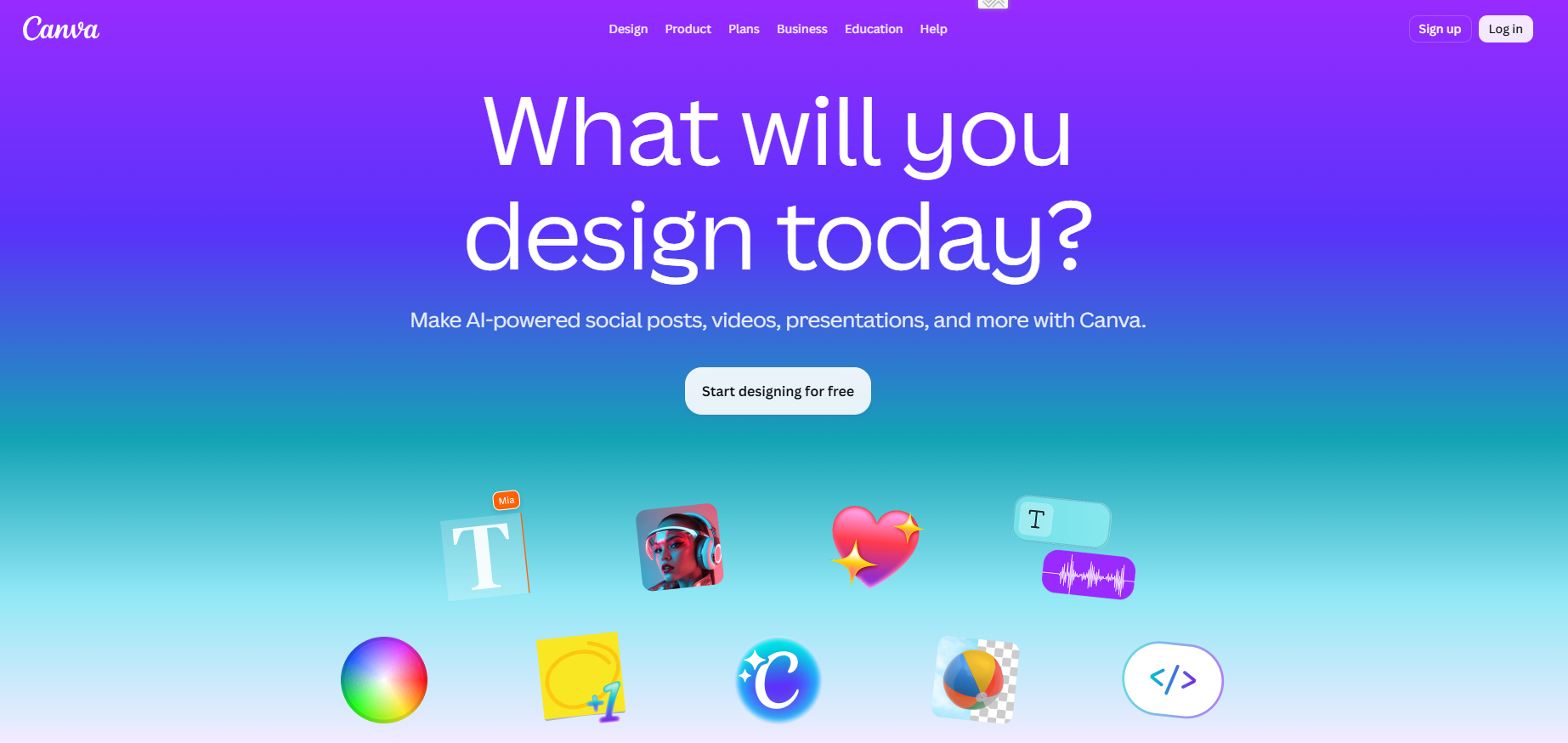
Canva is a cloud-based visual design platform. The platform covers a wide range of content types: presentations, social media graphics, short videos, documents, websites, posters, whiteboards, and print materials.
This breadth is its defining feature. A marketing team can create an Instagram post, a business proposal, and a promotional video all within the same workspace using a shared template library and centralized brand assets.
Specifically for presentations, Canva offers a large template library, AI-assisted content creation through Magic Studio, real-time collaboration, and export to PDF, image, and PowerPoint formats.
The platform is fast and accessible, which explains its adoption scale. Where the limits become visible is in presentation-specific workflows: high-fidelity PowerPoint export, automatic brand enforcement, and AI-driven narrative iteration are areas where purpose-built tools like Presentations.AI's AI presentation maker pull ahead.
Key Features of Canva
Canva's feature set spans design tools, AI capabilities, collaboration, brand management, and integrations. For presentation work specifically, the features below have the most direct impact on whether a deck gets done quickly and in the right shape.
Template Library and Design Tools
Canva's template library has millions of designs, covering virtually every content format. For presentations alone, there are thousands of pre-built slide decks organized by use case: pitch decks, team updates, educational presentations, marketing proposals, and more. The editing experience is drag-and-drop and accessible to anyone regardless of design background.
The speed advantage is real. Most users can open a template, replace the content, and export a presentable result within a single work session. This is exactly the value proposition Canva has built its reputation on, and it delivers consistently for straightforward tasks.
The trade-off for business presentations is differentiation. Popular templates are widely used, which means a client pitch or investor deck can end up looking recognizably similar to competitors' materials. For presentations where the visual impression is part of the message, starting with a heavily used Canva template can undercut the deck's distinctiveness.
Brand Kit
Canva's Brand Kit lets teams store logos, fonts, and color palettes centrally. Once configured, these assets are accessible to all team members when creating new designs. Teams and Enterprise plans extend this with shared Brand Kits, template locking, approval workflows, and role-based permissions.
Setup is manual. Teams upload logos, add hex codes for brand colors, and select fonts for each text level. This works well when the team is small and disciplined about using it. The limitation shows up at scale: team members can still start from generic templates, copy older decks, or simply skip the Brand Kit step. There is no automatic enforcement to ensure every new presentation is on-brand from the first slide.
Presentations.AI takes a different approach with Brand Sync, which extracts colors, fonts, and logo details directly from a company URL and applies them automatically to every new deck, without requiring any manual setup or team discipline to maintain consistency. For teams creating presentations at volume, this architectural difference becomes significant over time.
Magic Studio AI Features
Canva's AI tools sit under the Magic Studio umbrella. The most relevant features for presentation work are Magic Design, which generates a layout from a prompt or content input, and Magic Write, which drafts slide text from a short description.
Magic Design works reasonably well as a first-layout generator. Enter a topic, select a style, and Canva quickly returns a populated slide deck. The output is visually organized and ready to customize, though content quality varies considerably by topic. Business-specific language, persuasive narrative structure, and audience-specific framing need significant human review and rewriting before any deck is ready for a client or executive.
Magic Write handles text generation for individual content blocks. It drafts basic copy and suggests rewrites, but it offers no conversational layer for working through a presentation's argument over multiple exchanges.
Post-draft refinement is manual throughout. For a deeper look at what AI-native presentation creation looks like, the Clip-E overview on Presentations.AI illustrates how a conversational AI partner changes the workflow, from layout generation to end-to-end content collaboration.
Collaboration
Canva's collaboration tools are among its strongest features. Multiple team members can edit a design simultaneously, leave comments directly on elements, and access shared designs through permission-controlled links.
For marketing teams that regularly review and revise creative assets, the collaboration experience works well. The co-editing layer is smooth, comment threads are straightforward, and version history on paid plans provides a useful safety net before sharing externally.
For presentation governance, the experience is less comprehensive. Teams and Enterprise plans add approval workflows and template controls, but the base collaboration layer does not enforce presentation standards across team-created decks. Keeping every deck on brand still requires team discipline or active oversight.
Export and Sharing
Canva export options cover PDF, image formats, video, and PowerPoint (.pptx). PDF export is generally clean and reliable for presentations shared as final documents. Presenting live from the Canva interface is also smooth, with the web-based viewer delivering the presentation as intended.
PowerPoint export is where friction appears. Across G2 and Capterra reviews, the most commonly raised complaint about Canva's presentation workflow is .pptx export quality. Fonts are substituted during conversion, grouped elements can be separated into individual shapes, and animations or transitions often disappear.
A simple internal update might absorb the cleanup time. Still, investor decks, client proposals, and sales materials, where the final file goes to stakeholders in editable format, can require meaningful post-export formatting work.
Teams that present from Canva or share final PDFs avoid this problem entirely. Teams that need to deliver editable PowerPoint files should run a test export after completing the first few slides, well before the full deck is finished.
Integrations
Canva connects with 34 native integrations, including Google Drive, Dropbox, Slack, Asana, ChatGPT, and Brandfolder. This is considerably broader than most presentation-native tools and reflects Canva's positioning as a multi-purpose platform embedded in existing team workflows.
For teams already using Google Workspace or Slack, the integrations cover day-to-day content production well. Importing assets, sharing finished designs, and working across tools all happen with less friction than with narrower platforms. The integration depth is one area where Canva holds a clear advantage over more specialized alternatives.
How to Create a Presentation in Canva
The creation workflow in Canva is straightforward enough that most new users can build a first deck within minutes of signing up. The steps below reflect what the process looks like in practice.
- Step 1: Start from a Template or Prompt
- Step 2: Customize Content and Design
- Step 3: Share and Gather Feedback
- Step 4: Present, Share, or Export
If you’d like a more detailed step-by-step blog post, head to our page on creating a presentation in Canva.
AI Capabilities: What Canva Can and Cannot Do
Magic Studio covers a range of AI-assisted tasks, from layout generation and text drafting to image creation and design suggestions. For presentation work specifically, the capabilities are useful at the first-draft stage and less effective for the refinement that most business decks require.
What Canva's AI Does Well
Magic Design generates a presentable first layout quickly from a topic or brief. For teams starting from scratch with no template preference, this eliminates the blank-canvas problem and produces a visually organized result in seconds. Magic Write handles individual copy blocks reasonably well, and Magic Media adds value for visual creation tasks like background images and supporting graphics.
For non-presentation design work, the AI tools deliver solid results. Social content, marketing graphics, and lightweight creative assets all benefit from the speed and accessibility of the Magic Studio suite. This is where Canva's AI is most consistently effective.
Where Canva's AI Reaches Its Limits
The gap becomes apparent when presentation work goes beyond the initial layout. Magic Design produces a visual structure; the user constructs the argument from scratch. For a deck where the slides need to tell a coherent story, drive a decision, or persuade a specific audience, the AI does not help with the structural thinking. That work remains entirely manual.
Post-draft iteration is the most significant limitation. There is no conversational layer that allows a user to say "restructure the problem section to be more concise" or "add a slide that addresses the main objection" and receive a revised section back. Every change after the initial draft is made through manual editing in the Canva editor, just as it would be in any drag-and-drop design tool.
For teams that want AI to work through a presentation with them rather than just generate a starting point, the workflow difference is meaningful. Purpose-built tools approach this problem with a conversational AI at the center of the process rather than as a pre-draft feature.
Where Canva Falls Short for Business Presentations
Canva's limitations for business presentation work are not hidden. They come up consistently in user reviews and become apparent during hands-on testing with professional use cases. Three areas stand out most clearly.
PowerPoint Export Quality
The most frequently raised issue in user reviews is .pptx export fidelity. Across G2 and Capterra, users report that exports do not always carry over correctly, elements shift position during conversion, and grouped graphics can separate into individual shapes that require manual realignment. Animations and transitions may disappear entirely depending on the slide's complexity.
For teams that present from Canva or distribute final PDFs, this is not a daily problem. For teams where the deliverable is an editable PowerPoint file, whether for client delivery, stakeholder review, or internal editing in Microsoft 365, export reliability is a meaningful limitation that affects real workflow decisions.
No presentation-native AI
Canva's AI tools are built around visual generation and editing of individual content blocks. They are not built around business presentation logic. There is no mechanism to help structure a narrative arc, identify where an argument loses momentum, or rebuild a section from a brief. The AI generates and edits visual assets; the user provides all the strategic and storytelling direction.
This is a design-first architecture that serves design-first tasks well. For presentations where the story is as important as the visual layout, the AI offers limited help beyond the first draft.
Brand Governance at Scale
Brand Kit is a practical feature for teams that configure it carefully and use it consistently. The limitation shows up at scale. There is no automatic enforcement of brand elements on every new deck without user action. Team members can still bypass the Brand Kit step, start from outdated templates, or copy decks that predate the current brand configuration.
Template locking on Teams and Enterprise plans helps constrain some choices, but off-brand content remains possible when users work around approved templates. For organizations where brand consistency across every client-facing deck is a non-negotiable requirement, the manual-enforcement model introduces variability that is difficult to eliminate at volume.
What Real Users Say About Canva
Shivam G., a Software Developer at a mid-market IT and services company, reviewed Canva on G2 and described what he values most as its ability to let users "create professional-quality visuals quickly and efficiently" across a wide range of formats, listing presentations, social media posts, infographics, videos, and marketing materials as formats he builds in the same workspace. He specifically points to the collaboration layer as a strength for teams working on marketing campaigns, training materials, and internal communications.
Marc R., a Digital Media Specialist at a large education organization, echoed that productivity angle on Capterra, noting that Canva's template library and built-in assets "allow for quick turnaround on projects," which he finds especially useful in fast-paced communications work.
The critical reviews point to a consistent set of issues. Matthew F.C., President of an IT and services company, flagged on Capterra that "the template-heavy approach is great for speed but can lead to designs that feel similar or less unique unless you put in extra effort to customize them." He also notes that performance slows on larger designs and that file organization can become unwieldy at volume.
Kaitlyn, an Executive Director, flagged a more specific technical gap, noting occasional formatting issues may occur when resizing or layering elements.
For business presentation teams, the pattern is consistent across both platforms. Canva is fast, and the output looks polished for standard use cases. The friction appears where general-purpose design meets professional presentation requirements around export quality, AI depth, and design distinctiveness.
Canva Pricing: All Plans Explained
Canva pricing varies by region and billing term. The structure below reflects typical pricing in most major markets.
Canva Pros and Cons
Based on three weeks of hands-on testing and cross-referencing user reviews from G2 and Capterra, here is a balanced view of where Canva delivers and where it falls short.
Pros
- Beginner-friendly from day one, with a minimal learning curve that lets non-designers produce professional-looking content quickly.
- Massive template library covering presentations, social graphics, video, documents, websites, and print materials across every content format.
- Generous free plan with enough core functionality to test the platform seriously before upgrading.
- Strong real-time collaboration, including co-editing, comment threads, and shared team asset folders.
- 34+ native integrations, including Google Drive, Slack, Dropbox, Asana, and ChatGPT, are broader than most presentation-specific alternatives.
- Magic Studio AI tools add genuine value for first-draft layout generation, basic copy drafting, and visual creation tasks.
Cons
- PowerPoint export is unreliable for complex layouts; fonts shift, elements misalign, and animations can disappear during .pptx conversion.
- AI-generated content is shallow for business presentations; Magic Design and Magic Write outputs typically require significant rewriting before reaching external audiences.
- Brand governance depends on team discipline; the Brand Kit is manual to configure and easy to bypass, leading to brand variation at scale.
- Popular templates create a differentiation risk: pitch decks and investor materials built from widely used Canva designs can look generic.
- Post-draft AI iteration is absent; restructuring slides, sharpening arguments, and refining narrative all require manual editing.
- Costs rise meaningfully for teams, with per-seat pricing on the Teams plan and annual billing requirements that push the real spend above headline prices.
Pro Tips for Canva Users
If you are using Canva for business presentations, these habits will help you achieve better results and avoid common frustrations.
- Test your PowerPoint export on the first two slides. If your deliverable is an editable .pptx file, run a test export immediately after setting up the initial slides. Font substitution and alignment issues are much easier to fix before the full deck is built than after.
- Configure Brand Kit before creating any decks. Setting up colors, fonts, and logos upfront means all team members start from a consistent foundation. Without this, design choices diverge across team-created presentations, and standardizing output after the fact takes time.
- Treat Magic Design output as a skeleton, not a finished deck. The AI generates a visually organized layout, but the quality of business-specific content is variable. Plan to rewrite slide text, restructure the argument, and replace placeholder visuals with images relevant to your specific audience.
- Start from the closest-fit template rather than a blank canvas. The template system is where Canva's speed advantage lives. Choosing a near-match and editing from there is consistently faster than building from scratch, even when significant customization is needed.
- Share as a PDF or Canva link when the deck is final. Canva's web-based presentation experience and PDF export are more reliable than PowerPoint export. Where your workflow allows it, these formats avoid the .pptx formatting cleanup entirely.
Suggested read: For a detailed breakdown of how the two tools compare across every major category, see the Canva vs Presentations.AI comparison page.
Canva vs Presentations.AI: Which Tool Wins in 2026?
Canva and Presentations.AI take different approaches to the presentation problem. Canva is a general design platform where presentations are one of many content types. Presentations.AI is built specifically for business slide decks, with AI driving the process from raw input to finished output.
Best Alternatives to Canva for Business Presentations
If Canva's presentation-specific limitations are a deciding factor, the tools below take different approaches to the same problem. Each trades off something Canva offers for something Canva does not.
Should You Choose Canva for Your Business Presentations?
Teams building investor decks, sales pitches, board materials, or client proposals face Canva’s limitations most directly: Unreliable PowerPoint export, manual brand governance, and the absence of AI-driven narrative iteration. These may be manageable for occasional use, but become more significant as the stakes and volume of presentation work increase.
Pick Canva If
- Your team creates a wide range of visual content and wants one platform for presentations, social graphics, marketing assets, and more.
- You primarily share finished decks as Canva links or PDFs rather than editable PowerPoint files that will be modified after delivery.
- Your brand requirements are straightforward, and your team is small enough to apply Brand Kit settings consistently without automated enforcement.
- A generous free plan that lets you test the platform before committing to annual spend is important to your evaluation process.
- Ease of use, breadth of integration, and variety of templates matter more to your workflow than presentation-specific AI capabilities.
Pick Presentations.AI If
- Presentations are a core part of your business workflow and need to be on-brand, structured, and business-ready, with minimal manual cleanup after generation.
- You want AI that works with you throughout the creation and refinement process, not just at the initial layout stage.
- PowerPoint export reliability matters because you are handing off editable files to clients, stakeholders, executives, or sales reps.
- You want brand enforcement to happen automatically via the company URL, without relying on team members to apply Brand Kit settings each time.
- Enterprise security requirements apply: Presentations.AI is SOC 2 Type II certified on Pro plans and above, which most enterprise IT reviews require.
Pick Something Else If
- You need maximum design freedom and pixel-level control across complex layouts (consider PowerPoint or Figma)
- Your team is fully embedded in Google Workspace, and real-time collaboration is the primary requirement (Google Slides)
- You want web-native presentation sharing and fast AI draft generation without needing to export PowerPoint files at all (Gamma)
For teams where the deck is the deliverable, a presentation-native platform is worth evaluating against Canva. Explore Presentations.AI's AI presentation maker to see how the workflow differs from a general design tool approach.