TL;DR
- Magic Design generates a full slide deck from a text prompt in a few minutes, but the output needs editing before you present it to anyone.
- Free users get 200 AI credits across all Magic Studio tools. Once those run out, you need Canva Pro ($15/month or $120/year) to continue. Pro users get 20x more than the Free plan.
- PowerPoint export is Pro-only, and layouts often shift when you open the file in PowerPoint, which means more cleanup work.
If you want a full deck generated from a single prompt with minimal back-and-forth, Presentations.AI is built specifically for that workflow.
Step-by-Step: How to Build a Presentation Using Canva AI
If you've been using Canva for design work, the AI features feel like a natural upgrade. You already know the editor, you've got templates you like, and now Canva is telling you it can generate entire presentations from a text prompt. That's a reasonable thing to want to try.
This guide walks through exactly how to do it. We'll cover Magic Design, Magic Write for text, the image tools, and how to apply your brand once the deck is generated. We'll also be honest about the parts that require more manual effort than the tutorial videos tend to show. By the end, you'll know how to get the most out of Canva's AI presentation features, and you'll have a clear sense of when a dedicated AI presentation tool makes more sense for the work you're doing.
Step 1: Log In and Start a New Presentation
Open Canva and sign in, or create a free account if you don't have one. From the homepage, click Create a design and search for Presentation in the format options. Select Presentation (16:9), which is the standard widescreen format used for most slide decks.
You'll land in Canva's editor with a blank canvas. From here, you have two ways to involve AI: you can browse templates and layer in AI tools as you go, or you can skip straight to Magic Design and let the AI build your starting structure. This guide focuses on the AI-first approach.

Opening a new presentation on Canva
Step 2: Use Magic Design to Generate Your Deck
Magic Design is Canva's main tool for generating presentations from a text prompt. You'll find it in the toolbar on the left side of the editor, or by going to Apps and selecting Magic Studio.
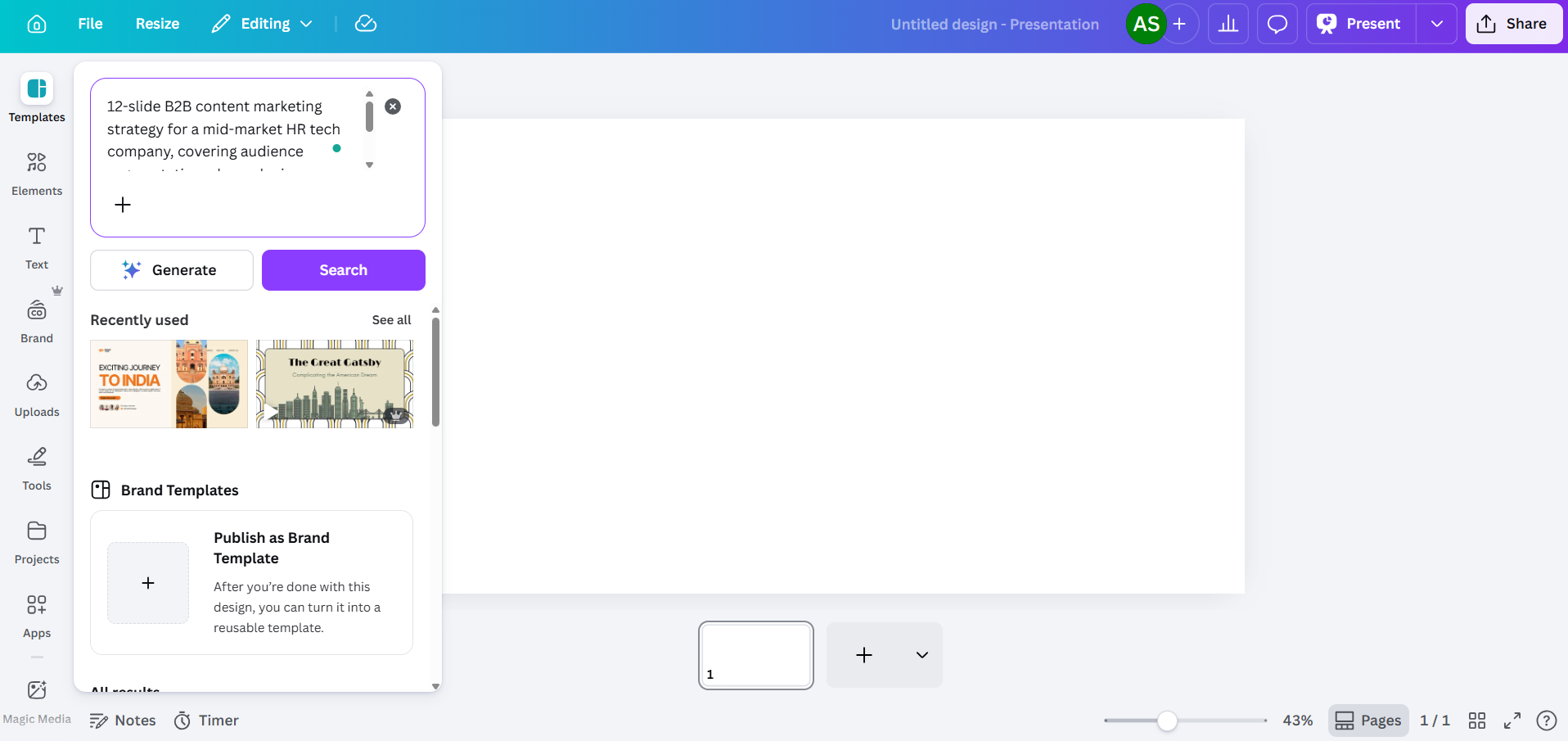
When the Magic Design panel opens, you'll see a text field. Type a description of the presentation you need. If you'd rather speak than type, Canva also accepts voice prompts here, so you can dictate your brief and let the tool transcribe and act on it. The more specific you are, the more useful the output will be.
Prompt quality matters here
Weaker: "Marketing strategy presentation."
Better: "12-slide B2B content marketing strategy for a mid-market HR tech company, covering audience segmentation, channel mix, content calendar, and KPIs for H2 2026"
Front-load the context the AI needs: industry, audience, slide count, and the specific topics you want covered. This gives the tool less room to default to generic filler. After you enter your prompt, Canva generates several layout options, each pulled from a different template family. You'll typically see between three and eight variations. Pick the one that's closest to what you need, knowing that you'll be editing it either way.

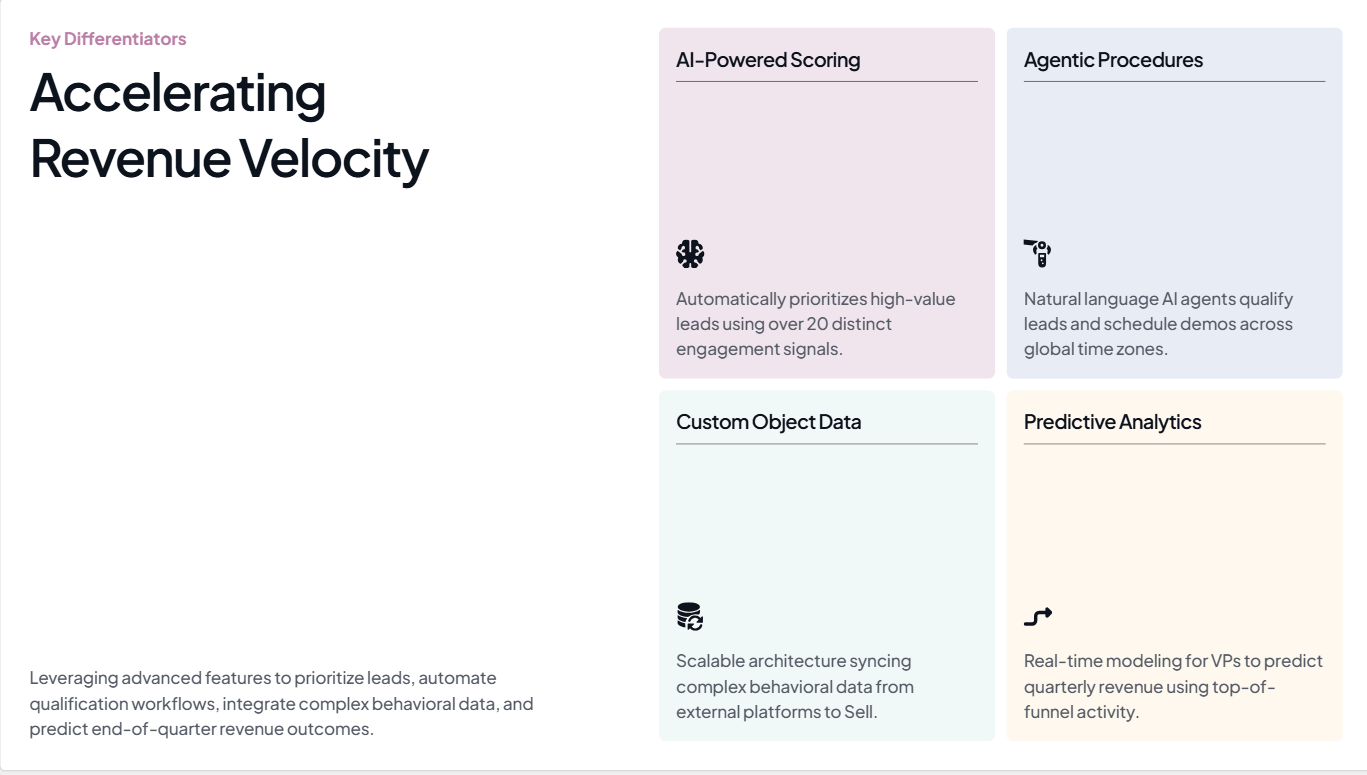
A slide from Canva AI’s presentation from the prompt above. Source
One thing to know about the free tier: Magic Design uses your shared AI credit pool. Canva Free accounts get 200 total credits across all Magic Studio tools. That covers a limited number of full deck generations before you hit the limit. Pro accounts get 20x the credits of the Free plan, with Dream Lab (AI image generation) running on a separate counter, limited to 500 generations per month.
Step 3: Edit the AI-Generated Content
This is the part that takes the most time. Canva AI will give you a structured deck with slides that are directionally relevant to your prompt, but the actual content reads generically. Headlines are broad, body copy could apply to any company, and data slides show placeholder charts rather than your real numbers.
Plan to rewrite:
- Headlines that are too vague ("Driving Growth Through Innovation" instead of something with an actual number or outcome)
- Body text that reads like a placeholder rather than an actual insight
- Data slides where the charts are decorative rather than populated with real figures
- Conclusion slides that default to generic calls to action

In this AI-generated presentation, the copy is AI-typical, and the images overlap. These need to be manually adjusted.
Click any text block to edit it directly. You can also use Magic Write to regenerate specific text blocks on any plan, within your credit allowance. Highlight a block, right-click, and look for the Magic Write option. It works, but the output still tends toward general language rather than specific business content, so treat it as a starting point rather than a finished product.
Step 5: Use Magic Write for Text Generation on Individual Slides
Magic Write is Canva's AI text tool, and it's worth understanding separately from Magic Design. While Magic Design builds the whole deck, Magic Write works at the level of individual text blocks. You can use it to draft slide copy, rewrite a section in a different tone, or expand a bullet point into a paragraph.
To use it, select a text element on your slide, then look for the Magic Write option in the toolbar or right-click menu. You can give it a prompt specific to that slide, which helps avoid the generic output that comes from whole-deck generation.

Same slide as above, cleared up manually, and text changed using Magic Write.
The limitation here is the same as with Magic Design: Magic Write is better at producing plausible-sounding text than at producing specific, accurate content. If your slide needs to reference your company's actual metrics, customer names, or product specifics, you'll need to add that detail yourself.
Step 6: Add Visuals Using Canva's Image Tools
This is genuinely one of Canva's strongest areas. The Elements panel gives you access to millions of stock photos, illustrations, icons, and video clips. Use the search bar to find assets that match your content, then drag them onto your slides.
For AI-generated images, go to Apps and look for Magic Media. You can enter a text prompt to generate an image, which is useful when you need something specific that stock photography won't cover. Free accounts draw from their shared 200-credit pool, and Pro accounts get 500 Dream Lab image generations per month, tracked separately.

Canva’s elements section
Beyond generating images, Canva's AI editing tools give you useful control over the visuals you're working with on slides:
- Magic Expand lets you extend a photo beyond its original frame, which is helpful when an image doesn't quite fit your slide dimensions.
- Background Remover (Pro only) cleanly strips the background from a photo in one click, useful for product shots, headshots, or any image you want to place over a slide background.
- Magic Erase lets you click a specific element in a photo and remove it, while the AI fills the area behind it. Useful when a stock image is close to what you need but has a distracting object you want gone.
- Magic Grab lets you select and reposition the subject of a photo as a separate element, with the AI recreating the background behind it.
- Magic Edit takes a natural language description and applies it to an element in your image. For example, you can select a jacket in a photo, type "make it navy blue," and the AI applies the change. Helpful when you need a visual to match a color scheme without reshooting or finding a new asset.
- AI Adjustments let you independently modify the subject, foreground, or background of an image without affecting the other layers. You can brighten a background while keeping the subject contrast intact, or blur a foreground element while keeping the subject sharp.
- Grab Text identifies text embedded in an image and makes it editable, which can be handy if you're working with screenshots or imported graphics that contain text you need to change.
For charts and data visualization, go to Apps and select Charts. You can insert basic chart types (bar, line, pie, donut) and manually enter your data. There's no live connection to spreadsheets or external data sources, so every number has to be typed in by hand.
Step 7: Apply Your Brand Kit
If your presentation needs to match a specific brand, Canva's Brand Kit is where you store your colors, fonts, and logo. The level of access depends on your plan:
- Free: 1 Brand Kit with up to 3 colors
- Pro ($15/month): 5 Brand Kits
- Business: 100 Brand Kits
- Enterprise: 1,000 Brand Kits with tiered approvals and multi-team management
To apply a Brand Kit in the editor, click Styles in the toolbar and select your brand. Canva will attempt to recolor elements and swap fonts, but this is where you'll hit the gap between what the feature promises and what it actually delivers:
Logos don't auto-position across slides. You'll drag and resize the logo on each slide individually.
Color application is broad rather than intelligent. The AI might apply your primary brand color to a background where it clashes with text readability.
Font pairing rules aren't respected. The AI doesn't distinguish between your heading and body fonts, as your brand guidelines probably specify.
Budget an extra 10-15 minutes for brand cleanup on a 10-slide deck. On a 20-slide deck, roughly double that.
Step 8: Present Directly From Canva or Export to PowerPoint
Once your deck is ready, you have a few options for delivery:
- Present from Canva: Click Present for a full-screen slideshow. This is Canva's best delivery mode. Animations, transitions, and embedded media all work as intended. The requirement is a browser and an internet connection.
- Share a link: Generate a view-only or editable link. Canva offers basic view tracking, but analytics are limited.
- Export to PowerPoint: Go to Share, then Download, then Microsoft PowerPoint (.pptx). This option is only available on Pro ($15/month) and above. Open the exported file in PowerPoint and check every slide. Layout shifts are common, text boxes move, grouped elements ungroup, and any animations you added are stripped out entirely.
If your team or your client requires PowerPoint delivery, test the export early in your workflow rather than discovering layout problems 30 minutes before a meeting.
Where Canva AI Falls Short for Presentations
The steps above work. Canva AI will get you a deck. The question is whether the total effort involved matches your expectations from an "AI-powered" tool. Here's what most tutorials don't talk about:
The Output Reads Generic
Magic Design draws from Canva's massive template library to match your prompt, and that same library is the source of its main weakness. The AI produces content that's broad enough to apply to almost any company in any industry.
Prompt Control Is Limited
You can adjust the initial prompt and regenerate, but Canva's AI doesn't offer much control over structure, tone, or content hierarchy beyond the basic prompt. You can't tell it to weight certain slides more heavily, use a particular narrative structure, or pull from a specific source document.
Brand Application Isn't Fully Automated
Brand Kit access varies by plan: free users get one kit limited to 3 colors; Pro ($15/month) gives you 5 kits; Business unlocks 100; and Enterprise goes up to 1,000 kits with tiered approvals.
PowerPoint导出需要二次编辑
在Canva编辑器中,.pptx导出文件看起来很整洁。但在Microsoft PowerPoint中打开时,你经常会发现,文本框移位、间距不正确、分组元素散开,动画也消失了。对于经常使用PowerPoint进行演示的团队来说,这意味着每个AI生成的演示文稿都需要至少两次编辑:一次在Canva中,一次在PowerPoint中。
免费套餐很快就会用完
Canva的免费套餐包含200个AI积分,可在所有Magic Studio工具中共享。这些是终身积分,而非每月刷新。使用Magic Design生成一份完整的演示文稿会消耗相当一部分积分。一旦用完,你需要购买Pro版(每月15美元)才能继续使用AI功能。这是一个评估工具的合理期限,但并非营销有时暗示的无限免费使用。
Canva AI与专用AI演示工具的对比
Canva最初是一个设计平台,演示文稿AI只是其众多功能之一。这种架构决策体现在整个工作流程中:每个AI工具都是一个独立的操作,品牌应用需要手动完成,并且导出到PowerPoint会产生返工。
像 Presentations.AI 这样的工具则采取了不同的方法。它从零开始,围绕着“通过一个提示生成可用于商业的演示文稿”这一问题而构建,将品牌同步、多格式输入和干净的PowerPoint导出作为核心功能,而非附加组件。以下是两者在演示文稿工作流程中最重要方面的对比。如需更深入了解,请查看 我们的对比页面。
Presentations.AI有何不同
Canva和Presentations.AI在演示文稿处理方法上的核心区别在于架构。Canva是在一个设计工具中加入了AI功能。 Presentations.AI 则是围绕着“通过单一输入生成可用于演示的文稿,并尽可能减少后续手动修正”这一问题构建了整个产品。
一个提示,完整文稿
输入一个提示,Presentations.AI会在30秒内生成一份结构清晰、内容具体的演示文稿。这并不是一个需要你花30分钟重新构建的起点,而是一份组织良好、视觉一致、可以直接进行特定审查的草稿。
从您的URL同步品牌
Presentations.AI 的品牌同步功能无需上传徽标和手动设置十六进制颜色代码,而是直接从您的公司网址获取您的品牌颜色、字体和徽标。它会自动将它们应用到每一张幻灯片,无需像 Canva 那样逐张幻灯片进行调整。
多格式输入
商业演示文稿很少从零开始。它们通常基于策略文档、研究 PDF、竞品分析,或者需要转化为要点的 URL。Presentations.AI 接受所有这些作为输入,从您的实际源材料生成结构化的演示文稿,而不是要求您先将其总结成提示词。如果您已经有大纲,只需将其粘贴进去,即可 将其转化为演示文稿。
干净的 PowerPoint 导出
您在 Presentations.AI 编辑器中创建的内容,在 PowerPoint 中也能完美打开。布局保持不变,字体不会回退到系统默认设置,间距也保持您设定的位置。对于需要在 PowerPoint 中进行演示并需要即时发送文件的团队来说,这完全消除了导出和清理的繁琐过程。
借助 Clip-E 进行对话式优化
Clip-E 是 Presentations.AI 内置的 AI 助手,允许您在生成演示文稿后,用自然语言对其进行优化。例如,“缩短执行摘要”或“在第 4 和第 5 张幻灯片之间添加一张竞品分析幻灯片”。AI 会直接应用这些更改。您是在发出指令,而不是拖拽和点击。

使用 Presentations.AI 生成的幻灯片
Canva AI 何时适用于演示文稿,何时不适用
当演示文稿是次要产出且设计灵活性是首要考虑时,Canva AI 就能发挥作用。但当演示文稿是实际交付物,面对真实的受众、真实的利害关系和真实的截止日期时,该工具的通用性本质就会开始成为您的阻碍。
在以下情况下,Canva AI 是一个合理的选择:
- 您正在制作内部的、风险较低的幻灯片,其中视觉美观比内容精确度更重要,例如团队更新或入职概览。
- 您计划直接从 Canva 的原生查看器进行演示,因此导出问题与您的工作流程无关。
- 您已经使用 Canva 进行设计工作,并希望使用一个一致的工具,而不是一个新的平台。
- 视觉叙事是首要任务,并且您希望在 AI 功能之外,还能访问庞大的素材库。
在以下情况下,Canva AI 会成为瓶颈:
- 您正在制作具有实际业务影响的演示文稿,例如投资者路演、董事会更新、客户提案或季度审查,在这些情况下,通用的 AI 输出会带来更多的编辑工作,而非节省时间。
- 您的组织、客户或活动要求交付 .pptx 文件。导出问题意味着您实际上是在重复制作演示文稿。
- 您管理多个品牌。每次为每个客户的演示文稿重复手动品牌套件流程,会迅速耗费大量时间。
- 速度是一个真正的限制。两分钟或更长的生成时间,再加上三十分钟的编辑时间,无法实现该工具所宣称的省时效果。