TL;DR
- Magic Design gera uma apresentação completa a partir de um comando de texto em poucos minutos, mas o resultado precisa de edição antes de ser apresentado a alguém.
- Usuários gratuitos recebem 200 créditos de IA em todas as ferramentas do Magic Studio. Assim que esses créditos acabarem, você precisará do Canva Pro (US$ 15/mês ou US$ 120/ano) para continuar. Usuários Pro recebem 20 vezes mais créditos do que o plano Gratuito.
- A exportação para PowerPoint é exclusiva para Pro, e os layouts frequentemente mudam quando você abre o arquivo no PowerPoint, o que significa mais trabalho de ajuste.
Se você quer uma apresentação completa gerada a partir de um único comando com o mínimo de idas e vindas, Presentations.AI foi desenvolvido especificamente para esse fluxo de trabalho.
Passo a Passo: Como Criar uma Apresentação Usando a IA do Canva
Se você já usa o Canva para trabalhos de design, os recursos de IA parecem uma atualização natural. Você já conhece o editor, tem modelos de que gosta, e agora o Canva está dizendo que pode gerar apresentações inteiras a partir de um comando de texto. Isso é algo razoável para querer experimentar.
Este guia explica exatamente como fazer isso. Abordaremos o Magic Design, o Magic Write para texto, as ferramentas de imagem e como aplicar sua marca depois que a apresentação for gerada. Também seremos honestos sobre as partes que exigem mais esforço manual do que os vídeos tutoriais costumam mostrar. Ao final, você saberá como aproveitar ao máximo os recursos de apresentação de IA do Canva e terá uma ideia clara de quando uma ferramenta de apresentação de IA dedicada faz mais sentido para o trabalho que você está fazendo. Se o que você procura é um único comando que produza uma apresentação quase pronta, um gerador de apresentações com IA específico vale a pena comparar com o Canva antes de se comprometer.
Passo 1: Fazer Login e Iniciar uma Nova Apresentação
Abra o Canva e faça login, ou crie uma conta gratuita se não tiver uma. Na página inicial, clique em Criar um design e procure por Apresentação nas opções de formato. Selecione Apresentação (16:9), que é o formato widescreen padrão usado para a maioria das apresentações.
Você chegará ao editor do Canva com uma tela em branco. A partir daqui, você tem duas maneiras de usar a IA: você pode navegar por modelos e adicionar ferramentas de IA à medida que avança, ou pode ir direto para o Magic Design e deixar a IA construir sua estrutura inicial. Este guia foca na abordagem com IA em primeiro lugar.
Passo 2: Use o Magic Design para Gerar Sua Apresentação
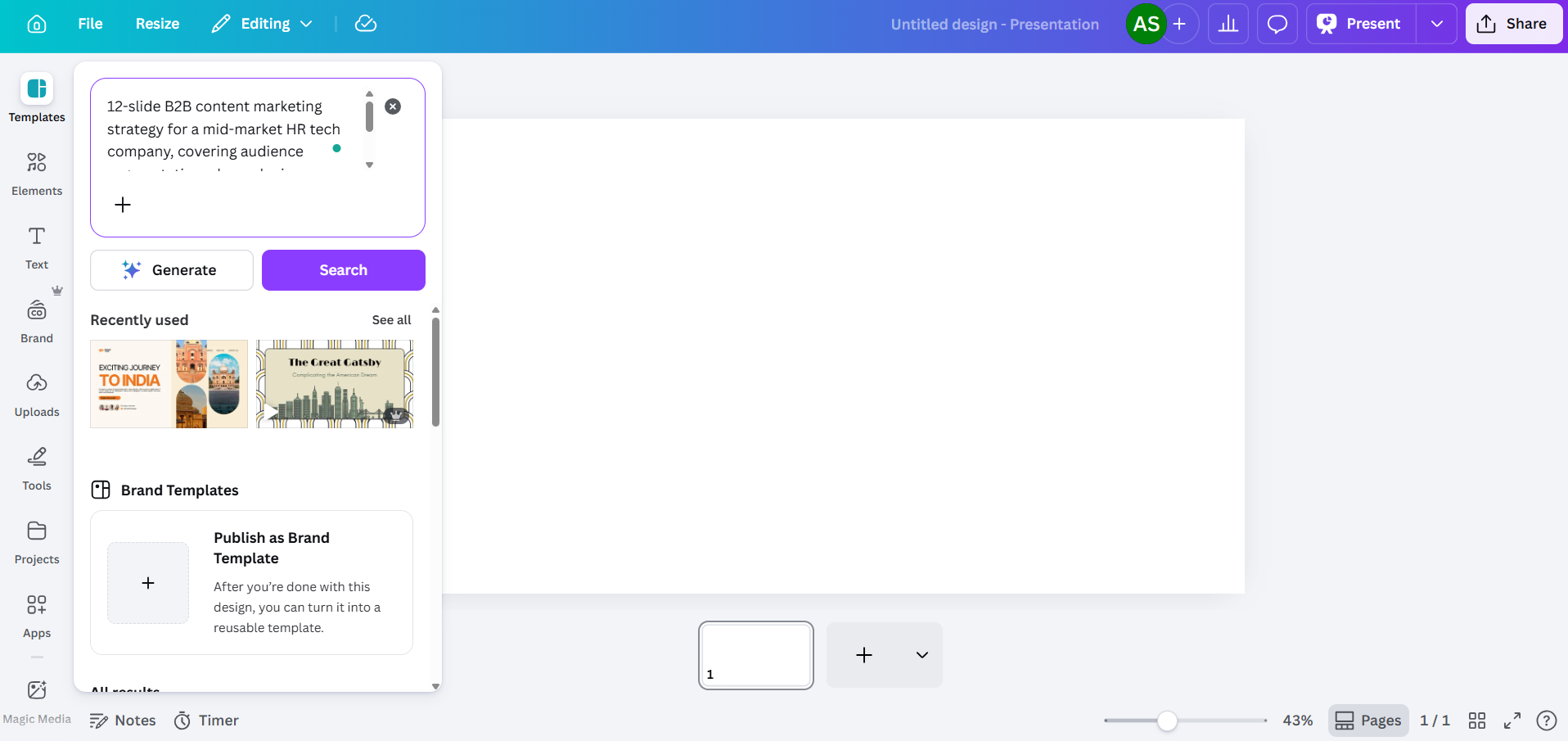
O Magic Design é a principal ferramenta do Canva para gerar apresentações a partir de um prompt de texto. Você o encontrará na barra de ferramentas no lado esquerdo do editor, ou indo em Aplicativos e selecionando Magic Studio.
Quando o painel do Magic Design abrir, você verá um campo de texto. Digite uma descrição da apresentação que você precisa. Se preferir falar em vez de digitar, o Canva também aceita prompts de voz aqui, para que você possa ditar seu resumo e deixar a ferramenta transcrever e agir sobre ele. Quanto mais específico você for, mais útil será o resultado.
A qualidade do prompt importa aqui
Fraco: "Apresentação de estratégia de marketing."
Melhor: "Estratégia de marketing de conteúdo B2B de 12 slides para uma empresa de tecnologia de RH de médio porte, abrangendo segmentação de público, mix de canais, calendário de conteúdo e KPIs para o segundo semestre de 2026"
Forneça antecipadamente o contexto que a IA precisa: indústria, público, número de slides e os tópicos específicos que você deseja abordar. Isso dá à ferramenta menos margem para recorrer a preenchimento genérico. Depois de inserir seu prompt, o Canva gera várias opções de layout, cada uma extraída de uma família de modelos diferente. Você geralmente verá entre três e oito variações. Escolha a que estiver mais próxima do que você precisa, sabendo que você a editará de qualquer forma.

Uma coisa a saber sobre o nível gratuito: O Magic Design usa seu pool compartilhado de créditos de IA. Contas gratuitas do Canva recebem 200 créditos totais em todas as ferramentas do Magic Studio. Isso cobre um número limitado de gerações de apresentações completas antes de você atingir o limite. Contas Pro recebem 20 vezes os créditos do plano Gratuito, com o Dream Lab (geração de imagens por IA) funcionando em um contador separado, limitado a 500 gerações por mês.
Passo 3: Edite o Conteúdo Gerado por IA
Esta é a parte que leva mais tempo. O Canva AI lhe dará uma apresentação estruturada com slides que são direcionalmente relevantes para o seu prompt, mas o conteúdo real soa genérico. Os títulos são amplos, o texto principal poderia se aplicar a qualquer empresa, e os slides de dados mostram gráficos de preenchimento em vez de seus números reais.
Planeje reescrever:
- Títulos muito vagos ("Impulsionando o Crescimento Através da Inovação" em vez de algo com um número ou resultado real)
- Texto principal que parece um preenchimento em vez de uma percepção real
- Slides de dados onde os gráficos são decorativos em vez de preenchidos com números reais
- Slides de conclusão que recorrem a chamadas para ação genéricas

Clique em qualquer bloco de texto para editá-lo diretamente. Você também pode usar o Magic Write para regenerar blocos de texto específicos em qualquer plano, dentro do seu limite de créditos. Destaque um bloco, clique com o botão direito e procure a opção Magic Write. Funciona, mas o resultado ainda tende a uma linguagem geral em vez de conteúdo de negócios específico, então trate-o como um ponto de partida e não como um produto final.
Passo 5: Use o Magic Write para Geração de Texto em Slides Individuais
O Magic Write é a ferramenta de texto com IA do Canva, e vale a pena entendê-la separadamente do Magic Design. Enquanto o Magic Design constrói a apresentação inteira, o Magic Write funciona no nível de blocos de texto individuais. Você pode usá-lo para rascunhar o texto de um slide, reescrever uma seção em um tom diferente ou expandir um item de lista em um parágrafo.
Para usá-lo, selecione um elemento de texto no seu slide e procure a opção Magic Write na barra de ferramentas ou no menu de clique com o botão direito. Você pode fornecer um prompt específico para aquele slide, o que ajuda a evitar a saída genérica que vem da geração de apresentações inteiras.

A limitação aqui é a mesma do Magic Design: o Magic Write é melhor em produzir texto que soa plausível do que em produzir conteúdo específico e preciso. Se o seu slide precisar fazer referência às métricas reais da sua empresa, nomes de clientes ou especificações de produtos, você precisará adicionar esses detalhes por conta própria.
Passo 6: Adicione Elementos Visuais Usando as Ferramentas de Imagem do Canva
Esta é genuinamente uma das áreas mais fortes do Canva. O painel Elementos dá acesso a milhões de fotos de banco de imagens, ilustrações, ícones e clipes de vídeo. Use a barra de pesquisa para encontrar recursos que correspondam ao seu conteúdo e arraste-os para os seus slides.
Para imagens geradas por IA, vá para Aplicativos e procure por Magic Media. Você pode inserir um prompt de texto para gerar uma imagem, o que é útil quando você precisa de algo específico que a fotografia de banco de imagens não cobrirá. Contas gratuitas usam seu pool compartilhado de 200 créditos, e contas Pro recebem 500 gerações de imagens do Dream Lab por mês, rastreadas separadamente.

Além de gerar imagens, as ferramentas de edição com IA do Canva oferecem controle útil sobre os elementos visuais com os quais você está trabalhando nos slides:
- Magic Expand permite estender uma foto além de sua moldura original, o que é útil quando uma imagem não se encaixa perfeitamente nas dimensões do seu slide.
- Removedor de Fundo (somente Pro) remove o fundo de uma foto de forma limpa com um clique, útil para fotos de produtos, retratos ou qualquer imagem que você queira colocar sobre o fundo de um slide.
- Magic Erase permite clicar em um elemento específico de uma foto e removê-lo, enquanto a IA preenche a área atrás dele. Útil quando uma imagem de banco de imagens está próxima do que você precisa, mas tem um objeto que distrai e você quer remover.
- Magic Grab permite selecionar e reposicionar o assunto de uma foto como um elemento separado, com a IA recriando o fundo atrás dele.
- Edição Mágica pega uma descrição em linguagem natural e a aplica a um elemento na sua imagem. Por exemplo, você pode selecionar uma jaqueta em uma foto, digitar "torná-la azul-marinho", e a IA aplica a mudança. Útil quando você precisa de um visual que combine com um esquema de cores sem refotografar ou encontrar um novo recurso.
- Ajustes de IA permitem que você modifique independentemente o assunto, o primeiro plano ou o plano de fundo de uma imagem sem afetar as outras camadas. Você pode clarear um plano de fundo mantendo o contraste do assunto intacto, ou desfocar um elemento em primeiro plano mantendo o assunto nítido.
- Capturar Texto identifica texto incorporado em uma imagem e o torna editável, o que pode ser útil se você estiver trabalhando com capturas de tela ou gráficos importados que contêm texto que você precisa alterar.
Para gráficos e visualização de dados, vá para Aplicativos e selecione Gráficos. Você pode inserir tipos de gráficos básicos (barras, linhas, pizza, rosca) e inserir seus dados manualmente. Não há conexão em tempo real com planilhas ou fontes de dados externas, então cada número precisa ser digitado manualmente.
Passo 7: Aplicar Seu Kit de Marca
Se sua apresentação precisa corresponder a uma marca específica, o Kit de Marca do Canva é onde você armazena suas cores, fontes e logotipo. O nível de acesso depende do seu plano:
- Gratuito: 1 Kit de Marca com até 3 cores
- Pro (US$ 15/mês): 5 Kits de Marca
- Business: 100 Kits de Marca
- Enterprise: 1.000 Kits de Marca com aprovações em níveis e gerenciamento de várias equipes
Para aplicar um Kit de Marca no editor, clique em Estilos na barra de ferramentas e selecione sua marca. O Canva tentará recolorir elementos e trocar fontes, mas é aqui que você encontrará a lacuna entre o que o recurso promete e o que ele realmente entrega:
Os logotipos não se posicionam automaticamente em todos os slides. Você terá que arrastar e redimensionar o logotipo em cada slide individualmente.
A aplicação de cores é ampla, e não inteligente. A IA pode aplicar a cor principal da sua marca a um plano de fundo onde ela entra em conflito com a legibilidade do texto.
As regras de combinação de fontes não são respeitadas. A IA não distingue entre suas fontes de título e corpo de texto, como suas diretrizes de marca provavelmente especificam.
Reserve de 10 a 15 minutos extras para a limpeza da marca em uma apresentação de 10 slides. Em uma apresentação de 20 slides, aproximadamente o dobro.
Passo 8: Apresentar Diretamente do Canva ou Exportar para o PowerPoint
Assim que sua apresentação estiver pronta, você tem algumas opções de entrega:
- Apresentar com o Canva: Clique em Apresentar para uma apresentação de slides em tela cheia. Este é o melhor modo de entrega do Canva. Animações, transições e mídias incorporadas funcionam conforme o esperado. O requisito é um navegador e uma conexão com a internet.
- Compartilhar um link: Gere um link somente para visualização ou editável. O Canva oferece rastreamento básico de visualizações, mas as análises são limitadas.
- Exportar para PowerPoint: Vá para Compartilhar, depois Baixar, e então Microsoft PowerPoint (.pptx). Esta opção está disponível apenas no plano Pro (US$ 15/mês) e superiores. Abra o arquivo exportado no PowerPoint e verifique cada slide. Alterações de layout são comuns, caixas de texto se movem, elementos agrupados se desagrupam, e quaisquer animações que você adicionou são completamente removidas.
Se sua equipe ou seu cliente exige a entrega em PowerPoint, teste a exportação no início do seu fluxo de trabalho, em vez de descobrir problemas de layout 30 minutos antes de uma reunião.
Onde a IA do Canva Deixa a Desejar em Apresentações
Os passos acima funcionam. A IA do Canva lhe entregará uma apresentação. A questão é se o esforço total envolvido corresponde às suas expectativas de uma ferramenta "impulsionada por IA". Aqui está o que a maioria dos tutoriais não aborda:
O Resultado Parece Genérico
O Magic Design utiliza a vasta biblioteca de modelos do Canva para corresponder ao seu prompt, e essa mesma biblioteca é a fonte de sua principal fraqueza. A IA produz conteúdo que é suficientemente amplo para ser aplicado a quase qualquer empresa em qualquer setor.
O Controle do Prompt é Limitado
Você pode ajustar o prompt inicial e regenerar, mas a IA do Canva não oferece muito controle sobre a estrutura, o tom ou a hierarquia do conteúdo além do prompt básico. Você não pode pedir para que ela dê mais peso a certos slides, use uma estrutura narrativa específica ou extraia informações de um documento fonte específico.
A Aplicação da Marca Não é Totalmente Automatizada
O acesso ao Brand Kit varia de acordo com o plano: usuários gratuitos recebem um kit limitado a 3 cores; o Pro (US$ 15/mês) oferece 5 kits; o Business desbloqueia 100; e o Enterprise chega a 1.000 kits com aprovações em níveis.
A Exportação para PowerPoint Cria uma Segunda Rodada de Edição
A exportação .pptx parece limpa dentro do editor do Canva. Abra-a no Microsoft PowerPoint, e você frequentemente descobrirá que, em alguns casos, caixas de texto se deslocaram, o espaçamento está incorreto, elementos agrupados se separaram e as animações desapareceram. Para equipes que apresentam regularmente em PowerPoint, isso significa que cada apresentação gerada por IA exige pelo menos duas rodadas de edição: uma no Canva, uma no PowerPoint.
O Nível Gratuito Esgota-se Rapidamente
O plano gratuito do Canva inclui 200 créditos de IA compartilhados entre todas as ferramentas do Magic Studio. Estes são créditos vitalícios, não uma atualização mensal. O Magic Design para uma apresentação completa consome uma parte significativa desse pool. Uma vez esgotados, você precisa do Pro (US$ 15/mês) para continuar usando os recursos de IA. Essa é uma janela razoável para avaliar a ferramenta, mas não é o acesso gratuito ilimitado que o marketing às vezes insinua.
IA do Canva vs. uma Ferramenta de Apresentação de IA Dedicada
O Canva foi construído como uma plataforma de design e adicionou IA para apresentações como uma de suas muitas funcionalidades. Essa decisão arquitetônica se reflete em todo o fluxo de trabalho: cada ferramenta de IA é uma ação separada, a aplicação da marca é manual e a exportação para PowerPoint gera retrabalho.
Uma ferramenta como Presentations.AI adota uma abordagem diferente. Foi construída do zero em torno do problema de gerar apresentações prontas para negócios a partir de um único prompt, com sincronização de marca, entrada multi-formato e exportação limpa para PowerPoint como funcionalidades centrais, e não como complementos. Veja como as duas se comparam nos aspectos mais importantes para fluxos de trabalho de apresentação.
O que o Presentations.AI faz de diferente
A principal diferença entre a abordagem do Canva para apresentações e a do Presentations.AI é arquitetônica. O Canva adicionou IA a uma ferramenta de design. Presentations.AI construiu todo o seu produto em torno do problema de gerar apresentações prontas a partir de uma única entrada, com o mínimo de correção manual possível depois.
Um Prompt, Deck Completo
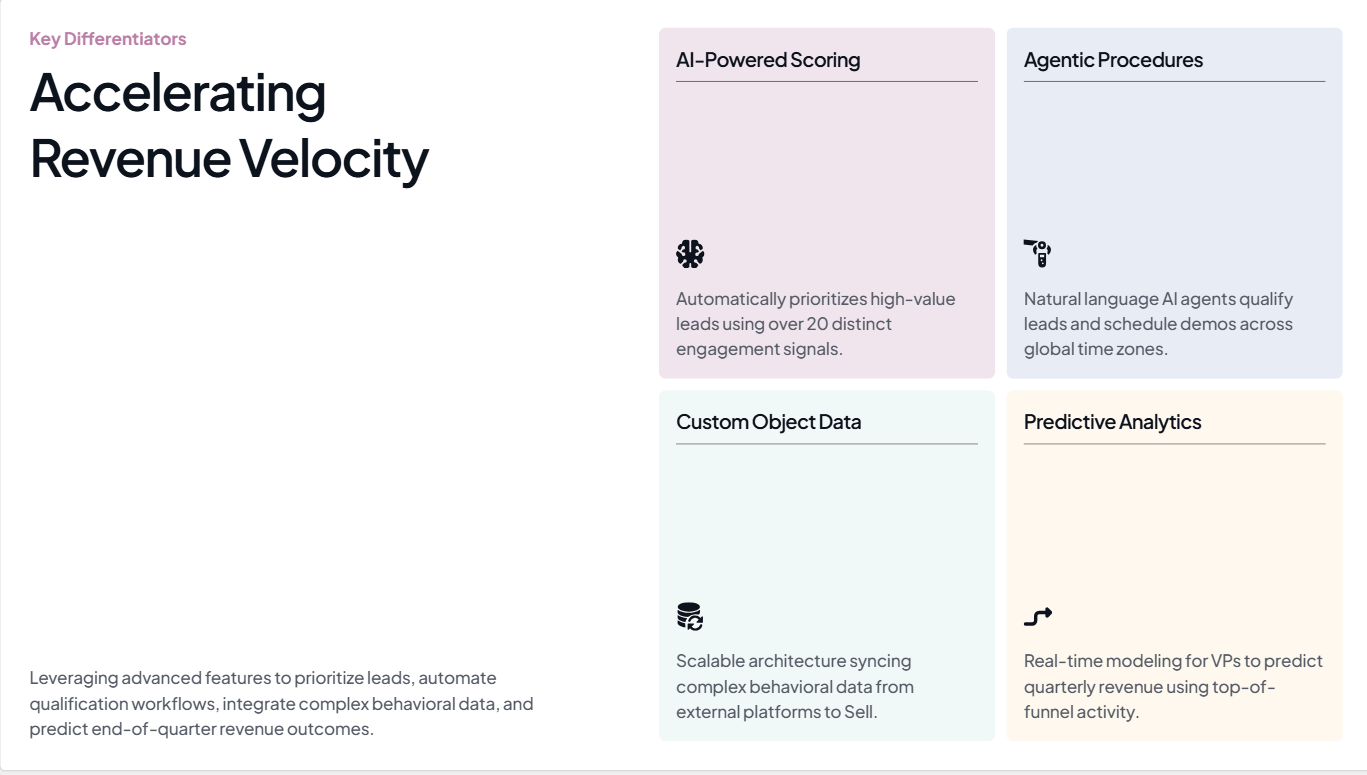
Insira um prompt, e o Presentations.AI, um criador de slides com IA construído para apresentações de negócios, gera um deck estruturado e com conteúdo específico em menos de 30 segundos. Não é um ponto de partida que você precisa reconstruir nos próximos 30 minutos, mas um rascunho organizado, visualmente consistente e pronto para sua revisão específica.
Sincronização de Marca a Partir da Sua URL
Em vez de fazer upload de logotipos e definir códigos hexadecimais manualmente, o Brand Sync do Presentations.AI extrai as cores, fontes e logotipo da sua marca diretamente da URL da sua empresa. Ele os aplica automaticamente em todos os slides, sem o ajuste por slide que o Canva exige.
Entrada Multi-Formato
Apresentações de negócios raramente começam do zero. Elas partem de um documento de estratégia, um PDF de pesquisa, uma análise competitiva ou uma URL que você precisa transformar em pontos de discussão. O Presentations.AI aceita todos esses formatos como entrada, gerando um deck estruturado a partir do seu material de origem real, em vez de exigir que você o resuma em um prompt primeiro. Se você já tem um esboço, basta colá-lo para transformá-lo em um deck.
Exportação Limpa para PowerPoint
O que você cria no editor do Presentations.AI é o que se abre no PowerPoint. Os layouts são mantidos, as fontes não voltam para os padrões do sistema e o espaçamento permanece onde você o colocou. Para equipes que apresentam no PowerPoint e precisam de arquivos prontos para serem enviados imediatamente, isso elimina completamente o ciclo de exportação e limpeza.
Refinamento Conversacional com Clip-E
O Clip-E, o assistente de IA integrado ao Presentations.AI, permite refinar sua apresentação em linguagem natural após a geração. "Encurte o resumo executivo" ou "Adicione um slide de cenário competitivo entre os slides 4 e 5". A IA aplica essas alterações diretamente. Você está direcionando, em vez de arrastar e clicar.
Quando o Canva AI funciona para apresentações e quando não funciona
O Canva AI se destaca quando as apresentações são um resultado secundário e a flexibilidade de design é a prioridade. Quando as apresentações são o produto final, com públicos reais, riscos reais e prazos reais, as raízes generalistas da ferramenta começam a trabalhar contra você.
O Canva AI é uma escolha razoável quando:
- Você está criando slides internos de baixo risco, onde o apelo visual importa mais do que a precisão do conteúdo, como atualizações de equipe ou visões gerais de integração.
- Você planeja apresentar diretamente do visualizador nativo do Canva, então os problemas de exportação são irrelevantes para o seu fluxo de trabalho.
- Você já usa o Canva para trabalhos de design e quer uma ferramenta consistente em vez de uma nova plataforma.
- A narrativa visual é a prioridade, e você quer acesso a uma vasta biblioteca de ativos de stock juntamente com os recursos de IA.
O Canva AI se torna um gargalo quando:
- Você está criando apresentações com consequências comerciais reais, como pitches para investidores, atualizações de conselho, propostas de clientes ou revisões trimestrais, onde a saída genérica da IA cria mais trabalho de edição do que economiza.
- Sua organização, cliente ou evento exige a entrega em .pptx. Problemas de exportação significam que você está, efetivamente, criando a apresentação duas vezes.
- Você gerencia várias marcas. Repetir o processo manual do Brand Kit por apresentação por cliente acumula-se rapidamente.
- A velocidade é uma restrição real. Dois ou mais minutos de geração mais 30 minutos de edição não proporcionam a economia de tempo que o posicionamento da ferramenta implica.