Kurz gesagt
- Magic Design erstellt in wenigen Minuten eine vollständige Präsentation aus einer Texteingabe, aber das Ergebnis muss bearbeitet werden, bevor Sie es jemandem präsentieren.
- Kostenlose Nutzer erhalten 200 KI-Credits für alle Magic Studio Tools. Sobald diese aufgebraucht sind, benötigen Sie Canva Pro (15 $/Monat oder 120 $/Jahr), um fortzufahren. Pro-Nutzer erhalten 20-mal mehr als im kostenlosen Plan.
- Der PowerPoint-Export ist nur für Pro-Nutzer verfügbar, und Layouts verschieben sich oft, wenn Sie die Datei in PowerPoint öffnen, was mehr Nachbearbeitung bedeutet.
Wenn Sie eine vollständige Präsentation aus einem einzigen Prompt mit minimalem Hin und Her generieren lassen möchten, Presentations.AI ist speziell für diesen Workflow konzipiert.
Schritt für Schritt: So erstellen Sie eine Präsentation mit Canva KI
Wenn Sie Canva bereits für Designarbeiten nutzen, fühlen sich die KI-Funktionen wie ein natürliches Upgrade an. Sie kennen den Editor bereits, Sie haben Vorlagen, die Ihnen gefallen, und jetzt sagt Ihnen Canva, dass es ganze Präsentationen aus einem Text-Prompt generieren kann. Das ist etwas, das man vernünftigerweise ausprobieren möchte.
Dieser Leitfaden erklärt genau, wie es geht. Wir behandeln Magic Design, Magic Write für Texte, die Bildtools und wie Sie Ihr Branding anwenden, sobald die Präsentation generiert wurde. Wir werden auch ehrlich über die Teile sprechen, die mehr manuellen Aufwand erfordern, als die Tutorial-Videos oft zeigen. Am Ende wissen Sie, wie Sie das Beste aus den KI-Präsentationsfunktionen von Canva herausholen können, und Sie werden ein klares Gefühl dafür haben, wann ein spezielles KI-Präsentationstool für Ihre Arbeit sinnvoller ist. Wenn Sie eine nahezu fertige Präsentation aus einem einzigen Prompt wünschen, ist ein speziell entwickeltes KI-Präsentations-Tool einen Vergleich mit Canva wert, bevor Sie sich festlegen.
Schritt 1: Anmelden und eine neue Präsentation starten
Öffnen Sie Canva und melden Sie sich an, oder erstellen Sie ein kostenloses Konto, falls Sie noch keines haben. Klicken Sie auf der Startseite auf Design erstellen und suchen Sie in den Formatoptionen nach Präsentation. Wählen Sie Präsentation (16:9), das ist das Standard-Breitbildformat, das für die meisten Präsentationen verwendet wird.
Sie landen im Canva-Editor mit einer leeren Arbeitsfläche. Von hier aus haben Sie zwei Möglichkeiten, KI einzubeziehen: Sie können Vorlagen durchsuchen und KI-Tools nach und nach hinzufügen, oder Sie können direkt zu Magic Design springen und die KI Ihre Ausgangsstruktur erstellen lassen. Dieser Leitfaden konzentriert sich auf den KI-zentrierten Ansatz.
Schritt 2: Verwenden Sie Magic Design, um Ihre Präsentation zu erstellen
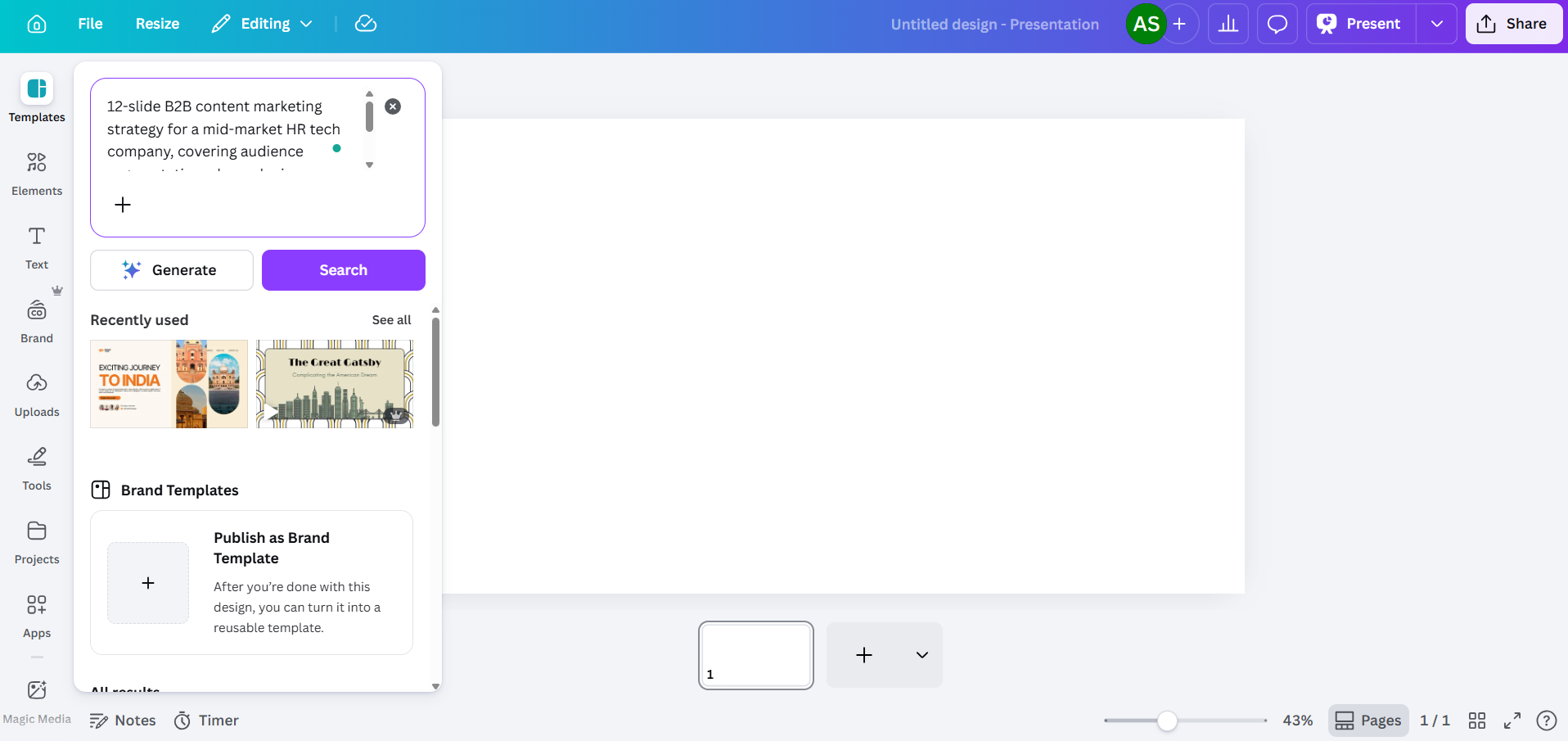
Magic Design ist Canvas Hauptwerkzeug, um Präsentationen aus einer Texteingabe zu erstellen. Sie finden es in der Symbolleiste auf der linken Seite des Editors oder indem Sie zu Apps gehen und Magic Studio auswählen.
Wenn sich das Magic Design-Panel öffnet, sehen Sie ein Textfeld. Geben Sie eine Beschreibung der benötigten Präsentation ein. Wenn Sie lieber sprechen als tippen, akzeptiert Canva hier auch Spracheingaben, sodass Sie Ihr Briefing diktieren und das Tool es transkribieren und umsetzen lassen können. Je spezifischer Sie sind, desto nützlicher wird das Ergebnis sein.
Die Qualität des Prompts ist hier entscheidend
Schwach: „Marketingstrategie-Präsentation.“
Besser: „12-Folien-B2B-Content-Marketing-Strategie für ein mittelständisches HR-Tech-Unternehmen, die Zielgruppensegmentierung, Kanalmix, Content-Kalender und KPIs für H2 2026 abdeckt.“
Geben Sie dem KI-Modell den benötigten Kontext vorab mit: Branche, Zielgruppe, Folienanzahl und die spezifischen Themen, die Sie behandeln möchten. Dies lässt dem Tool weniger Spielraum, auf generische Fülltexte zurückzugreifen. Nachdem Sie Ihren Prompt eingegeben haben, generiert Canva mehrere Layout-Optionen, jede aus einer anderen Vorlagenfamilie stammend. Sie sehen in der Regel zwischen drei und acht Varianten. Wählen Sie diejenige aus, die Ihren Anforderungen am nächsten kommt, in dem Wissen, dass Sie sie ohnehin bearbeiten werden.

Eine Sache, die Sie über die kostenlose Version wissen sollten: Magic Design nutzt Ihr gemeinsames KI-Guthaben. Canva Free-Konten erhalten insgesamt 200 Credits für alle Magic Studio-Tools. Das deckt eine begrenzte Anzahl von vollständigen Präsentationsgenerierungen ab, bevor Sie das Limit erreichen. Pro-Konten erhalten die 20-fache Anzahl an Credits des Free-Plans, wobei Dream Lab (KI-Bildgenerierung) auf einem separaten Zähler läuft, begrenzt auf 500 Generierungen pro Monat.
Schritt 3: Bearbeiten Sie den KI-generierten Inhalt
Dies ist der Teil, der die meiste Zeit in Anspruch nimmt. Canva KI liefert Ihnen eine strukturierte Präsentation mit Folien, die grob relevant für Ihren Prompt sind, aber der eigentliche Inhalt liest sich generisch. Überschriften sind allgemein gehalten, der Fließtext könnte auf jedes Unternehmen zutreffen und Datenslides zeigen Platzhalter-Diagramme anstelle Ihrer echten Zahlen.
Planen Sie, Folgendes umzuschreiben:
- Überschriften, die zu vage sind („Wachstum durch Innovation vorantreiben“ anstatt etwas mit einer tatsächlichen Zahl oder einem Ergebnis)
- Fließtext, der wie ein Platzhalter wirkt und keine echten Erkenntnisse liefert
- Datenslides, bei denen die Diagramme dekorativ sind, anstatt mit echten Zahlen gefüllt zu sein
- Fazit-Folien, die standardmäßig generische Handlungsaufforderungen enthalten

Klicken Sie auf einen beliebigen Textblock, um ihn direkt zu bearbeiten. Sie können auch Magic Write verwenden, um bestimmte Textblöcke in jedem Tarif innerhalb Ihres Guthabens neu zu generieren. Markieren Sie einen Block, klicken Sie mit der rechten Maustaste und suchen Sie nach der Option Magic Write. Es funktioniert, aber die Ausgabe tendiert immer noch eher zu allgemeiner Sprache als zu spezifischem Geschäftsinhalt. Betrachten Sie es daher eher als Ausgangspunkt denn als fertiges Produkt.
Schritt 5: Magic Write zur Textgenerierung auf einzelnen Folien verwenden
Magic Write ist Canvas KI-Texttool und sollte getrennt von Magic Design betrachtet werden. Während Magic Design die gesamte Präsentation erstellt, arbeitet Magic Write auf der Ebene einzelner Textblöcke. Sie können es verwenden, um Folientexte zu entwerfen, einen Abschnitt in einem anderen Ton umzuschreiben oder einen Aufzählungspunkt zu einem Absatz zu erweitern.
Um es zu verwenden, wählen Sie ein Textelement auf Ihrer Folie aus und suchen Sie dann in der Symbolleiste oder im Rechtsklick-Menü nach der Option Magic Write. Sie können ihm eine spezifische Anweisung für diese Folie geben, was dazu beiträgt, die generische Ausgabe zu vermeiden, die bei der Generierung ganzer Präsentationen entsteht.

Die Einschränkung hier ist dieselbe wie bei Magic Design: Magic Write ist besser darin, plausibel klingenden Text zu erstellen, als spezifische, genaue Inhalte zu produzieren. Wenn Ihre Folie die tatsächlichen Kennzahlen Ihres Unternehmens, Kundennamen oder Produktspezifikationen referenzieren muss, müssen Sie diese Details selbst hinzufügen.
Schritt 6: Visuelle Elemente mit Canvas Bildtools hinzufügen
Dies ist wirklich eine der größten Stärken von Canva. Das Elemente-Panel bietet Ihnen Zugriff auf Millionen von Stockfotos, Illustrationen, Icons und Videoclips. Verwenden Sie die Suchleiste, um Inhalte zu finden, die zu Ihrem Thema passen, und ziehen Sie sie dann auf Ihre Folien.
Für KI-generierte Bilder gehen Sie zu Apps und suchen Sie nach Magic Media. Sie können eine Textaufforderung eingeben, um ein Bild zu generieren, was nützlich ist, wenn Sie etwas Spezifisches benötigen, das Stockfotografie nicht abdeckt. Kostenlose Konten schöpfen aus einem gemeinsamen Pool von 200 Credits, und Pro-Konten erhalten 500 Dream Lab Bildgenerierungen pro Monat, die separat erfasst werden.

Neben der Bildgenerierung bieten Canvas KI-Bearbeitungstools nützliche Kontrolle über die visuellen Elemente, mit denen Sie auf Folien arbeiten:
- Magic Expand ermöglicht es Ihnen, ein Foto über seinen ursprünglichen Rahmen hinaus zu erweitern, was hilfreich ist, wenn ein Bild nicht ganz zu den Abmessungen Ihrer Folie passt.
- Hintergrundentferner (Nur Pro) entfernt den Hintergrund eines Fotos mit einem Klick sauber, nützlich für Produktfotos, Porträts oder jedes Bild, das Sie über einen Folienhintergrund legen möchten.
- Magic Erase ermöglicht es Ihnen, auf ein bestimmtes Element in einem Foto zu klicken und es zu entfernen, während die KI den Bereich dahinter ausfüllt. Nützlich, wenn ein Stockbild dem nahekommt, was Sie benötigen, aber ein störendes Objekt enthält, das Sie entfernen möchten.
- Magic Grab ermöglicht es Ihnen, das Motiv eines Fotos als separates Element auszuwählen und neu zu positionieren, wobei die KI den Hintergrund dahinter neu erstellt.
- Magic Edit nimmt eine Beschreibung in natürlicher Sprache entgegen und wendet sie auf ein Element in Ihrem Bild an. Sie können beispielsweise eine Jacke auf einem Foto auswählen, „mach sie marineblau“ eingeben, und die KI nimmt die Änderung vor. Nützlich, wenn Sie ein Bild an ein Farbschema anpassen müssen, ohne neu aufzunehmen oder ein neues Asset zu suchen.
- KI-Anpassungen ermöglichen es Ihnen, das Motiv, den Vordergrund oder den Hintergrund eines Bildes unabhängig voneinander zu ändern, ohne die anderen Ebenen zu beeinflussen. Sie können einen Hintergrund aufhellen, während der Motivkontrast erhalten bleibt, oder ein Vordergrundelement unscharf machen, während das Motiv scharf bleibt.
- Text erfassen identifiziert in einem Bild eingebetteten Text und macht ihn bearbeitbar, was praktisch sein kann, wenn Sie mit Screenshots oder importierten Grafiken arbeiten, die Text enthalten, den Sie ändern müssen.
Für Diagramme und Datenvisualisierung gehen Sie zu Apps und wählen Sie Diagramme aus. Sie können grundlegende Diagrammtypen (Balken, Linie, Kreis, Donut) einfügen und Ihre Daten manuell eingeben. Es gibt keine Live-Verbindung zu Tabellenkalkulationen oder externen Datenquellen, daher muss jede Zahl manuell eingegeben werden.
Schritt 7: Ihr Brand Kit anwenden
Wenn Ihre Präsentation zu einer bestimmten Marke passen muss, ist Canvas Brand Kit der Ort, an dem Sie Ihre Farben, Schriftarten und Ihr Logo speichern. Der Umfang des Zugriffs hängt von Ihrem Plan ab:
- Kostenlos: 1 Brand Kit mit bis zu 3 Farben
- Pro (15 $/Monat): 5 Brand Kits
- Business: 100 Brand Kits
- Enterprise: 1.000 Brand Kits mit gestuften Genehmigungen und Multi-Team-Verwaltung
Um ein Brand Kit im Editor anzuwenden, klicken Sie in der Symbolleiste auf Stile und wählen Sie Ihre Marke aus. Canva versucht, Elemente neu einzufärben und Schriftarten auszutauschen, aber hier zeigt sich die Diskrepanz zwischen dem, was die Funktion verspricht, und dem, was sie tatsächlich leistet:
Logos werden nicht automatisch über alle Folien hinweg positioniert. Sie müssen das Logo auf jeder Folie einzeln ziehen und in der Größe anpassen.
Die Farbanwendung ist eher pauschal als intelligent. Die KI könnte Ihre primäre Markenfarbe auf einen Hintergrund anwenden, wo sie mit der Lesbarkeit des Textes kollidiert.
Regeln für Schriftartenkombinationen werden nicht beachtet. Die KI unterscheidet nicht zwischen Ihren Überschriften- und Fließtextschriftarten, wie es Ihre Markenrichtlinien wahrscheinlich vorschreiben.
Planen Sie zusätzliche 10-15 Minuten für die Markenbereinigung bei einem 10-Folien-Deck ein. Bei einem 20-Folien-Deck verdoppeln Sie diese Zeit ungefähr.
Schritt 8: Direkt aus Canva präsentieren oder nach PowerPoint exportieren
Sobald Ihr Deck fertig ist, haben Sie mehrere Optionen für die Bereitstellung:
- Präsentieren mit Canva: Klicken Sie auf „Präsentieren“ für eine Vollbild-Diashow. Dies ist Canvas bester Präsentationsmodus. Animationen, Übergänge und eingebettete Medien funktionieren alle wie vorgesehen. Voraussetzung sind ein Browser und eine Internetverbindung.
- Link teilen: Erstellen Sie einen schreibgeschützten oder bearbeitbaren Link. Canva bietet eine grundlegende Ansichtsverfolgung, aber die Analysen sind begrenzt.
- Nach PowerPoint exportieren: Gehen Sie zu „Teilen“, dann „Herunterladen“, dann „Microsoft PowerPoint (.pptx)“. Diese Option ist nur in der Pro-Version (15 $/Monat) und höher verfügbar. Öffnen Sie die exportierte Datei in PowerPoint und überprüfen Sie jede Folie. Layoutverschiebungen sind häufig, Textfelder verschieben sich, gruppierte Elemente werden aufgelöst und alle hinzugefügten Animationen werden vollständig entfernt.
Wenn Ihr Team oder Ihr Kunde eine PowerPoint-Präsentation benötigt, testen Sie den Export frühzeitig in Ihrem Workflow, anstatt Layoutprobleme 30 Minuten vor einem Meeting zu entdecken.
Wo Canva AI bei Präsentationen Schwächen zeigt
Die oben genannten Schritte funktionieren. Canva AI erstellt Ihnen ein Deck. Die Frage ist, ob der gesamte Aufwand Ihren Erwartungen an ein „KI-gestütztes“ Tool entspricht. Hier ist, worüber die meisten Tutorials nicht sprechen:
Die Ausgabe wirkt generisch
Magic Design greift auf Canvas riesige Vorlagenbibliothek zurück, um Ihrer Eingabeaufforderung zu entsprechen, und dieselbe Bibliothek ist die Quelle seiner größten Schwäche. Die KI produziert Inhalte, die breit genug sind, um auf fast jedes Unternehmen in jeder Branche angewendet zu werden.
Die Prompt-Steuerung ist begrenzt
Sie können den ursprünglichen Prompt anpassen und neu generieren, aber Canvas KI bietet über den grundlegenden Prompt hinaus nicht viel Kontrolle über Struktur, Ton oder Inhaltshierarchie. Sie können ihr nicht sagen, bestimmte Folien stärker zu gewichten, eine bestimmte Erzählstruktur zu verwenden oder aus einem spezifischen Quelldokument zu ziehen.
Die Markenanwendung ist nicht vollständig automatisiert
Der Zugriff auf Brand Kits variiert je nach Plan: kostenlose Nutzer erhalten ein Kit, das auf 3 Farben beschränkt ist; Pro (15 $/Monat) bietet 5 Kits; Business schaltet 100 frei; und Enterprise geht bis zu 1.000 Kits mit gestuften Genehmigungen.
PowerPoint-Export erfordert einen zweiten Bearbeitungsdurchgang
Der .pptx-Export sieht im Canva-Editor sauber aus. Öffnen Sie ihn in Microsoft PowerPoint, und Sie werden oft feststellen, dass in einigen Fällen Textfelder verschoben sind, der Abstand nicht stimmt, gruppierte Elemente auseinandergefallen sind und Animationen fehlen. Für Teams, die regelmäßig in PowerPoint präsentieren, bedeutet dies, dass jedes KI-generierte Deck mindestens zwei Bearbeitungsdurchgänge erfordert: einen in Canva, einen in PowerPoint.
Die kostenlose Stufe ist schnell aufgebraucht
Canva's kostenloser Plan beinhaltet 200 KI-Credits, die auf alle Magic Studio-Tools aufgeteilt sind. Dies sind Lifetime-Credits, keine monatliche Auffrischung. Magic Design für ein vollständiges Präsentations-Deck verbraucht einen erheblichen Teil dieses Pools. Sobald diese aufgebraucht sind, benötigen Sie Pro (15 $/Monat), um die KI-Funktionen weiterhin nutzen zu können. Das ist ein angemessener Zeitraum, um das Tool zu bewerten, aber es ist nicht der unbegrenzte kostenlose Zugang, den das Marketing manchmal impliziert.
Canva AI vs. ein dediziertes KI-Präsentationstool
Canva wurde als Design-Plattform entwickelt und hat Präsentations-KI als eine von vielen Funktionen hinzugefügt. Diese architektonische Entscheidung zeigt sich im gesamten Workflow: Jedes KI-Tool ist eine separate Aktion, die Markenanwendung erfolgt manuell, und der Export nach PowerPoint führt zu Nacharbeit.
Ein Tool wie Presentations.AI verfolgt einen anderen Ansatz. Es wurde von Grund auf für das Problem entwickelt, geschäftsfertige Präsentationen aus einem einzigen Prompt zu generieren, wobei Markensynchronisierung, Multi-Format-Eingabe und ein sauberer PowerPoint-Export Kernfunktionen und keine Add-ons sind. Hier erfahren Sie, wie sich die beiden in den wichtigsten Aspekten für Präsentations-Workflows unterscheiden.
Was Presentations.AI anders macht
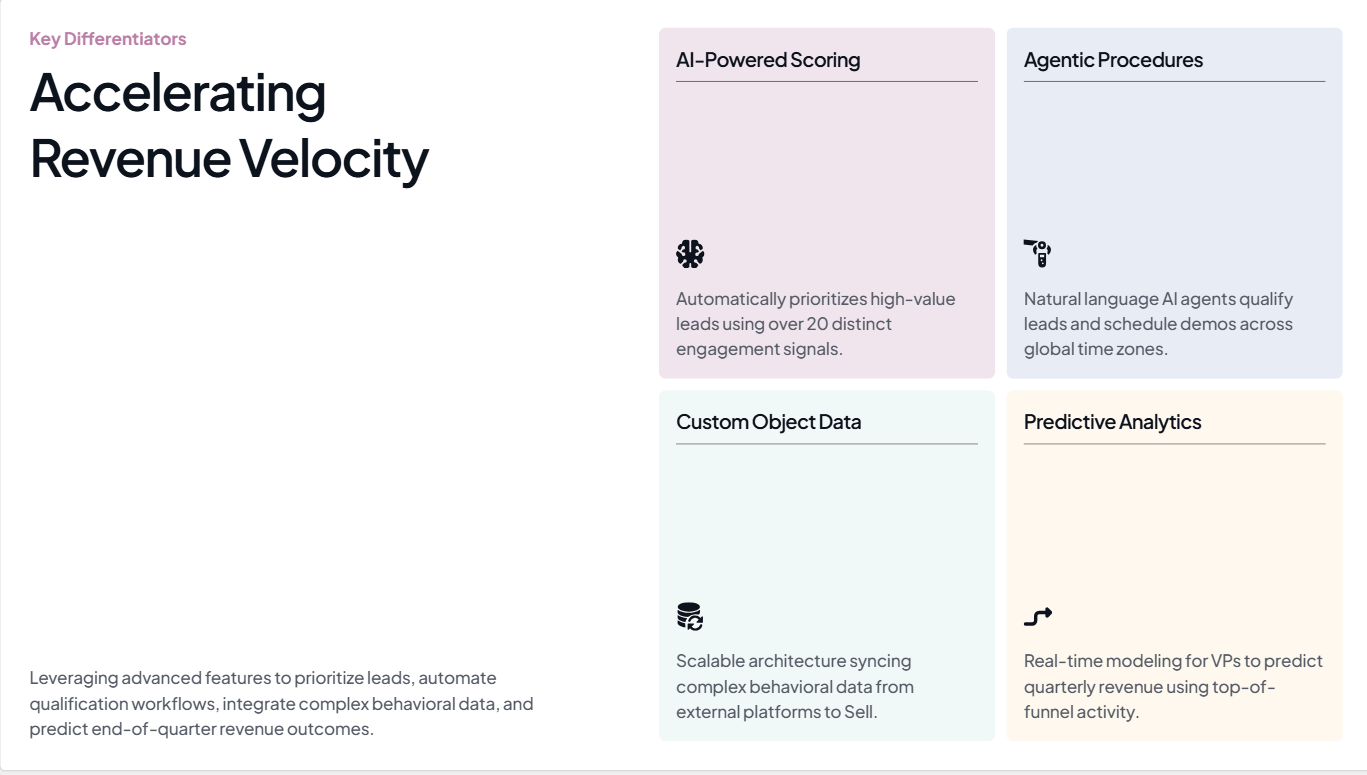
Der Hauptunterschied zwischen Canvas Ansatz bei Präsentationen und dem von Presentations.AI ist architektonischer Natur. Canva hat KI zu einem Design-Tool hinzugefügt. Presentations.AI hat sein gesamtes Produkt um das Problem herum aufgebaut, präsentationsfertige Decks aus einer einzigen Eingabe zu generieren, mit so wenig manueller Korrektur wie möglich danach.
Ein Prompt, vollständiges Deck
Geben Sie einen Prompt ein, und Presentations.AI, ein KI-Folien-Ersteller für Business-Präsentationen entwickelt, generiert in weniger als 30 Sekunden ein strukturiertes, inhaltspezifisches Deck. Kein Ausgangspunkt, den Sie in den nächsten 30 Minuten neu aufbauen müssen, sondern ein Entwurf, der organisiert, visuell konsistent und bereit für Ihre spezifische Überprüfung ist.
Markensynchronisierung über Ihre URL
Anstatt Logos hochzuladen und Hex-Codes manuell einzustellen, zieht die Markensynchronisierung von Presentations.AI Ihre Markenfarben, Schriftarten und Ihr Logo direkt von Ihrer Unternehmens-URL. Sie wendet diese automatisch auf jede Folie an, ohne die pro-Folie-Anpassung, die Canva erfordert.
Multi-Format-Eingabe
Business-Präsentationen beginnen selten bei Null. Sie basieren auf einem Strategiedokument, einem Forschungs-PDF, einer Wettbewerbsanalyse oder einer URL, die Sie in Diskussionspunkte umwandeln müssen. Presentations.AI akzeptiert all dies als Eingabe und generiert ein strukturiertes Deck aus Ihrem tatsächlichen Quellmaterial, anstatt Sie zu bitten, es zuerst in einen Prompt zusammenzufassen. Wenn Sie bereits eine Gliederung haben, fügen Sie diese einfach ein, um daraus ein Deck zu erstellen.
Sauberer PowerPoint-Export
Was Sie im Presentations.AI-Editor erstellen, öffnet sich auch in PowerPoint. Layouts bleiben erhalten, Schriftarten fallen nicht auf Systemstandards zurück und Abstände bleiben, wo Sie sie platziert haben. Für Teams, die in PowerPoint präsentieren und sofort versandfertige Dateien benötigen, entfällt dadurch der Export- und Bereinigungszyklus vollständig.
Konversationsbasierte Verfeinerung mit Clip-E
Clip-E, der in Presentations.AI integrierte KI-Assistent, ermöglicht es Ihnen, Ihr Deck nach der Generierung in einfacher Sprache zu verfeinern. „Machen Sie die Zusammenfassung kürzer“ oder „Fügen Sie eine Folie zur Wettbewerbslandschaft zwischen Folie 4 und 5 ein.“ Die KI wendet diese Änderungen direkt an. Sie geben Anweisungen, anstatt zu ziehen und zu klicken.
Wann Canva AI für Präsentationen funktioniert und wann nicht
Canva AI hat seine Berechtigung, wenn Präsentationen ein sekundäres Ergebnis sind und Designflexibilität Priorität hat. Wenn Präsentationen das eigentliche Ergebnis sind, mit echtem Publikum, echten Risiken und echten Fristen, wird die generalistische Ausrichtung des Tools zu Ihrem Nachteil.
Canva AI ist eine sinnvolle Wahl, wenn:
- Sie interne Folien mit geringem Risiko erstellen, bei denen visuelle Perfektion wichtiger ist als inhaltliche Präzision, wie z.B. Team-Updates oder Onboarding-Übersichten.
- Sie direkt aus dem nativen Viewer von Canva präsentieren möchten, sodass Exportprobleme für Ihren Workflow irrelevant sind.
- Sie Canva bereits für Designarbeiten nutzen und ein konsistentes Tool anstelle einer neuen Plattform wünschen.
- Visuelles Storytelling Priorität hat und Sie neben den KI-Funktionen Zugang zu einer riesigen Stock-Asset-Bibliothek wünschen.
Canva AI wird zum Engpass, wenn:
- Sie Präsentationen mit echten geschäftlichen Konsequenzen erstellen, wie z.B. Investoren-Pitches, Vorstands-Updates, Kundenangebote oder Quartalsberichte, bei denen generische KI-Ergebnisse mehr Bearbeitungsaufwand verursachen, als sie einsparen.
- Ihre Organisation, Ihr Kunde oder Ihre Veranstaltung die Lieferung im .pptx-Format erfordert. Exportprobleme bedeuten, dass Sie die Präsentation praktisch zweimal erstellen.
- Sie mehrere Marken verwalten. Der manuelle Brand Kit-Prozess, der für jede Präsentation und jeden Kunden wiederholt werden muss, summiert sich schnell.
- Geschwindigkeit ist eine echte Einschränkung. Zwei oder mehr Minuten Generierung plus 30 Minuten Bearbeitung liefern nicht die Zeitersparnis, die die Positionierung des Tools verspricht.