
Özetle
- Magic Design bir metin isteminden birkaç dakika içinde tam bir slayt destesi oluşturur, ancak kimseye sunmadan önce çıktının düzenlenmesi gerekir.
- Ücretsiz kullanıcılar 200 yapay zeka kredisi alır tüm Magic Studio araçlarında. Bunlar bittiğinde, devam etmek için Canva Pro'ya (aylık 15 dolar veya yıllık 120 dolar) ihtiyacınız var. Pro kullanıcıları, Ücretsiz plandan 20 kat daha fazla alır.
- PowerPoint dışa aktarımı yalnızca Pro'ya özeldir, ve dosyayı PowerPoint'te açtığınızda düzenler genellikle kayar, bu da daha fazla düzeltme işi anlamına gelir.
Tek bir istemden minimum uğraşla tam bir deste oluşturulmasını istiyorsanız, Presentations.AI özellikle bu iş akışı için tasarlanmıştır.
Adım Adım: Canva Yapay Zekasını Kullanarak Sunum Nasıl Oluşturulur
Canva'yı tasarım işleri için kullanıyorsanız, yapay zeka özellikleri doğal bir yükseltme gibi hissettirir. Editörü zaten biliyorsunuz, beğendiğiniz şablonlarınız var ve şimdi Canva size bir metin isteminden tüm sunumları oluşturabileceğini söylüyor. Bu, denemek isteyeceğiniz mantıklı bir şeydir.
Bu rehber, bunu tam olarak nasıl yapacağınızı anlatıyor. Magic Design'ı, metin için Magic Write'ı, görsel araçlarını ve deste oluşturulduktan sonra markanızı nasıl uygulayacağınızı ele alacağız. Ayrıca, eğitim videolarının genellikle gösterdiğinden daha fazla manuel çaba gerektiren kısımlar hakkında da dürüst olacağız. Sonunda, Canva'nın yapay zeka sunum özelliklerinden en iyi şekilde nasıl yararlanacağınızı bilecek ve yaptığınız iş için özel bir yapay zeka sunum aracının ne zaman daha mantıklı olacağına dair net bir fikriniz olacak. Tek bir istemin neredeyse hazır bir deste üretmesi aradığınız şeyse, amaca yönelik olarak tasarlanmış bir yapay zeka sunum oluşturucu taahhütte bulunmadan önce Canva ile karşılaştırmaya değerdir.
Adım 1: Giriş Yapın ve Yeni Bir Sunum Başlatın
Canva'yı açın ve oturum açın veya bir hesabınız yoksa ücretsiz bir hesap oluşturun. Ana sayfadan Tasarım oluştur'a tıklayın ve format seçeneklerinde Sunum'u arayın. Çoğu slayt destesi için kullanılan standart geniş ekran formatı olan Sunum (16:9) seçeneğini belirleyin.
Boş bir tuvalle Canva'nın düzenleyicisine geleceksiniz. Buradan, yapay zekayı dahil etmenin iki yolu var: şablonlara göz atabilir ve ilerledikçe yapay zeka araçlarını katmanlayabilirsiniz veya doğrudan Magic Design'a atlayıp yapay zekanın başlangıç yapınızı oluşturmasına izin verebilirsiniz. Bu rehber, yapay zeka öncelikli yaklaşıma odaklanmaktadır.
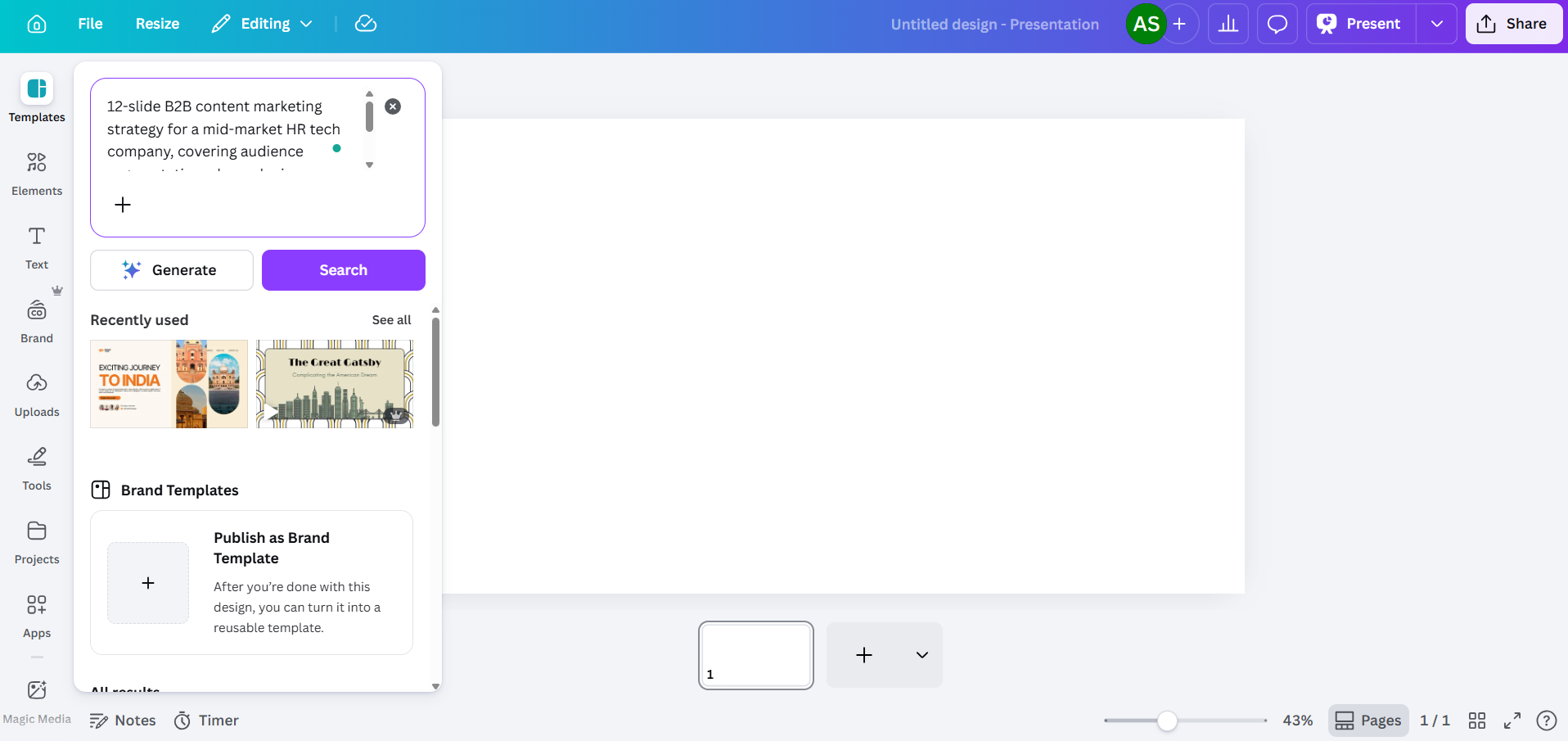
Adım 2: Sunumunuzu Oluşturmak İçin Magic Design'ı Kullanın
Magic Design, Canva'nın metin isteminden sunum oluşturmak için ana aracıdır. Editörün sol tarafındaki araç çubuğunda veya Uygulamalar'a gidip Magic Studio'yu seçerek bulabilirsiniz.
Magic Design paneli açıldığında, bir metin alanı göreceksiniz. İhtiyacınız olan sunumun bir açıklamasını yazın. Yazmak yerine konuşmayı tercih ederseniz, Canva burada sesli komutları da kabul eder, böylece özetinizi dikte edebilir ve aracın bunu yazıya döküp üzerinde işlem yapmasını sağlayabilirsiniz. Ne kadar spesifik olursanız, çıktı o kadar kullanışlı olacaktır.
Burada istem kalitesi önemlidir
Zayıf: "Pazarlama stratejisi sunumu."
Daha İyi: "Orta ölçekli bir İK teknoloji şirketi için hedef kitle segmentasyonu, kanal karması, içerik takvimi ve 2026'nın ikinci yarısı için KPI'ları kapsayan 12 slaytlık bir B2B içerik pazarlama stratejisi."
Yapay zekanın ihtiyaç duyduğu bağlamı önden yükleyin: sektör, hedef kitle, slayt sayısı ve ele almak istediğiniz belirli konular. Bu, aracın genel doldurma içeriğine başvurma alanını daraltır. İsteminizi girdikten sonra Canva, her biri farklı bir şablon ailesinden alınmış çeşitli düzen seçenekleri oluşturur. Genellikle üç ila sekiz varyasyon görürsünüz. Her halükarda düzenleme yapacağınızı bilerek, ihtiyacınıza en yakın olanı seçin.

Ücretsiz katman hakkında bilinmesi gereken bir şey: Magic Design, paylaşılan yapay zeka kredi havuzunuzu kullanır. Canva Ücretsiz hesapları, tüm Magic Studio araçlarında toplam 200 kredi alır. Bu, sınıra ulaşmadan önce sınırlı sayıda tam sunum oluşturmayı kapsar. Pro hesapları, Ücretsiz planın 20 katı kredi alır ve Dream Lab (yapay zeka görsel oluşturma) ayrı bir sayaçta çalışır, ayda 500 oluşturma ile sınırlıdır.
Adım 3: Yapay Zeka Tarafından Oluşturulan İçeriği Düzenleyin
Burası en çok zaman alan kısımdır. Canva yapay zekası size isteminizle genel olarak ilgili slaytlar içeren yapılandırılmış bir sunum verecektir, ancak asıl içerik genel bir dille yazılmıştır. Başlıklar geneldir, ana metin herhangi bir şirkete uygulanabilir ve veri slaytları gerçek rakamlarınız yerine yer tutucu grafikler gösterir.
Yeniden yazmayı planlayın:
- Çok belirsiz başlıklar ("İnovasyonla Büyümeyi Sağlamak" gibi, gerçek bir sayı veya sonuç içeren bir şey yerine)
- Gerçek bir içgörü yerine yer tutucu gibi duran ana metin
- Gerçek rakamlarla doldurulmuş olmak yerine grafikleri dekoratif olan veri slaytları
- Genel eylem çağrılarına yönelen sonuç slaytları

Herhangi bir metin bloğunu doğrudan düzenlemek için tıklayın. Ayrıca, kredi limitiniz dahilinde, herhangi bir planda belirli metin bloklarını yeniden oluşturmak için Magic Write'ı kullanabilirsiniz. Bir bloğu vurgulayın, sağ tıklayın ve Magic Write seçeneğini arayın. Çalışıyor, ancak çıktı hala belirli iş içeriğinden ziyade genel dile doğru eğilim gösteriyor, bu yüzden onu bitmiş bir ürün yerine bir başlangıç noktası olarak değerlendirin.
Adım 5: Bireysel Slaytlarda Metin Oluşturmak İçin Magic Write'ı Kullanın
Magic Write, Canva'nın yapay zeka metin aracıdır ve Magic Design'dan ayrı olarak anlaşılması önemlidir. Magic Design tüm sunumu oluştururken, Magic Write bireysel metin blokları düzeyinde çalışır. Slayt metni taslağı hazırlamak, bir bölümü farklı bir tonda yeniden yazmak veya bir madde işaretini paragrafa dönüştürmek için kullanabilirsiniz.
Kullanmak için slaytınızdaki bir metin öğesini seçin, ardından araç çubuğunda veya sağ tıklama menüsünde Magic Write seçeneğini arayın. Ona o slayta özel bir komut verebilirsiniz, bu da tüm sunum oluşturmadan kaynaklanan genel çıktıdan kaçınmanıza yardımcı olur.

Buradaki sınırlama Magic Design'dakiyle aynıdır: Magic Write, belirli, doğru içerik üretmekten ziyade kulağa mantıklı gelen metinler üretmede daha iyidir. Slaytınız şirketinizin gerçek metriklerine, müşteri adlarına veya ürün özelliklerine atıfta bulunuyorsa, bu ayrıntıları kendiniz eklemeniz gerekecektir.
Adım 6: Canva'nın Görsel Araçlarını Kullanarak Görseller Ekleyin
Burası gerçekten de Canva'nın en güçlü alanlarından biridir. Öğeler paneli size milyonlarca stok fotoğrafına, illüstrasyona, simgeye ve video klibe erişim sağlar. İçeriğinizle eşleşen öğeleri bulmak için arama çubuğunu kullanın, ardından bunları slaytlarınıza sürükleyin.
Yapay zeka tarafından oluşturulan görseller için Uygulamalar'a gidin ve Magic Media'yı arayın. Bir görsel oluşturmak için metin komutu girebilirsiniz, bu da stok fotoğrafçılığının kapsamayacağı belirli bir şeye ihtiyacınız olduğunda kullanışlıdır. Ücretsiz hesaplar ortak 200 kredilik havuzlarından yararlanır ve Pro hesaplar ayda 500 Dream Lab görsel oluşturma hakkı elde eder, bunlar ayrı olarak takip edilir.

Görsel oluşturmanın ötesinde, Canva'nın yapay zeka düzenleme araçları, slaytlarınızda çalıştığınız görseller üzerinde size faydalı kontrol sağlar:
- Magic Expand bir fotoğrafı orijinal çerçevesinin ötesine genişletmenizi sağlar, bu da bir görselin slayt boyutlarınıza tam olarak uymadığı durumlarda faydalıdır.
- Background Remover (Yalnızca Pro) tek tıklamayla bir fotoğrafın arka planını temiz bir şekilde kaldırır; ürün çekimleri, vesikalıklar veya bir slayt arka planının üzerine yerleştirmek istediğiniz herhangi bir görsel için kullanışlıdır.
- Magic Erase bir fotoğraftaki belirli bir öğeye tıklayıp onu kaldırmanızı sağlar, yapay zeka ise arkasındaki alanı doldurur. Bir stok görseli ihtiyacınıza yakın olduğunda ancak kaldırmak istediğiniz dikkat dağıtıcı bir nesneye sahip olduğunda kullanışlıdır.
- Magic Grab bir fotoğrafın konusunu ayrı bir öğe olarak seçip yeniden konumlandırmanızı sağlar, yapay zeka ise arkasındaki arka planı yeniden oluşturur.
- Sihirli Düzenleme doğal dil açıklamasını alır ve görüntünüzdeki bir öğeye uygular. Örneğin, bir fotoğraftaki bir ceketi seçip "lacivert yap" yazabilirsiniz ve yapay zeka değişikliği uygular. Yeniden çekim yapmadan veya yeni bir varlık bulmadan bir renk şemasına uygun bir görsele ihtiyacınız olduğunda kullanışlıdır.
- Yapay Zeka Ayarlamaları görüntünün konusunu, ön planını veya arka planını diğer katmanları etkilemeden bağımsız olarak değiştirmenize olanak tanır. Konunun kontrastını koruyarak bir arka planı aydınlatabilir veya konuyu keskin tutarak bir ön plan öğesini bulanıklaştırabilirsiniz.
- Metin Yakala bir görüntüye gömülü metni tanımlar ve düzenlenebilir hale getirir; bu da ekran görüntüleri veya değiştirmeniz gereken metin içeren içe aktarılmış grafiklerle çalışırken kullanışlı olabilir.
Grafikler ve veri görselleştirme için Uygulamalar'a gidin ve Grafikler'i seçin. Temel grafik türlerini (çubuk, çizgi, pasta, halka) ekleyebilir ve verilerinizi manuel olarak girebilirsiniz. E-tablolara veya harici veri kaynaklarına canlı bağlantı yoktur, bu nedenle her sayının elle girilmesi gerekir.
Adım 7: Marka Kitinizi Uygulayın
Sunumunuzun belirli bir markaya uyması gerekiyorsa, Canva'nın Marka Kiti renklerinizi, yazı tiplerinizi ve logonuzu sakladığınız yerdir. Erişim seviyesi planınıza bağlıdır:
- Ücretsiz: 3 renge kadar 1 Marka Kiti
- Pro (aylık 15 $): 5 Marka Kiti
- İşletme: 100 Marka Kiti
- Kurumsal: Kademeli onaylar ve çoklu ekip yönetimi ile 1.000 Marka Kiti
Düzenleyicide bir Marka Kiti uygulamak için araç çubuğundaki Stiller'e tıklayın ve markanızı seçin. Canva öğeleri yeniden renklendirmeye ve yazı tiplerini değiştirmeye çalışacaktır, ancak özelliğin vaat ettikleri ile gerçekte sundukları arasındaki fark burada ortaya çıkacaktır:
Logolar slaytlar arasında otomatik olarak konumlanmaz. Logoyu her slaytta ayrı ayrı sürükleyip yeniden boyutlandırmanız gerekir.
Renk uygulaması akıllı olmaktan ziyade geneldir. Yapay zeka, birincil marka renginizi metin okunabilirliğiyle çelişen bir arka plana uygulayabilir.
Yazı tipi eşleştirme kurallarına uyulmaz. Yapay zeka, marka yönergelerinizin muhtemelen belirttiği gibi başlık ve gövde yazı tipleriniz arasında ayrım yapmaz.
10 slaytlık bir sunumda marka temizliği için fazladan 10-15 dakika ayırın. 20 slaytlık bir sunumda ise bu süreyi yaklaşık olarak ikiye katlayın.
Adım 8: Doğrudan Canva'dan Sunum Yapın veya PowerPoint'e Aktarın
Sunumunuz hazır olduğunda, teslimat için birkaç seçeneğiniz vardır:
- Canva'dan Sunum: Tam ekran slayt gösterisi için Sunum Yap'a tıklayın. Bu, Canva'nın en iyi sunum modudur. Animasyonlar, geçişler ve gömülü medya beklendiği gibi çalışır. Gereksinim bir tarayıcı ve internet bağlantısıdır.
- Bağlantı paylaş: Yalnızca görüntüleme veya düzenlenebilir bir bağlantı oluşturun. Canva temel görüntüleme takibi sunar, ancak analizler sınırlıdır.
- PowerPoint'e Aktar: Paylaş'a, ardından İndir'e, sonra Microsoft PowerPoint (.pptx)'e gidin. Bu seçenek yalnızca Pro (aylık 15 $) ve üzeri planlarda mevcuttur. Dışa aktarılan dosyayı PowerPoint'te açın ve her slaytı kontrol edin. Düzen kaymaları yaygındır, metin kutuları hareket eder, gruplandırılmış öğeler ayrılır ve eklediğiniz tüm animasyonlar tamamen kaldırılır.
Ekibiniz veya müşteriniz PowerPoint sunumu gerektiriyorsa, bir toplantıdan 30 dakika önce düzen sorunlarını keşfetmek yerine, dışa aktarmayı iş akışınızın başında test edin.
Canva Yapay Zekasının Sunumlardaki Eksiklikleri
Yukarıdaki adımlar işe yarar. Canva Yapay Zekası size bir sunum oluşturur. Soru, harcanan toplam çabanın "yapay zeka destekli" bir araçtan beklentilerinizi karşılayıp karşılamadığıdır. Çoğu eğitimin bahsetmediği şeyler şunlardır:
Çıktı Sıradan
Magic Design, isteminize uyması için Canva'nın devasa şablon kütüphanesinden yararlanır ve bu aynı kütüphane, ana zayıflığının kaynağıdır. Yapay zeka, hemen hemen her sektördeki her şirkete uygulanabilecek kadar geniş içerik üretir.
İstem Kontrolü Sınırlıdır
Başlangıçtaki istemi ayarlayabilir ve yeniden oluşturabilirsiniz, ancak Canva'nın yapay zekası, temel istemin ötesinde yapı, ton veya içerik hiyerarşisi üzerinde fazla kontrol sağlamaz. Belirli slaytları daha ağır basmasını, belirli bir anlatı yapısı kullanmasını veya belirli bir kaynak belgeden çekmesini söyleyemezsiniz.
Marka Uygulaması Tamamen Otomatik Değil
Marka Kiti erişimi plana göre değişir: ücretsiz kullanıcılar 3 renkle sınırlı bir kit alır; Pro (aylık 15 $) 5 kit sunar; Business 100 kitin kilidini açar; ve Enterprise, kademeli onaylarla 1.000 kite kadar çıkar.
PowerPoint Dışa Aktarımı İkinci Bir Düzenleme Aşaması Yaratır
.pptx dışa aktarımı Canva düzenleyicisinde temiz görünür. Microsoft PowerPoint'te açtığınızda, çoğu zaman bazı durumlarda metin kutularının kaydığını, boşlukların bozulduğunu, gruplandırılmış öğelerin ayrıldığını ve animasyonların kaybolduğunu görürsünüz. PowerPoint'te düzenli olarak sunum yapan ekipler için bu, yapay zeka tarafından oluşturulan her sunumun en az iki düzenleme aşaması gerektirdiği anlamına gelir: biri Canva'da, biri PowerPoint'te.
Ücretsiz Katman Hızla Tükenir
Canva'nın ücretsiz planı, tüm Magic Studio araçlarında paylaşılan 200 yapay zeka kredisi içerir. Bunlar ömür boyu kredilerdir, aylık yenilenmezler. Tam bir sunum destesi için Magic Design, bu havuzun önemli bir kısmını kullanır. Tükendiğinde, yapay zeka özelliklerini kullanmaya devam etmek için Pro (aylık 15 $) planına ihtiyacınız vardır. Bu, aracı değerlendirmek için makul bir süredir, ancak pazarlamanın bazen ima ettiği sınırsız ücretsiz erişim değildir.
Canva Yapay Zekası ve Özel Bir Yapay Zeka Sunum Aracı
Canva bir tasarım platformu olarak inşa edildi ve sunum yapay zekasını birçok özellikten biri olarak ekledi. Bu mimari karar, iş akışının her yerinde kendini gösteriyor: her yapay zeka aracı ayrı bir eylem, marka uygulaması manuel ve PowerPoint'e dışa aktarma yeniden işleme neden oluyor.
Gibi bir araç Presentations.AI farklı bir yaklaşım benimsiyor. Tek bir komut isteminden işe hazır sunumlar oluşturma sorununa odaklanarak sıfırdan inşa edildi; marka senkronizasyonu, çok formatlı giriş ve temiz PowerPoint dışa aktarımı eklentiler yerine temel özellikler olarak sunuluyor. Sunum iş akışları için en önemli konularda ikisi arasındaki karşılaştırma şöyle.
Presentations.AI Neleri Farklı Yapıyor
Canva'nın sunumlara yaklaşımı ile Presentations.AI'ınki arasındaki temel fark mimaridir. Canva, bir tasarım aracına yapay zeka ekledi. Presentations.AI tüm ürününü, tek bir girdiden sunuma hazır desteler oluşturma sorununa odaklanarak, sonrasında mümkün olduğunca az manuel düzeltme gerektirecek şekilde inşa etti.
Tek Komut, Tam Deste
Bir komut girin ve Presentations.AI, bir yapay zeka slayt oluşturucu iş sunumları için tasarlanmış, 30 saniyeden kısa sürede yapılandırılmış, içeriğe özel bir deste oluşturur. Sonraki 30 dakika boyunca yeniden inşa edeceğiniz bir başlangıç noktası değil, düzenli, görsel olarak tutarlı ve özel incelemeniz için hazır bir taslak.
URL'nizden Marka Senkronizasyonu
Logo yüklemek ve hex kodlarını manuel olarak ayarlamak yerine, Presentations.AI'ın Marka Senkronizasyonu, marka renklerinizi, yazı tiplerinizi ve logonuzu doğrudan şirket URL'nizden çeker. Canva'nın gerektirdiği slayt başına ayarlama olmaksızın, bunları her slayta otomatik olarak uygular.
Çok Formatlı Giriş
İş sunumları nadiren sıfırdan başlar. Bir strateji belgesinden, bir araştırma PDF'inden, bir rekabet analizinden veya konuşma noktalarına dönüştürmeniz gereken bir URL'den başlarlar. Presentations.AI, tüm bunları girdi olarak kabul eder ve önce bir komut istemine özetlemenizi gerektirmek yerine, gerçek kaynak materyalinizden yapılandırılmış bir deste oluşturur. Zaten bir taslağınız varsa, onu bir desteye dönüştürmek için yapıştırmanız yeterlidir.
Temiz PowerPoint Dışa Aktarımı
Presentations.AI düzenleyicisinde oluşturduğunuz şey, PowerPoint'te açılan şeydir. Düzenler korunur, yazı tipleri sistem varsayılanlarına dönmez ve boşluklar bıraktığınız yerde kalır. PowerPoint'te sunum yapan ve hemen gönderilmeye hazır dosyalara ihtiyaç duyan ekipler için bu, dışa aktarma ve temizleme döngüsünü tamamen ortadan kaldırır.
Clip-E ile Sohbet Tabanlı İyileştirme
Presentations.AI'a entegre yapay zeka asistanı Clip-E, oluşturduktan sonra destenizi doğal dilde iyileştirmenizi sağlar. "Yönetici özetini kısalt" veya "4. ve 5. slayt arasına rekabet ortamı slaytı ekle" gibi. Yapay zeka bu değişiklikleri doğrudan uygular. Sürükleyip tıklamak yerine yönlendirirsiniz.
Canva AI Sunumlar İçin Ne Zaman İşe Yarar, Ne Zaman Yaramaz
Canva AI, sunumların ikincil bir çıktı olduğu ve tasarım esnekliğinin öncelikli olduğu durumlarda yerini alır. Sunumların gerçek kitleler, gerçek riskler ve gerçek son teslim tarihleriyle asıl teslimat olduğu durumlarda, aracın genelci kökenleri aleyhinize işlemeye başlar.
Canva AI şu durumlarda mantıklı bir tercihtir:
- Ekip güncellemeleri veya işe alım genel bakışları gibi, görsel estetiğin içerik hassasiyetinden daha önemli olduğu şirket içi, düşük riskli slaytlar hazırlıyorsanız.
- Doğrudan Canva'nın kendi görüntüleyicisinden sunum yapmayı planlıyorsanız, bu nedenle dışa aktarma sorunları iş akışınız için alakasızdır.
- Halihazırda tasarım işleri için Canva kullanıyorsanız ve yeni bir platform yerine tutarlı bir araç istiyorsanız.
- Görsel hikaye anlatımı öncelikliyse ve yapay zeka özelliklerinin yanı sıra büyük bir stok varlık kütüphanesine erişim istiyorsanız.
Canva AI şu durumlarda bir darboğaz haline gelir:
- Yatırımcı sunumları, yönetim kurulu güncellemeleri, müşteri teklifleri veya üç aylık değerlendirmeler gibi gerçek iş sonuçları olan sunumlar hazırlıyorsanız ve genel yapay zeka çıktısı, kazandırdığından daha fazla düzenleme işi çıkarıyorsa.
- Kuruluşunuz, müşteriniz veya etkinliğiniz .pptx teslimatı gerektiriyorsa. Dışa aktarma sorunları, sunumu aslında iki kez hazırladığınız anlamına gelir.
- Birden fazla markayı yönetiyorsanız. Her sunum ve her müşteri için manuel Marka Kiti sürecini tekrarlamak hızla birikir.
- Hız gerçek bir kısıtlamaysa. İki veya daha fazla dakikalık üretim artı 30 dakikalık düzenleme, aracın konumlandırmasının ima ettiği zaman tasarrufunu sağlamaz.