Intinya
- Magic Design menghasilkan seluruh presentasi dari prompt teks dalam beberapa menit, tetapi hasilnya perlu diedit sebelum Anda mempresentasikannya kepada siapa pun.
- Pengguna gratis mendapatkan 200 kredit AI di semua alat Magic Studio. Setelah habis, Anda memerlukan Canva Pro ($15/bulan atau $120/tahun) untuk melanjutkan. Pengguna Pro mendapatkan 20 kali lebih banyak daripada paket Gratis.
- Ekspor PowerPoint khusus Pro, dan tata letak sering bergeser saat Anda membuka file di PowerPoint, yang berarti lebih banyak pekerjaan perbaikan.
Jika Anda menginginkan seluruh presentasi dihasilkan dari satu prompt dengan interaksi minimal, Presentations.AI dirancang khusus untuk alur kerja tersebut.
Langkah demi Langkah: Cara Membuat Presentasi Menggunakan AI Canva
Jika Anda sudah menggunakan Canva untuk pekerjaan desain, fitur AI terasa seperti peningkatan alami. Anda sudah familiar dengan editornya, Anda punya template yang Anda suka, dan sekarang Canva memberi tahu Anda bahwa ia dapat menghasilkan seluruh presentasi dari prompt teks. Itu hal yang wajar untuk dicoba.
Panduan ini menjelaskan secara persis cara melakukannya. Kami akan membahas Magic Design, Magic Write untuk teks, alat gambar, dan cara menerapkan merek Anda setelah presentasi dihasilkan. Kami juga akan jujur tentang bagian-bagian yang memerlukan upaya manual lebih banyak daripada yang biasanya ditunjukkan dalam video tutorial. Pada akhirnya, Anda akan tahu cara memaksimalkan fitur presentasi AI Canva, dan Anda akan memiliki pemahaman yang jelas kapan alat presentasi AI khusus lebih masuk akal untuk pekerjaan yang Anda lakukan. Jika yang Anda cari adalah satu prompt yang menghasilkan presentasi yang hampir siap, maka alat yang dibuat khusus pembuat presentasi AI layak dibandingkan dengan Canva sebelum Anda berkomitmen.
Langkah 1: Masuk dan Mulai Presentasi Baru
Buka Canva dan masuk, atau buat akun gratis jika Anda belum memilikinya. Dari halaman utama, klik Buat desain dan cari Presentasi di opsi format. Pilih Presentasi (16:9), yang merupakan format layar lebar standar yang digunakan untuk sebagian besar presentasi.
Anda akan masuk ke editor Canva dengan kanvas kosong. Dari sini, ada dua cara untuk melibatkan AI: Anda bisa menelusuri template dan menambahkan alat AI seiring berjalannya waktu, atau Anda bisa langsung ke Magic Design dan membiarkan AI membangun struktur awal Anda. Panduan ini berfokus pada pendekatan yang mengutamakan AI.
Langkah 2: Gunakan Magic Design untuk Membuat Dek Anda
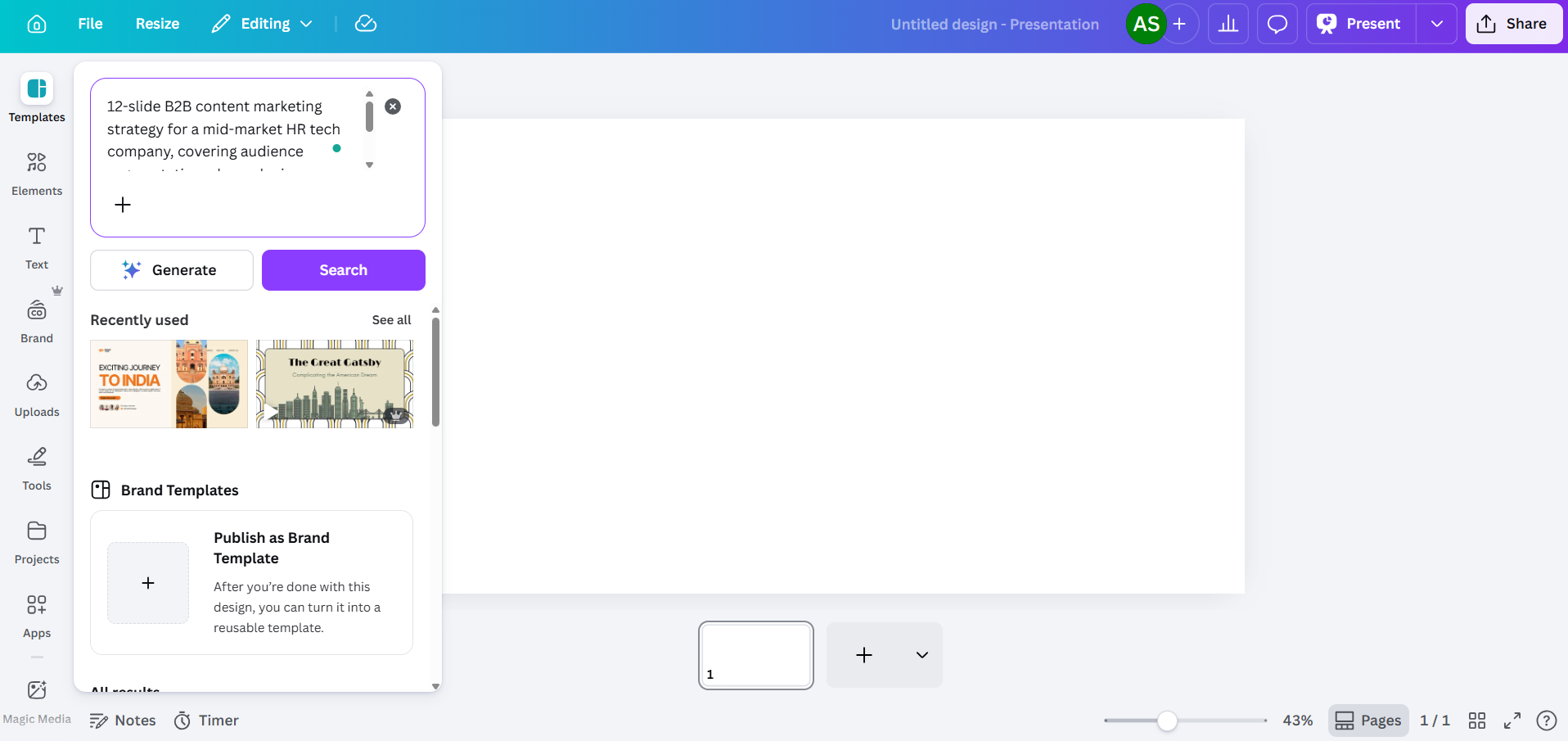
Magic Design adalah alat utama Canva untuk membuat presentasi dari perintah teks. Anda akan menemukannya di bilah alat di sisi kiri editor, atau dengan membuka Aplikasi dan memilih Magic Studio.
Saat panel Magic Design terbuka, Anda akan melihat kolom teks. Ketik deskripsi presentasi yang Anda butuhkan. Jika Anda lebih suka berbicara daripada mengetik, Canva juga menerima perintah suara di sini, sehingga Anda dapat mendikte ringkasan Anda dan membiarkan alat tersebut mentranskripsi serta menindaklanjutinya. Semakin spesifik Anda, semakin bermanfaat hasilnya.
Kualitas perintah penting di sini
Kurang Baik: "Presentasi strategi pemasaran."
Lebih Baik: "Strategi pemasaran konten B2B 12 slide untuk perusahaan teknologi SDM pasar menengah, mencakup segmentasi audiens, bauran saluran, kalender konten, dan KPI untuk Semester 2 2026"
Berikan konteks yang dibutuhkan AI di awal: industri, audiens, jumlah slide, dan topik spesifik yang ingin Anda bahas. Ini mengurangi kemungkinan alat tersebut menghasilkan konten pengisi yang umum. Setelah Anda memasukkan perintah, Canva akan menghasilkan beberapa opsi tata letak, masing-masing diambil dari keluarga template yang berbeda. Anda biasanya akan melihat antara tiga hingga delapan variasi. Pilih yang paling mendekati kebutuhan Anda, dengan asumsi Anda akan mengeditnya nanti.

Satu hal yang perlu diketahui tentang paket gratis: Magic Design menggunakan kumpulan kredit AI bersama Anda. Akun Canva Gratis mendapatkan total 200 kredit di semua alat Magic Studio. Itu mencakup jumlah terbatas pembuatan dek lengkap sebelum Anda mencapai batas. Akun Pro mendapatkan kredit 20 kali lipat dari paket Gratis, dengan Dream Lab (pembuatan gambar AI) berjalan pada penghitung terpisah, terbatas hingga 500 pembuatan per bulan.
Langkah 3: Edit Konten yang Dihasilkan AI
Ini adalah bagian yang paling memakan waktu. Canva AI akan memberi Anda dek terstruktur dengan slide yang relevan secara arah dengan perintah Anda, tetapi konten sebenarnya terasa umum. Judulnya luas, teks isinya bisa berlaku untuk perusahaan mana pun, dan slide data menampilkan bagan placeholder daripada angka Anda yang sebenarnya.
Rencanakan untuk menulis ulang:
- Judul yang terlalu samar ("Mendorong Pertumbuhan Melalui Inovasi" alih-alih sesuatu dengan angka atau hasil yang sebenarnya)
- Teks isi yang terasa seperti placeholder daripada wawasan yang sebenarnya
- Slide data di mana bagannya bersifat dekoratif daripada diisi dengan angka-angka nyata
- Slide kesimpulan yang secara default berisi ajakan bertindak yang umum

Klik blok teks mana pun untuk mengeditnya secara langsung. Anda juga bisa menggunakan Magic Write untuk membuat ulang blok teks tertentu di paket mana pun, sesuai dengan jatah kredit Anda. Sorot blok, klik kanan, dan cari opsi Magic Write. Ini berfungsi, tetapi hasilnya masih cenderung ke bahasa umum daripada konten bisnis spesifik, jadi anggaplah ini sebagai titik awal, bukan produk jadi.
Langkah 5: Gunakan Magic Write untuk Pembuatan Teks pada Slide Individual
Magic Write adalah alat teks AI Canva, dan penting untuk memahaminya secara terpisah dari Magic Design. Sementara Magic Design membangun seluruh dek, Magic Write bekerja pada tingkat blok teks individual. Anda bisa menggunakannya untuk menyusun salinan slide, menulis ulang bagian dengan nada yang berbeda, atau mengembangkan poin-poin menjadi paragraf.
Untuk menggunakannya, pilih elemen teks pada slide Anda, lalu cari opsi Magic Write di bilah alat atau menu klik kanan. Anda bisa memberinya perintah spesifik untuk slide tersebut, yang membantu menghindari hasil generik yang berasal dari pembuatan seluruh dek.

Batasan di sini sama dengan Magic Design: Magic Write lebih baik dalam menghasilkan teks yang terdengar masuk akal daripada menghasilkan konten yang spesifik dan akurat. Jika slide Anda perlu merujuk pada metrik aktual perusahaan Anda, nama pelanggan, atau spesifikasi produk, Anda perlu menambahkan detail tersebut sendiri.
Langkah 6: Tambahkan Visual Menggunakan Alat Gambar Canva
Ini benar-benar salah satu area terkuat Canva. Panel Elemen memberi Anda akses ke jutaan foto stok, ilustrasi, ikon, dan klip video. Gunakan bilah pencarian untuk menemukan aset yang sesuai dengan konten Anda, lalu seret ke slide Anda.
Untuk gambar yang dihasilkan AI, buka Aplikasi dan cari Magic Media. Anda bisa memasukkan perintah teks untuk menghasilkan gambar, yang berguna saat Anda membutuhkan sesuatu yang spesifik yang tidak dapat disediakan oleh fotografi stok. Akun gratis menggunakan kumpulan 200 kredit bersama mereka, dan akun Pro mendapatkan 500 generasi gambar Dream Lab per bulan, yang dilacak secara terpisah.

Selain menghasilkan gambar, alat pengeditan AI Canva memberi Anda kontrol yang berguna atas visual yang Anda gunakan pada slide:
- Magic Expand memungkinkan Anda memperluas foto melampaui bingkai aslinya, yang berguna saat gambar tidak sepenuhnya sesuai dengan dimensi slide Anda.
- Penghapus Latar Belakang (Khusus Pro) menghapus latar belakang dari foto dengan bersih dalam satu klik, berguna untuk foto produk, foto kepala, atau gambar apa pun yang ingin Anda tempatkan di atas latar belakang slide.
- Magic Erase memungkinkan Anda mengklik elemen tertentu dalam foto dan menghapusnya, sementara AI mengisi area di belakangnya. Berguna saat gambar stok mendekati apa yang Anda butuhkan tetapi memiliki objek yang mengganggu yang ingin Anda hilangkan.
- Magic Grab memungkinkan Anda memilih dan memposisikan ulang subjek foto sebagai elemen terpisah, dengan AI menciptakan kembali latar belakang di belakangnya.
- Magic Edit mengambil deskripsi bahasa alami dan menerapkannya pada elemen di gambar Anda. Misalnya, Anda dapat memilih jaket di foto, mengetik "jadikan biru dongker," dan AI akan menerapkan perubahan tersebut. Sangat membantu saat Anda membutuhkan visual yang sesuai dengan skema warna tanpa perlu memotret ulang atau mencari aset baru.
- Penyesuaian AI memungkinkan Anda memodifikasi secara independen subjek, latar depan, atau latar belakang gambar tanpa memengaruhi lapisan lainnya. Anda dapat mencerahkan latar belakang sambil menjaga kontras subjek tetap utuh, atau mengaburkan elemen latar depan sambil menjaga subjek tetap tajam.
- Ambil Teks mengidentifikasi teks yang tertanam dalam gambar dan membuatnya dapat diedit, yang sangat berguna jika Anda bekerja dengan tangkapan layar atau grafik yang diimpor yang berisi teks yang perlu Anda ubah.
Untuk bagan dan visualisasi data, buka Aplikasi dan pilih Bagan. Anda dapat menyisipkan jenis bagan dasar (batang, garis, pai, donat) dan memasukkan data Anda secara manual. Tidak ada koneksi langsung ke spreadsheet atau sumber data eksternal, jadi setiap angka harus diketik secara manual.
Langkah 7: Terapkan Brand Kit Anda
Jika presentasi Anda perlu sesuai dengan merek tertentu, Brand Kit Canva adalah tempat Anda menyimpan warna, font, dan logo Anda. Tingkat akses tergantung pada paket Anda:
- Gratis: 1 Brand Kit dengan hingga 3 warna
- Pro ($15/bulan): 5 Brand Kit
- Bisnis: 100 Brand Kit
- Enterprise: 1.000 Brand Kit dengan persetujuan berjenjang dan manajemen multi-tim
Untuk menerapkan Brand Kit di editor, klik Gaya di bilah alat dan pilih merek Anda. Canva akan mencoba mewarnai ulang elemen dan menukar font, tetapi di sinilah Anda akan menemukan kesenjangan antara apa yang dijanjikan fitur tersebut dan apa yang sebenarnya diberikannya:
Logo tidak otomatis menyesuaikan posisi di seluruh slide. Anda harus menyeret dan mengubah ukuran logo di setiap slide secara individual.
Penerapan warna bersifat umum daripada cerdas. AI mungkin menerapkan warna merek utama Anda ke latar belakang yang bertabrakan dengan keterbacaan teks.
Aturan pasangan font tidak dihormati. AI tidak membedakan antara font judul dan font isi Anda, seperti yang mungkin ditentukan oleh pedoman merek Anda.
Alokasikan waktu tambahan 10-15 menit untuk pembersihan merek pada presentasi 10 slide. Untuk presentasi 20 slide, kira-kira dua kali lipat dari itu.
Langkah 8: Presentasi Langsung dari Canva atau Ekspor ke PowerPoint
Setelah presentasi Anda siap, Anda memiliki beberapa opsi untuk penyampaian:
- Tampilkan dari Canva: Klik Tampilkan untuk tayangan slide layar penuh. Ini adalah mode penyampaian terbaik Canva. Animasi, transisi, dan media tersemat semuanya berfungsi sebagaimana mestinya. Persyaratannya adalah browser dan koneksi internet.
- Bagikan tautan: Buat tautan hanya-lihat atau dapat diedit. Canva menawarkan pelacakan tampilan dasar, tetapi analitiknya terbatas.
- Ekspor ke PowerPoint: Buka Bagikan, lalu Unduh, lalu Microsoft PowerPoint (.pptx). Opsi ini hanya tersedia untuk paket Pro ($15/bulan) dan di atasnya. Buka file yang diekspor di PowerPoint dan periksa setiap slide. Pergeseran tata letak sering terjadi, kotak teks bergeser, elemen yang dikelompokkan terpisah, dan semua animasi yang Anda tambahkan dihilangkan sepenuhnya.
Jika tim atau klien Anda membutuhkan penyampaian dalam format PowerPoint, uji ekspor sejak awal dalam alur kerja Anda daripada menemukan masalah tata letak 30 menit sebelum rapat.
Kekurangan AI Canva untuk Presentasi
Langkah-langkah di atas berhasil. AI Canva akan membuatkan Anda sebuah dek presentasi. Pertanyaannya adalah apakah total upaya yang diperlukan sesuai dengan ekspektasi Anda dari alat "bertenaga AI". Berikut adalah hal-hal yang tidak banyak dibahas dalam sebagian besar tutorial:
Hasilnya Terkesan Generik
Magic Design mengambil dari pustaka template Canva yang masif untuk mencocokkan perintah Anda, dan pustaka yang sama adalah sumber kelemahan utamanya. AI menghasilkan konten yang cukup luas untuk diterapkan pada hampir semua perusahaan di industri mana pun.
Kontrol Perintah Terbatas
Anda dapat menyesuaikan perintah awal dan membuat ulang, tetapi AI Canva tidak menawarkan banyak kontrol atas struktur, nada, atau hierarki konten di luar perintah dasar. Anda tidak dapat memintanya untuk memberikan bobot lebih pada slide tertentu, menggunakan struktur narasi tertentu, atau mengambil dari dokumen sumber tertentu.
Penerapan Merek Belum Sepenuhnya Otomatis
Akses Brand Kit bervariasi berdasarkan paket: pengguna gratis mendapatkan satu kit yang terbatas pada 3 warna; Pro ($15/bulan) memberi Anda 5 kit; Bisnis membuka 100; dan Enterprise hingga 1.000 kit dengan persetujuan berjenjang.
Ekspor PowerPoint Menciptakan Tahap Pengeditan Kedua
Ekspor .pptx terlihat rapi di dalam editor Canva. Buka di Microsoft PowerPoint, dan Anda akan sering menemukan bahwa dalam beberapa kasus, kotak teks bergeser, spasi tidak tepat, elemen yang dikelompokkan terpisah, dan animasi hilang. Untuk tim yang rutin melakukan presentasi di PowerPoint, ini berarti setiap dek yang dihasilkan AI memerlukan setidaknya dua tahap pengeditan: satu di Canva, satu di PowerPoint.
Paket Gratis Cepat Habis
Paket gratis Canva mencakup 200 kredit AI yang dibagikan di semua alat Magic Studio. Ini adalah kredit seumur hidup, bukan pembaruan bulanan. Magic Design untuk dek presentasi lengkap menggunakan sebagian besar dari kumpulan tersebut. Setelah habis, Anda memerlukan Pro ($15/bulan) untuk terus menggunakan fitur AI. Itu adalah jangka waktu yang wajar untuk mengevaluasi alat tersebut, tetapi itu bukan akses gratis tanpa batas seperti yang terkadang diisyaratkan oleh pemasaran.
AI Canva vs. Alat Presentasi AI Khusus
Canva dibangun sebagai platform desain dan menambahkan AI presentasi sebagai salah satu dari banyak fiturnya. Keputusan arsitektural itu terlihat di seluruh alur kerja: setiap alat AI adalah tindakan terpisah, penerapan merek dilakukan secara manual, dan ekspor ke PowerPoint menciptakan pekerjaan ulang.
Alat seperti Presentations.AI mengambil pendekatan yang berbeda. Ini dibangun dari awal untuk mengatasi masalah pembuatan presentasi siap bisnis dari satu perintah, dengan sinkronisasi merek, input multi-format, dan ekspor PowerPoint yang bersih sebagai fitur inti, bukan tambahan. Berikut perbandingan keduanya dalam hal-hal yang paling penting untuk alur kerja presentasi.
Apa yang Dilakukan Presentations.AI Berbeda
Perbedaan utama antara pendekatan Canva terhadap presentasi dan Presentations.AI bersifat arsitektural. Canva menambahkan AI ke alat desain. Presentations.AI membangun seluruh produknya untuk mengatasi masalah pembuatan dek presentasi yang siap pakai dari satu input, dengan koreksi manual sesedikit mungkin setelahnya.
Satu Prompt, Dek Lengkap
Cukup masukkan prompt, dan Presentations.AI, sebuah pembuat slide AI yang dibangun untuk dek bisnis, menghasilkan dek yang terstruktur dan spesifik konten dalam waktu kurang dari 30 detik. Bukan titik awal yang harus Anda bangun ulang selama 30 menit berikutnya, tetapi draf yang terorganisir, konsisten secara visual, dan siap untuk tinjauan khusus Anda.
Sinkronisasi Merek dari URL Anda
Daripada mengunggah logo dan mengatur kode heksa secara manual, Sinkronisasi Merek Presentations.AI menarik warna merek, font, dan logo Anda langsung dari URL perusahaan Anda. Ini menerapkannya secara otomatis di setiap slide, tanpa penyesuaian per slide yang dibutuhkan Canva.
Input Multi-Format
Presentasi bisnis jarang dimulai dari nol. Mereka dimulai dari dokumen strategi, PDF penelitian, analisis kompetitif, atau URL yang perlu Anda ubah menjadi poin-poin pembicaraan. Presentations.AI menerima semua itu sebagai input, menghasilkan dek terstruktur dari materi sumber asli Anda daripada mengharuskan Anda meringkasnya menjadi prompt terlebih dahulu. Jika Anda sudah memiliki kerangka, cukup tempelkan untuk mengubahnya menjadi dek.
Ekspor PowerPoint yang Bersih
Apa yang Anda buat di editor Presentations.AI adalah apa yang terbuka di PowerPoint. Tata letak tetap terjaga, font tidak kembali ke default sistem, dan spasi tetap pada tempatnya. Untuk tim yang melakukan presentasi di PowerPoint dan membutuhkan file yang siap dikirim segera, ini menghilangkan seluruh siklus ekspor dan pembersihan.
Penyempurnaan Percakapan dengan Clip-E
Clip-E, asisten AI yang terintegrasi dalam Presentations.AI, memungkinkan Anda menyempurnakan dek Anda dengan bahasa sederhana setelah pembuatan. "Persingkat ringkasan eksekutif" atau "Tambahkan slide lanskap kompetitif di antara slide 4 dan 5.” AI menerapkan perubahan tersebut secara langsung. Anda mengarahkan daripada menyeret dan mengklik.
Kapan Canva AI Efektif untuk Presentasi, dan Kapan Tidak
Canva AI layak digunakan ketika presentasi adalah hasil sekunder dan fleksibilitas desain menjadi prioritas. Namun, ketika presentasi adalah hasil akhir yang sebenarnya, dengan audiens nyata, taruhan nyata, dan tenggat waktu yang ketat, sifat umum alat tersebut mulai merugikan Anda.
Canva AI adalah pilihan yang masuk akal ketika:
- Anda membuat slide internal yang tidak terlalu krusial, di mana tampilan visual lebih penting daripada ketepatan konten, seperti pembaruan tim atau gambaran umum orientasi karyawan.
- Anda berencana untuk presentasi langsung dari penampil bawaan Canva, sehingga masalah ekspor tidak relevan dengan alur kerja Anda.
- Anda sudah menggunakan Canva untuk pekerjaan desain dan menginginkan alat yang konsisten daripada platform baru.
- Penceritaan visual adalah prioritas, dan Anda ingin mengakses perpustakaan aset stok yang masif di samping fitur AI.
Canva AI menjadi hambatan ketika:
- Anda membuat presentasi dengan konsekuensi bisnis yang nyata, seperti presentasi investor, pembaruan dewan, proposal klien, atau tinjauan triwulanan, di mana hasil AI yang generik justru menciptakan lebih banyak pekerjaan pengeditan daripada menghemat waktu.
- Organisasi, klien, atau acara Anda memerlukan pengiriman dalam format .pptx. Masalah ekspor berarti Anda secara efektif membuat presentasi dua kali.
- Anda mengelola beberapa merek. Mengulang proses Brand Kit manual untuk setiap presentasi per klien akan dengan cepat menumpuk.
- Kecepatan adalah kendala yang nyata. Dua menit atau lebih untuk pembuatan ditambah 30 menit pengeditan tidak memberikan penghematan waktu yang diimplikasikan oleh posisi alat tersebut.