En bref
- Magic Design génère une présentation complète à partir d'une invite textuelle en quelques minutes, mais le résultat nécessite des modifications avant de le présenter à qui que ce soit.
- Les utilisateurs gratuits bénéficient de 200 crédits IA pour tous les outils Magic Studio. Une fois ceux-ci épuisés, vous avez besoin de Canva Pro (15 $/mois ou 120 $/an) pour continuer. Les utilisateurs Pro obtiennent 20 fois plus de crédits que le plan Gratuit.
- L'exportation PowerPoint est réservée aux utilisateurs Pro, et les mises en page se décalent souvent lorsque vous ouvrez le fichier dans PowerPoint, ce qui implique un travail de nettoyage supplémentaire.
Si vous souhaitez une présentation complète générée à partir d'une seule invite avec un minimum d'allers-retours, Presentations.AI est conçu spécifiquement pour ce flux de travail.
Étape par étape : Comment créer une présentation avec l'IA de Canva
Si vous utilisez Canva pour vos créations graphiques, les fonctionnalités d'IA vous sembleront une évolution naturelle. Vous connaissez déjà l'éditeur, vous avez des modèles que vous appréciez, et maintenant Canva vous dit qu'il peut générer des présentations entières à partir d'une invite textuelle. C'est une chose tout à fait raisonnable à vouloir essayer.
Ce guide explique précisément comment procéder. Nous aborderons Magic Design, Magic Write pour le texte, les outils d'image et comment appliquer votre marque une fois la présentation générée. Nous serons également honnêtes sur les parties qui demandent plus d'efforts manuels que ce que les vidéos tutorielles ont tendance à montrer. À la fin, vous saurez comment tirer le meilleur parti des fonctionnalités de présentation IA de Canva, et vous aurez une idée claire du moment où un outil de présentation IA dédié est plus approprié pour le travail que vous effectuez. Si une seule invite produisant une présentation presque prête est ce que vous recherchez, un outil de création de présentations IA spécialement conçu pour l'IA vaut la peine d'être comparé à Canva avant de vous engager.
Étape 1 : Connectez-vous et démarrez une nouvelle présentation
Ouvrez Canva et connectez-vous, ou créez un compte gratuit si vous n'en avez pas. Depuis la page d'accueil, cliquez sur Créer un design et recherchez Présentation dans les options de format. Sélectionnez Présentation (16:9), qui est le format grand écran standard utilisé pour la plupart des diaporamas.
Vous arriverez dans l'éditeur de Canva avec une toile vierge. À partir de là, vous avez deux façons d'impliquer l'IA : vous pouvez parcourir les modèles et intégrer les outils d'IA au fur et à mesure, ou vous pouvez passer directement à Magic Design et laisser l'IA construire votre structure de départ. Ce guide se concentre sur l'approche axée sur l'IA.
Étape 2 : Utiliser Magic Design pour générer votre présentation
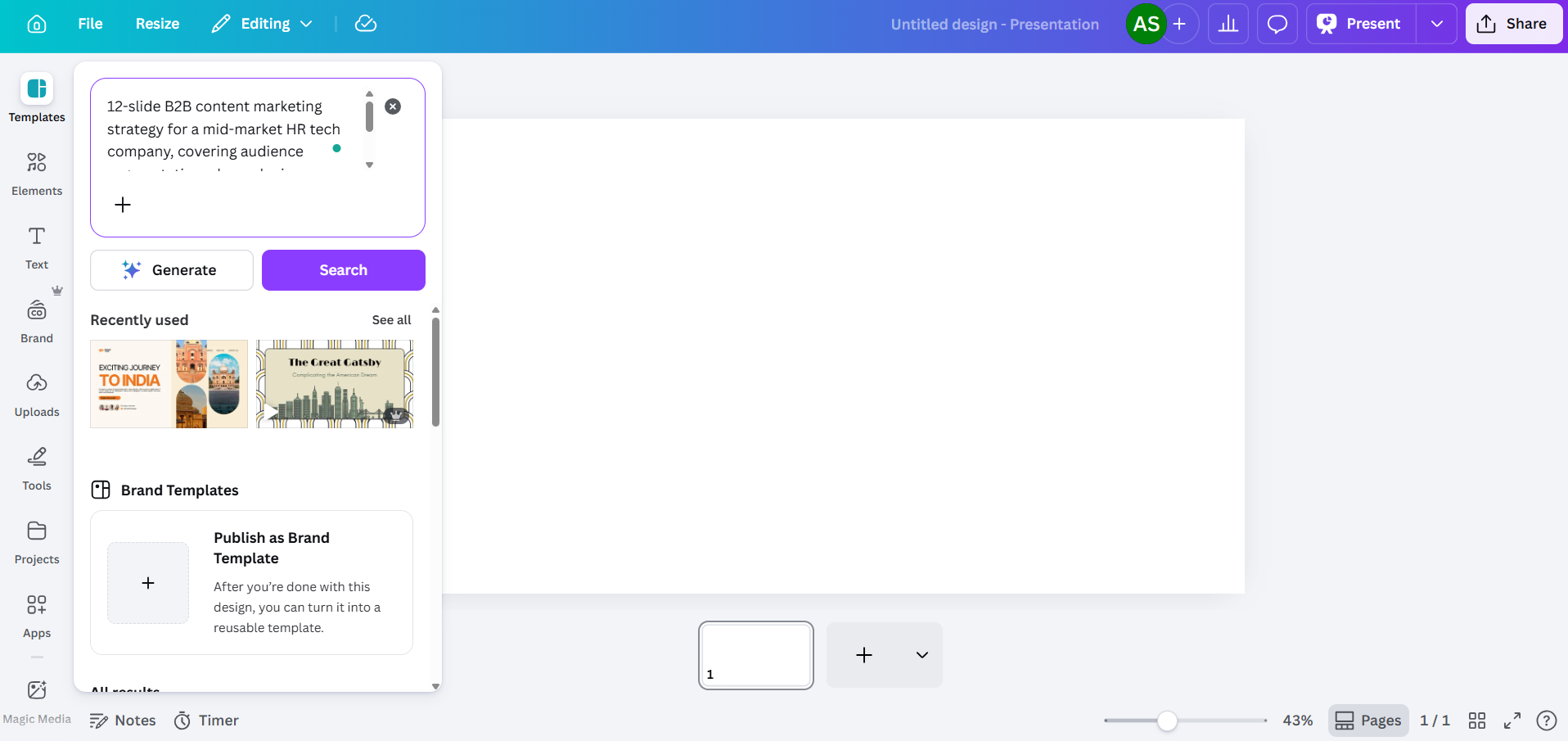
Magic Design est l'outil principal de Canva pour générer des présentations à partir d'une invite textuelle. Vous le trouverez dans la barre d'outils sur le côté gauche de l'éditeur, ou en allant dans Applications et en sélectionnant Magic Studio.
Lorsque le panneau Magic Design s'ouvre, vous verrez un champ de texte. Saisissez une description de la présentation dont vous avez besoin. Si vous préférez parler plutôt qu'écrire, Canva accepte également les invites vocales ici, vous pouvez donc dicter votre brief et laisser l'outil le transcrire et agir en conséquence. Plus vous êtes précis, plus le résultat sera utile.
La qualité de l'invite est essentielle ici
Moins efficace: « Présentation de la stratégie marketing. »
Plus efficace: « Stratégie de marketing de contenu B2B de 12 diapositives pour une entreprise de technologie RH de taille moyenne, couvrant la segmentation de l'audience, le mix de canaux, le calendrier de contenu et les KPI pour le S2 2026 »
Précisez d'emblée le contexte dont l'IA a besoin : l'industrie, l'audience, le nombre de diapositives et les sujets spécifiques que vous souhaitez aborder. Cela laisse moins de place à l'outil pour se contenter de contenu générique. Après avoir saisi votre invite, Canva génère plusieurs options de mise en page, chacune provenant d'une famille de modèles différente. Vous verrez généralement entre trois et huit variations. Choisissez celle qui se rapproche le plus de vos besoins, sachant que vous la modifierez de toute façon.

Un point important concernant la version gratuite : Magic Design utilise votre pool de crédits IA partagés. Les comptes Canva Gratuits bénéficient de 200 crédits au total pour tous les outils Magic Studio. Cela couvre un nombre limité de générations de présentations complètes avant d'atteindre la limite. Les comptes Pro obtiennent 20 fois plus de crédits que le plan Gratuit, avec Dream Lab (génération d'images IA) fonctionnant sur un compteur séparé, limité à 500 générations par mois.
Étape 3 : Modifier le contenu généré par l'IA
C'est la partie qui prend le plus de temps. Canva AI vous fournira une présentation structurée avec des diapositives pertinentes par rapport à votre invite, mais le contenu réel est générique. Les titres sont généraux, le corps du texte pourrait s'appliquer à n'importe quelle entreprise, et les diapositives de données affichent des graphiques de substitution plutôt que vos chiffres réels.
Prévoyez de réécrire :
- Les titres trop vagues (« Stimuler la croissance par l'innovation » au lieu de quelque chose avec un chiffre ou un résultat concret)
- Le texte qui fait office de remplissage plutôt qu'une véritable information
- Les diapositives de données où les graphiques sont décoratifs plutôt que remplis de chiffres réels
- Les diapositives de conclusion qui proposent des appels à l'action génériques par défaut

Cliquez sur n'importe quel bloc de texte pour le modifier directement. Vous pouvez également utiliser Magic Write pour régénérer des blocs de texte spécifiques sur n'importe quel forfait, dans la limite de vos crédits. Sélectionnez un bloc, faites un clic droit et recherchez l'option Magic Write. Cela fonctionne, mais le résultat tend toujours vers un langage général plutôt que vers un contenu commercial spécifique, il faut donc le considérer comme un point de départ plutôt que comme un produit fini.
Étape 5 : Utiliser Magic Write pour la génération de texte sur des diapositives individuelles
Magic Write est l'outil de texte IA de Canva, et il est important de le comprendre séparément de Magic Design. Alors que Magic Design construit l'ensemble de la présentation, Magic Write fonctionne au niveau des blocs de texte individuels. Vous pouvez l'utiliser pour rédiger le texte d'une diapositive, réécrire une section avec un ton différent, ou développer une puce en un paragraphe.
Pour l'utiliser, sélectionnez un élément de texte sur votre diapositive, puis recherchez l'option Magic Write dans la barre d'outils ou le menu contextuel (clic droit). Vous pouvez lui donner une instruction spécifique à cette diapositive, ce qui permet d'éviter le résultat générique qui découle de la génération de présentations entières.

La limitation ici est la même qu'avec Magic Design : Magic Write est meilleur pour produire un texte plausible que pour produire un contenu spécifique et précis. Si votre diapositive doit faire référence aux métriques réelles de votre entreprise, aux noms de clients ou aux spécificités de produits, vous devrez ajouter ces détails vous-même.
Étape 6 : Ajouter des visuels à l'aide des outils d'image de Canva
C'est véritablement l'un des points forts de Canva. Le panneau Éléments vous donne accès à des millions de photos de stock, d'illustrations, d'icônes et de clips vidéo. Utilisez la barre de recherche pour trouver des éléments qui correspondent à votre contenu, puis faites-les glisser sur vos diapositives.
Pour les images générées par l'IA, allez dans Applications et recherchez Magic Media. Vous pouvez saisir une invite textuelle pour générer une image, ce qui est utile lorsque vous avez besoin de quelque chose de spécifique que la photographie de stock ne peut pas couvrir. Les comptes gratuits puisent dans leur pool partagé de 200 crédits, et les comptes Pro bénéficient de 500 générations d'images Dream Lab par mois, suivies séparément.

Au-delà de la génération d'images, les outils d'édition IA de Canva vous offrent un contrôle utile sur les visuels avec lesquels vous travaillez sur les diapositives :
- Agrandissement Magique vous permet d'étendre une photo au-delà de son cadre d'origine, ce qui est utile lorsqu'une image ne correspond pas tout à fait aux dimensions de votre diapositive.
- Suppresseur d'arrière-plan (Pro uniquement) supprime proprement l'arrière-plan d'une photo en un clic, utile pour les photos de produits, les portraits ou toute image que vous souhaitez placer sur un arrière-plan de diapositive.
- Gomme Magique vous permet de cliquer sur un élément spécifique d'une photo et de le supprimer, tandis que l'IA remplit la zone derrière. Utile lorsqu'une image de stock est proche de ce dont vous avez besoin mais contient un objet gênant que vous souhaitez faire disparaître.
- Saisie Magique vous permet de sélectionner et de repositionner le sujet d'une photo comme un élément distinct, l'IA recréant l'arrière-plan derrière lui.
- Retouche Magique prend une description en langage naturel et l'applique à un élément de votre image. Par exemple, vous pouvez sélectionner une veste sur une photo, taper « rendez-la bleu marine », et l'IA applique la modification. Utile lorsque vous avez besoin d'un visuel correspondant à une palette de couleurs sans refaire la prise de vue ou trouver un nouvel élément.
- Ajustements IA vous permettent de modifier indépendamment le sujet, le premier plan ou l'arrière-plan d'une image sans affecter les autres calques. Vous pouvez éclaircir un arrière-plan tout en conservant le contraste du sujet, ou flouter un élément de premier plan tout en gardant le sujet net.
- Saisie de texte identifie le texte intégré dans une image et le rend modifiable, ce qui peut être pratique si vous travaillez avec des captures d'écran ou des graphiques importés contenant du texte que vous devez modifier.
Pour les graphiques et la visualisation de données, allez dans Applications et sélectionnez Graphiques. Vous pouvez insérer des types de graphiques de base (barres, lignes, secteurs, anneaux) et saisir manuellement vos données. Il n'y a pas de connexion en direct avec des feuilles de calcul ou des sources de données externes, donc chaque chiffre doit être saisi à la main.
Étape 7 : Appliquer votre kit de marque
Si votre présentation doit correspondre à une marque spécifique, le Kit de marque de Canva est l'endroit où vous stockez vos couleurs, polices et logo. Le niveau d'accès dépend de votre forfait :
- Gratuit : 1 kit de marque avec jusqu'à 3 couleurs
- Pro (15 $/mois) : 5 kits de marque
- Business : 100 kits de marque
- Entreprise : 1 000 kits de marque avec approbations échelonnées et gestion multi-équipes
Pour appliquer un kit de marque dans l'éditeur, cliquez sur Styles dans la barre d'outils et sélectionnez votre marque. Canva tentera de recolorer les éléments et d'échanger les polices, mais c'est là que vous constaterez l'écart entre ce que la fonctionnalité promet et ce qu'elle offre réellement :
Les logos ne se positionnent pas automatiquement sur toutes les diapositives. Vous devrez faire glisser et redimensionner le logo sur chaque diapositive individuellement.
L'application des couleurs est générale plutôt qu'intelligente. L'IA pourrait appliquer votre couleur de marque principale à un arrière-plan où elle entre en conflit avec la lisibilité du texte.
Les règles d'association de polices ne sont pas respectées. L'IA ne fait pas la distinction entre vos polices de titre et de corps de texte, comme vos directives de marque le spécifient probablement.
Prévoyez 10 à 15 minutes supplémentaires pour le nettoyage de la marque sur une présentation de 10 diapositives. Pour une présentation de 20 diapositives, comptez environ le double.
Étape 8 : Présenter directement depuis Canva ou exporter vers PowerPoint
Une fois votre présentation prête, vous disposez de plusieurs options de diffusion :
- Présenter depuis Canva: Cliquez sur Présenter pour un diaporama en plein écran. C'est le meilleur mode de diffusion de Canva. Les animations, les transitions et les médias intégrés fonctionnent tous comme prévu. Il faut un navigateur et une connexion internet.
- Partager un lien: Générez un lien en lecture seule ou modifiable. Canva propose un suivi de base des vues, mais les analyses sont limitées.
- Exporter vers PowerPoint: Allez dans Partager, puis Télécharger, puis Microsoft PowerPoint (.pptx). Cette option n'est disponible qu'avec l'abonnement Pro (15 $/mois) et supérieur. Ouvrez le fichier exporté dans PowerPoint et vérifiez chaque diapositive. Les décalages de mise en page sont fréquents, les zones de texte se déplacent, les éléments groupés se dégroupent, et toutes les animations que vous avez ajoutées sont entièrement supprimées.
Si votre équipe ou votre client exige une présentation PowerPoint, testez l'exportation tôt dans votre processus de travail plutôt que de découvrir des problèmes de mise en page 30 minutes avant une réunion.
Les lacunes de l'IA de Canva pour les présentations
Les étapes ci-dessus fonctionnent. L'IA de Canva vous fournira une présentation. La question est de savoir si l'effort total impliqué correspond à vos attentes vis-à-vis d'un outil "alimenté par l'IA". Voici ce que la plupart des tutoriels ne mentionnent pas :
Le résultat est générique
Magic Design puise dans l'énorme bibliothèque de modèles de Canva pour correspondre à votre requête, et cette même bibliothèque est la source de sa principale faiblesse. L'IA produit un contenu suffisamment général pour s'appliquer à presque n'importe quelle entreprise, quel que soit le secteur.
Le contrôle des requêtes est limité
Vous pouvez ajuster la requête initiale et régénérer, mais l'IA de Canva n'offre pas beaucoup de contrôle sur la structure, le ton ou la hiérarchie du contenu au-delà de la requête de base. Vous ne pouvez pas lui demander de donner plus de poids à certaines diapositives, d'utiliser une structure narrative particulière, ou de puiser dans un document source spécifique.
L'application de la marque n'est pas entièrement automatisée
L'accès aux kits de marque varie selon le forfait : les utilisateurs gratuits obtiennent un kit limité à 3 couleurs ; Pro (15 $/mois) vous donne 5 kits ; Business débloque 100 kits ; et Enterprise va jusqu'à 1 000 kits avec des approbations échelonnées.
L'exportation PowerPoint nécessite une deuxième passe d'édition
L'exportation .pptx semble propre dans l'éditeur de Canva. Ouvrez-le dans Microsoft PowerPoint, et vous constaterez souvent que, dans certains cas, les zones de texte se sont déplacées, l'espacement est décalé, les éléments groupés se sont séparés et les animations ont disparu. Pour les équipes qui présentent régulièrement avec PowerPoint, cela signifie que chaque présentation générée par l'IA nécessite au moins deux passes d'édition : une dans Canva, une dans PowerPoint.
Le niveau gratuit s'épuise rapidement
Le forfait gratuit de Canva inclut 200 crédits IA partagés entre tous les outils Magic Studio. Ce sont des crédits à vie, et non un renouvellement mensuel. Magic Design pour une présentation complète utilise une part significative de cette réserve. Une fois épuisés, vous avez besoin de l'abonnement Pro (15 $/mois) pour continuer à utiliser les fonctionnalités IA. C'est une période raisonnable pour évaluer l'outil, mais ce n'est pas l'accès gratuit illimité que le marketing implique parfois.
Canva IA contre un outil de présentation IA dédié
Canva a été conçu comme une plateforme de design et a ajouté l'IA de présentation comme l'une de ses nombreuses fonctionnalités. Cette décision architecturale se manifeste tout au long du flux de travail : chaque outil d'IA est une action distincte, l'application de la marque est manuelle et l'exportation vers PowerPoint génère du travail supplémentaire.
Un outil comme Presentations.AI adopte une approche différente. Il est conçu dès le départ pour résoudre le problème de la génération de présentations prêtes à l'emploi à partir d'une seule invite, avec la synchronisation de la marque, l'entrée multi-format et l'exportation PowerPoint propre comme fonctionnalités principales plutôt que comme modules complémentaires. Voici comment les deux se comparent sur les aspects les plus importants pour les flux de travail de présentation.
Ce que Presentations.AI fait différemment
La principale différence entre l'approche de Canva en matière de présentations et celle de Presentations.AI est architecturale. Canva a ajouté l'IA à un outil de design. Presentations.AI a construit l'intégralité de son produit autour du problème de la génération de présentations prêtes à l'emploi à partir d'une seule entrée, avec le moins de corrections manuelles possible par la suite.
Une seule invite, une présentation complète
Saisissez une invite, et Presentations.AI, un créateur de diapositives IA conçu pour les présentations professionnelles, génère une présentation structurée et spécifique au contenu en moins de 30 secondes. Pas un point de départ que vous reconstruisez au cours des 30 prochaines minutes, mais un brouillon organisé, visuellement cohérent et prêt pour votre cycle de révision spécifique.
Synchronisation de la marque depuis votre URL
Plutôt que de télécharger des logos et de définir manuellement des codes hexadécimaux, la synchronisation de la marque de Presentations.AI extrait vos couleurs de marque, polices et logo directement depuis l'URL de votre entreprise. Il les applique automatiquement à chaque diapositive, sans l'ajustement diapositive par diapositive que Canva exige.
Entrée multi-format
Les présentations professionnelles partent rarement de zéro. Elles commencent par un document de stratégie, un PDF de recherche, une analyse concurrentielle ou une URL que vous devez transformer en points de discussion. Presentations.AI accepte tous ces éléments comme entrée, générant une présentation structurée à partir de votre matériel source réel plutôt que de vous demander de le résumer d'abord en une invite. Si vous avez déjà un plan, il suffit de le coller pour le transformer en présentation.
Exportation PowerPoint propre
Ce que vous construisez dans l'éditeur Presentations.AI est ce qui s'ouvre dans PowerPoint. Les mises en page sont conservées, les polices ne reviennent pas aux valeurs par défaut du système et l'espacement reste tel que vous l'avez défini. Pour les équipes qui présentent avec PowerPoint et ont besoin de fichiers prêts à être envoyés immédiatement, cela élimine entièrement le cycle d'exportation et de nettoyage.
Affinement conversationnel avec Clip-E
Clip-E, l'assistant IA intégré à Presentations.AI, vous permet d'affiner votre présentation en langage naturel après sa génération. « Raccourcissez le résumé exécutif » ou « Ajoutez une diapositive sur le paysage concurrentiel entre les diapositives 4 et 5. » L'IA applique ces changements directement. Vous dirigez plutôt que de glisser-déposer et de cliquer.
Quand Canva AI fonctionne pour les présentations, et quand ce n'est pas le cas
Canva AI trouve sa place lorsque les présentations sont un résultat secondaire et que la flexibilité de conception est la priorité. Lorsque les présentations sont le véritable livrable, avec de vrais publics, de vrais enjeux et de vraies échéances, les racines généralistes de l'outil commencent à vous desservir.
Canva AI est un choix judicieux lorsque :
- Vous créez des diapositives internes à faible enjeu où le raffinement visuel prime sur la précision du contenu, comme les mises à jour d'équipe ou les aperçus d'intégration.
- Vous prévoyez de présenter directement depuis la visionneuse native de Canva, de sorte que les problèmes d'exportation sont sans importance pour votre flux de travail.
- Vous utilisez déjà Canva pour le travail de conception et souhaitez un outil cohérent plutôt qu'une nouvelle plateforme.
- La narration visuelle est la priorité, et vous souhaitez accéder à une vaste bibliothèque d'éléments visuels en plus des fonctionnalités d'IA.
Canva AI devient un goulot d'étranglement lorsque :
- Vous créez des présentations ayant de réelles conséquences commerciales, telles que des présentations aux investisseurs, des mises à jour de conseil d'administration, des propositions clients ou des bilans trimestriels, où le résultat générique de l'IA génère plus de travail d'édition qu'il n'en économise.
- Votre organisation, client ou événement exige une livraison au format .pptx. Les problèmes d'exportation signifient que vous construisez la présentation deux fois en fait.
- Vous gérez plusieurs marques. Répéter le processus manuel du Brand Kit pour chaque présentation et chaque client s'accumule rapidement.
- La vitesse est une réelle contrainte. Deux minutes ou plus de génération plus 30 minutes d'édition n'offrent pas les gains de temps que le positionnement de l'outil suggère.