Need a deck fast? This 2026 guide shows how Canva AI handles presentation creation, where it saves time, and where business teams still edit and rebuild slides before a real meeting.
TL;DR
- Magic Design generates a full slide deck from a text prompt in minutes, but the output needs real editing before you present it to any stakeholder.
- Free users get 200 lifetime AI credits across all Magic Studio tools. Continuing requires Canva Pro ($15/month or $120/year), which adds 20x more credits.
- PowerPoint export is Pro-only, and layouts frequently shift when opened in PowerPoint, forcing a second cleanup pass before delivery.
- Canva AI can draft slides, but rewriting generic copy and rebuilding charts still happen manually after generation.
- For a business-ready deck from a prompt or document with less cleanup, Presentations.AI is built for that workflow.
Before You Start: Requirements, Access, and Plan Limits
You have a presentation due soon and not enough time to rebuild every slide from scratch. Canva AI looks like an easy shortcut: type a prompt and get a usable deck.
That can work. But only if you know where Canva AI helps and where it quietly hands the work back to you.
The guide covers Magic Design, Magic Write for text, and the image tools. It also shows how to apply your brand after the deck is generated. We stay honest about the parts that take more manual effort than tutorial videos suggest. By the end, you will know how to get real value from Canva's AI presentation features. You will also see when a dedicated AI presentation tool fits the work better. If you want a single prompt to produce a near-ready deck, compare a purpose-built AI presentation maker against Canva before you commit.
Most business decks begin as messy input instead of a clean prompt. They start as scattered notes and raw CRM exports. Canva AI can help with a first draft, but the real test is whether it turns that messy input into a deck you would send to a stakeholder.
Before you invest time in the workflow, check what your plan actually allows. Pricing and credit details are published on Canva's pricing page.
How to Create an AI Presentation Step by Step
Here is the short version. Open Canva and create a Presentation in 16:9. Open Magic Design and enter a specific prompt. Review and rewrite the generated content. Replace placeholders with your real data. Refine copy with Magic Write and add visuals. Apply your Brand Kit. Present from Canva, or export to PowerPoint on a Pro plan.
If you have been using Canva for design work, the AI features feel like a natural upgrade. You already know the editor, and now Canva can generate entire presentations from a text prompt. The steps below show how to do that well, and where the manual work still lives.
Step 1: Open the Presentation Editor
Open Canva and sign in, or create a free account first. From the homepage, click Create a design and search for Presentation in the format options. Select Presentation (16:9), which is the standard widescreen format used for most business decks.
You will land in Canva's editor with an empty slide. From here, you have two ways to involve AI: you can browse templates and layer in AI tools as you go, or you can skip straight to Magic Design and let the AI build your starting structure. The guide focuses on the AI-first approach.
Step 2: Generate a Draft Deck from a Prompt
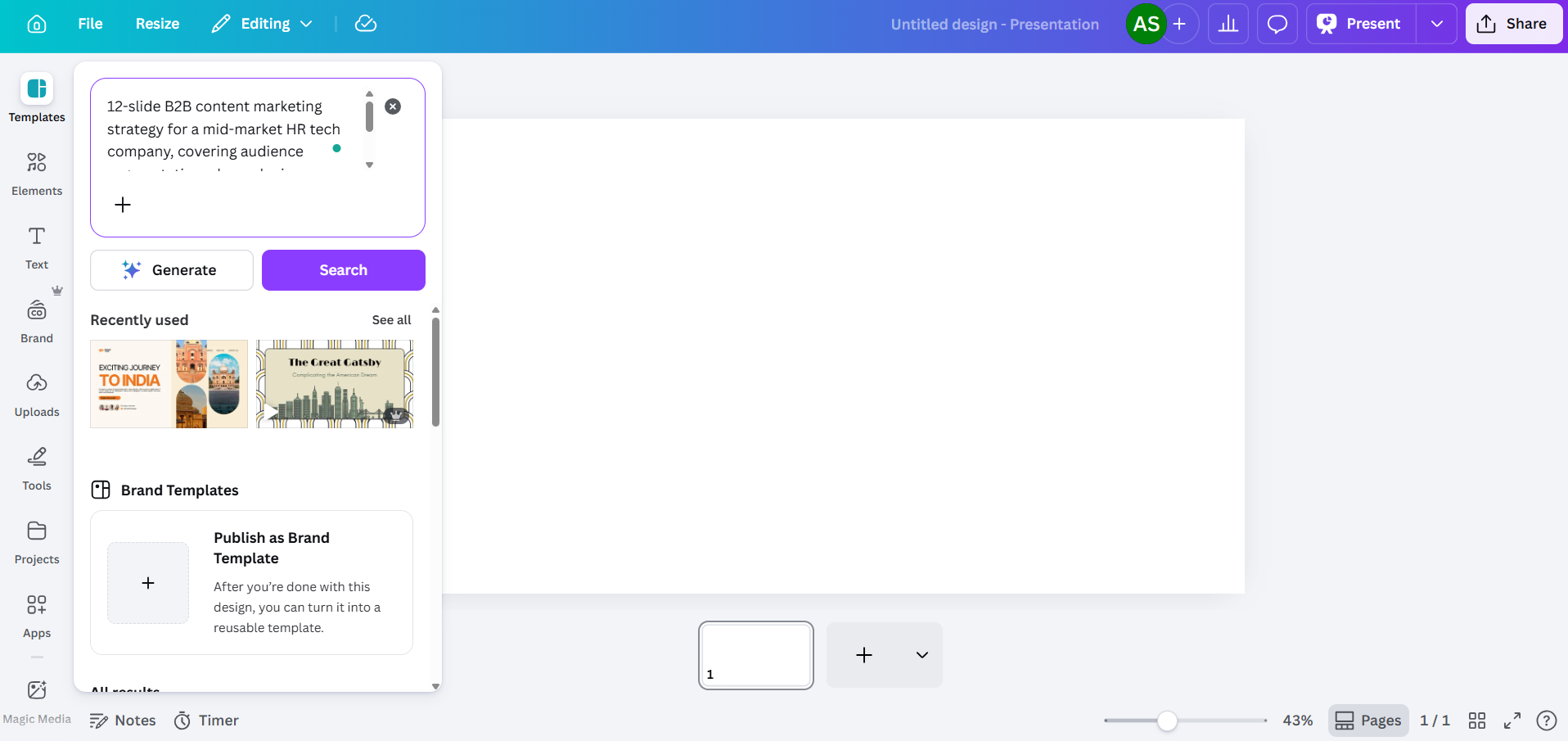
Magic Design is Canva's main tool for generating presentations from a text prompt. You will find it in the toolbar on the left side of the editor, or by going to Apps and selecting Magic Studio.
When the Magic Design panel opens, you will see a text field. Type a description of the presentation you need. If you prefer speaking to typing, Canva also accepts voice prompts here, so you can dictate your brief and let the tool transcribe and act on it. The more specific you are, the more useful the output will be.
Prompt quality matters here
Weaker: "Marketing strategy presentation."
Better: "12-slide B2B content marketing strategy for a mid-market HR tech company, covering audience segmentation, channel mix, content calendar, and KPIs for H2 2026"
Other business prompts that work better:
- Sales: "10-slide enterprise sales proposal for a CFO audience, using CRM opportunity notes, business pain points, ROI assumptions, and next-step recommendations."
- Customer success: "8-slide QBR for a SaaS customer, covering product usage, adoption gaps, business outcomes, renewal risks, and expansion opportunities."
- Leadership: "12-slide board update summarizing quarterly performance, strategic priorities, budget tradeoffs, and decision points."
- Founder: "10-slide investor update covering growth metrics, runway, product progress, customer proof, and asks for the next quarter."
Front-load the context the AI needs, such as audience and the exact topics to cover. This gives the tool less room to default to generic filler. After you enter your prompt, Canva generates several layout options, each pulled from a different template family. You will typically see between three and eight variations. Pick the one that comes closest to what you need, knowing that you will be editing it either way.

One thing to know about the free tier: Magic Design uses your shared AI credit pool. Canva Free accounts get 200 total credits across all Magic Studio tools. That covers a limited number of full deck generations before you hit the limit. Pro accounts get 20x the credits of the Free plan, with Dream Lab (AI image generation) running on a separate counter, limited to 500 generations per month.
Step 3: Review and Rewrite the Generated Slide Content
Reviewing and rewriting the generated content takes the most time, especially for a client or board deck. Canva AI gives you a structured deck with slides that stay directionally relevant to your prompt, but the content usually stays too generic for a real business audience. Headlines stay broad, and data slides show placeholder charts instead of your real numbers.
Plan to rewrite anything that would fail a real stakeholder meeting:
- Headlines that lack a clear claim, such as "Driving Growth Through Innovation" with no specific number or outcome
- Charts that look polished but prove nothing
- Bullets that describe activity instead of outcomes
- Conclusions that leave the next step vague

Click any text block to edit it directly. You can also use Magic Write to regenerate specific text blocks on any plan, within your credit allowance. Highlight a block and right-click to find the Magic Write option. It works, but the output still leans toward general language instead of specific business content, so treat it as a starting point.
Step 4: Replace Placeholder Data With Real Business Inputs
Replacing placeholder data comes before any design polish. Swap generic claims and decorative charts for your real numbers and campaign results. This is where most AI-generated decks become useful, or fall apart.
A good business slide goes past looking complete. It makes a clear point and backs that point with evidence. Then it tells the audience what to do next.
Step 5: Improve Individual Slide Copy with AI Writing Tools
Magic Write is Canva's AI text tool, and it is worth understanding separately from Magic Design. While Magic Design builds the whole deck, Magic Write works at the level of individual text blocks. You can use it to draft slide copy or expand a bullet point into a paragraph.
To use it, select a text element on your slide, then look for the Magic Write option in the toolbar or right-click menu. You can give it a prompt specific to that slide, which helps avoid the generic output that comes from whole-deck generation.

The limitation here matches Magic Design: Magic Write is better at producing plausible-sounding text than specific, accurate content. If your slide needs your company's actual metrics or customer names, you will add that detail yourself.
Step 6: Add Images, Icons, Charts, and Visual Enhancements
Adding images and charts is where Canva earns its keep, especially for a visual deck. The Elements panel gives you access to millions of stock photos and icons. Use the search bar to find assets that support the point on the slide, not just images that make it look busy.
For AI-generated images, go to Apps and look for Magic Media. You can enter a text prompt to generate an image, which is useful when you need something specific that stock photography lacks. Free accounts draw from their shared 200-credit pool, and Pro accounts get 500 Dream Lab image generations per month, tracked separately.

Beyond generating images, Canva's AI editing tools give you useful control over the visuals on your slides:
- Magic Expand lets you extend a photo beyond its original frame, which helps when an image falls short of your slide dimensions.
- Background Remover (Pro only) cleanly strips the background from a photo in one click, useful for product shots or headshots.
- Magic Erase lets you click a specific element in a photo and remove it, while the AI fills the area behind it. Useful when a stock image is close to what you need but has a distracting object you want gone.
- Magic Grab lets you select and reposition the subject of a photo as a separate element, with the AI recreating the background behind it.
- Magic Edit takes a natural language description and applies it to an element in your image. For example, you can select a jacket in a photo, type "make it navy blue," and the AI applies the change. It helps when you need a visual to match a color scheme without reshooting.
- AI Adjustments let you independently modify the subject or background of an image without touching the other layers. You can brighten a background while keeping the subject contrast intact.
- Grab Text identifies text embedded in an image and makes it editable, which helps when you work with screenshots or imported graphics that contain text you need to change.
For charts and data visualization, go to Apps and select Charts. You can insert basic chart types (bar, line, pie, donut) and enter your data manually. Every number goes in by hand, because Canva charts lack a live spreadsheet link. Use simple charts to prove a specific claim. Skip decorative data slides that add nothing. Double-check every figure, since a mistyped number is easy to miss and hard to defend in a meeting.
Step 7: Apply Brand Colors, Fonts, and Logos
If your presentation needs to match a specific brand, Canva's Brand Kit is where you store your brand colors and fonts. The level of access depends on your plan:
- Free: 1 Brand Kit with up to 3 colors
- Pro ($15/month): 5 Brand Kits
- Business: 100 Brand Kits
- Enterprise: 1,000 Brand Kits with tiered approvals and multi-team management
To apply a Brand Kit in the editor, click Styles in the toolbar and select your brand. Canva will attempt to recolor elements and swap fonts, but this is where you hit the gap between what the feature promises and what it delivers:
Logos require manual placement on every slide. You drag and resize each one individually.
Color application stays broad instead of intelligent. The AI might apply your primary brand color to a background where it clashes with text readability.
The AI ignores your font pairing rules. It treats heading and body fonts the same, though your brand guidelines separate them.
Budget an extra 10-15 minutes for brand cleanup on a 10-slide deck. On a 20-slide deck, roughly double that. Run a quick brand check before you present. Confirm consistent logo placement and correct heading fonts. Check readable contrast and on-brand chart colors.
Step 8: Present, Share, or Export Your Finished Deck
Once your deck is ready, you have a few options for delivery:
- Present from Canva: Click Present for a full-screen slideshow. This is Canva's best delivery mode. Animations and embedded media all work as intended. The requirement is a browser and an internet connection.
- Share a link: Generate a view-only or editable link. Canva offers basic view tracking, though analytics stay limited. Set permissions deliberately and restrict editing before a deck goes out. Use comments for team review.
- Export to PowerPoint: Go to Share, then Download, then Microsoft PowerPoint (.pptx). This option requires Pro ($15/month) and above. Open the exported file in PowerPoint and check every slide. Text boxes move and grouped elements come apart. Any animations you added disappear entirely.
If your team or client requires PowerPoint delivery, test the export early instead of discovering layout problems 30 minutes before a meeting. Before you present, run a final quality check. Confirm factual accuracy and clean slide hierarchy. Verify brand match and chart accuracy. Test the export and set link permissions.
How to Improve Your Prompt for Better Slide Output
Prompt quality has the single biggest effect on how usable a Canva AI draft is. A vague prompt produces generic filler; a specific one produces a structured starting point. Work through this checklist before you generate:
- Audience: Who will see this deck (CFO, board, prospect, new hires)?
- Objective: What decision or action should the deck drive?
- Slide count: How many slides do you actually need?
- Tone: Formal, conversational, technical, persuasive?
- Industry and context: Company stage, sector, and situation.
- Required sections: The specific topics or slide order you want covered.
- Data points: The metrics or proof points to reference.
- Visual style: Minimal, image-heavy, data-forward.
- Call to action: The next step you want the audience to take.
Example prompts by scenario:
- Marketing strategy: "12-slide B2B content marketing strategy for a mid-market HR tech company, covering audience segmentation, channel mix, content calendar, and H2 2026 KPIs. Data-forward, formal tone."
- Investor update: "10-slide monthly investor update covering revenue growth, runway, product milestones, key customer wins, and next-quarter asks. Concise, confident tone."
- Training deck: "15-slide onboarding presentation for new sales reps covering product overview, ICP, objection handling, and the sales process. Clear, instructional tone."
- Sales proposal: "8-slide proposal for an enterprise prospect covering their pain points, our solution, ROI, implementation timeline, and pricing. Persuasive tone."
- Classroom lesson: "10-slide lesson explaining supply and demand for high-school economics, with definitions, examples, and a quick quiz slide. Simple, engaging tone."
If the first output reads too generic, regenerate with more specificity or add real data points. Canva's control over structure ends at the prompt, so the prompt is where you fix generic results.
How to Generate Slides from Templates or Existing Designs
Many teams start from existing assets instead of a blank prompt. If you already have design assets or prior decks, Canva gives you several alternative starting points:
- Start from a template: Browse the presentation template library, pick one that matches your use case, then layer Magic Write and image tools on top. Best when you want visual structure fast and will supply your own content.
- Reuse an existing deck: Duplicate a prior Canva presentation and update the content. Best for recurring formats like weekly updates or QBRs.
- Apply a saved Brand Kit: Start from a template, then apply your Brand Kit so colors and fonts carry over. Best when brand consistency matters more than layout novelty.
- Remix a previous design: Use an approved past deck as a base and adapt it for a new audience. Best when you already have a proven narrative that works.
The trade-off is the same across all of these: templates give you a design head start, but content structuring and business specificity are still on you.
Desktop vs Mobile Workflow
Canva's AI features work on both desktop and the mobile app, though the experience differs:
- Where the AI lives: On desktop, Magic Design and Magic Studio sit in the left toolbar and the Apps menu. On mobile, you reach them through the "+" or Apps icon, with a more compact panel.
- Editing precision: Fine text editing and brand cleanup are much easier on desktop with a larger screen and keyboard.
- Generation on the go: Mobile works well for generating a first draft or making quick text tweaks between meetings.
- When to switch to desktop: Move to desktop for final editing and PowerPoint export checks, where mobile becomes limiting.
Troubleshooting Common AI Presentation Issues
Most Canva AI friction falls into a handful of predictable problems. Here is how to resolve each one.
Limitations to Know Before Using an AI Presentation Generator
The steps above work. Canva AI will get you a deck. The question is whether the total effort matches your expectations from an "AI-powered" tool. Here is what most tutorials skip:
Canva AI can generate slides. The real issue is how much work still happens after generation, from rewriting generic copy to rebuilding charts and checking the PowerPoint export.
The Output Reads Generic
Magic Design draws from Canva's massive template library to match your prompt, and that same library is the source of its main weakness. The AI produces content broad enough to apply to almost any company in any industry. The workaround is prompt specificity: front-load audience and required sections, then rewrite the highest-visibility slides by hand.
Prompt Control Is Limited
You can adjust the initial prompt and regenerate, but Canva's AI gives you little control over structure or tone beyond that prompt. It refuses requests to weight certain slides more heavily or to pull from a specific source document.
Brand Application Isn't Fully Automated
Brand Kit access varies by plan. Free users get one kit limited to 3 colors. Pro ($15/month) gives you 5 kits. Business allows 100, and Enterprise reaches 1,000 kits with tiered approvals. Even with a kit set up, expect to place logos and correct color clashes slide by slide, so keep a short brand-review checklist handy.
PowerPoint Export Creates a Second Editing Pass
The .pptx export looks clean inside Canva's editor. Open it in Microsoft PowerPoint, and you will often find shifted text boxes and grouped elements that came apart. Any animations disappear. For teams that present in PowerPoint regularly, this means every AI-generated deck requires at least two editing passes: one in Canva, one in PowerPoint. Export early and test your key slides instead of discovering the problem before a meeting.
The Free Tier Runs Out Quickly
Canva's free plan includes 200 AI credits shared across all Magic Studio tools. Canva grants these credits once, for the life of the account. Magic Design for a full presentation deck uses a meaningful portion of that pool. Once exhausted, you need Pro ($15/month) to keep using AI features. That window is enough to evaluate the tool, but it falls short of the open-ended free access the marketing implies.
Canva AI vs. a Dedicated AI Presentation Workflow
Canva was built as a design platform and added presentation AI as one of many features. That architectural decision shows up throughout the workflow. Each AI tool is a separate action, and brand application stays manual. Export to PowerPoint creates rework.
A tool like Presentations.AI takes a different approach. It generates business-ready presentations from a single prompt, treating brand sync and clean PowerPoint export as core features instead of add-ons. Here is how the two compare on the things that matter most for presentation workflows.
What Presentations.AI Does Differently
The core difference between Canva's approach to presentations and Presentations.AI's is architectural. Canva added AI to a design tool. Presentations.AI built its entire product around generating presentation-ready decks from a single input, with as little manual correction as possible afterward.
That is the larger shift: instead of formatting and rebuilding slides by hand, you direct the workflow and let AI handle the repetitive execution.
From Prompt, Doc, URL, or Outline to Full Deck
Enter a prompt, or upload a document to start. Presentations.AI, an AI slide creator built for business decks, turns that input into a structured, content-specific business deck in under 30 seconds. You get a draft with a clear narrative and consistent design, ready for a focused review pass instead of a 30-minute rebuild.
Brand Sync From Your URL
Presentations.AI's Brand Sync pulls your brand colors and logo directly from your company URL, with no manual hex codes. It applies them automatically across every slide, skipping the per-slide adjustment Canva requires.
Multi-Format Input
Business presentations usually start from existing material. They begin with a strategy doc or a research PDF you need to turn into talking points. Presentations.AI accepts those as input, generating a structured deck from your source material, so you skip summarizing it into a prompt first. If you already have an outline, just paste it in to turn it into a deck.
Clean PowerPoint Export
What you build in the Presentations.AI editor is what opens in PowerPoint. Layouts hold, and fonts and spacing stay where you put them. For teams that present in PowerPoint and need files ready to send immediately, this removes the export-and-cleanup cycle entirely.
Conversational Refinement With Clip-E
Clip-E, the AI assistant built into Presentations.AI, lets you refine your deck in plain language after generation. "Make the executive summary shorter" or "Add a competitive landscape slide between slides 4 and 5." The AI applies those changes directly. You direct the changes instead of dragging and clicking.
When to Use an AI Presentation Tool and When to Choose a Dedicated Workflow
Canva AI earns its place when presentations are a secondary output and design flexibility is the priority. When presentations are the actual deliverable, with real audiences and real deadlines, the tool's generalist roots start working against you.
Canva AI is a reasonable choice when:
- You are building internal, low-stakes slides where visual polish matters more than content precision, such as team updates or onboarding overviews.
- You plan to present directly from Canva's native viewer, so the export issues stay irrelevant to your workflow.
- You already use Canva for design work and want one consistent tool instead of a new platform.
- Visual storytelling is the priority, and you want access to a massive stock asset library alongside the AI features.
Canva AI becomes a bottleneck when:
- You are building decks with real business consequences, such as investor pitches or board updates, where generic AI output creates more editing work than it saves.
- Your organization or client requires .pptx delivery. Export issues mean you effectively build the deck twice.
- You manage multiple brands. Repeating the manual Brand Kit process per deck per client adds up quickly.
- Speed is a real constraint. Two or more minutes of generation plus 30 minutes of editing fails to deliver the time savings the tool's positioning implies.
Bottom Line
Canva AI is useful when you need a visual starting point and have time to clean up the details. But if the deck needs to carry a business decision, a client conversation, or an investor story, the real question moves past whether AI can generate slides. It is whether the tool reduces the manual work after generation.
Presentations.AI is built for that workflow: turning prompts and documents into structured, PowerPoint-ready decks, so you spend less time fixing slides and more time sharpening the message.