Great ideas often get lost inside messy slides. Crowded text, clashing colors, and images stretched out of shape could dilute even the best idea or the clearest message.
Good-looking slides no longer require real design skills or expensive tools. This guide breaks down exactly how to make slides look good, step by step. Written for beginners, it requires no design background. You'll learn small, repeatable choices that instantly raise the quality of every slide you build.
By the end, you'll have a clear checklist you can apply to any presentation, and a faster path to it if you build your deck with a platform like Presentations.AI, which applies many of these habits automatically.
Key Takeaways
- Good slides start with clarity. Simple fonts, clean layouts, and breathing room matter more than flashy effects or clutter.
- Stick to two fonts and a small color palette to keep every slide consistent, readable, and visually professional throughout.
- White space is a design tool that guides attention and makes slides feel calm and intentional.
- Avoid common mistakes like tiny text, crowded layouts, and low-quality images, which instantly make presentations look amateurish.
- With an AI slide creator like Presentations.AI, beginners can apply these design principles automatically and produce polished slides quickly.
- Small habits like proper sizing, strong contrast, and consistent alignment separate polished decks from amateur ones.
- The right tools make these principles easy to apply consistently, so your focus can stay on the message.
What Makes a Slide Look Good
Before getting into fonts and colors, it helps to define the goal. A good slide is not the one with the most polish. It is the one that does its job, one which helps an idea reach an audience clearly and quickly.
Every slide exists to serve a purpose. Informing, persuading, or guiding a decision. Design is the vehicle for that purpose. A clean font choice helps the audience read faster. A focused layout helps them follow your argument. White space gives the audience a place to rest their eyes between points.
Keeping this purpose in mind changes how you approach every design choice ahead. The question to be answered is, “Does this help the audience get the point?.” Slides that pass that test tend to look good as a natural result, not as the starting goal.
Suggested read: 10 Presentation Design Best Practices For Better Slides
Start Simple to Make Slides Look Good
The fastest way to make slides look good is to put less on them. Beginners often try to prove value by filling every inch of a slide. The result feels busy, hard to read, and overwhelming. Simplicity signals confidence and makes your message easy to follow.
When your audience has to work hard to understand your slides, they stop following along.
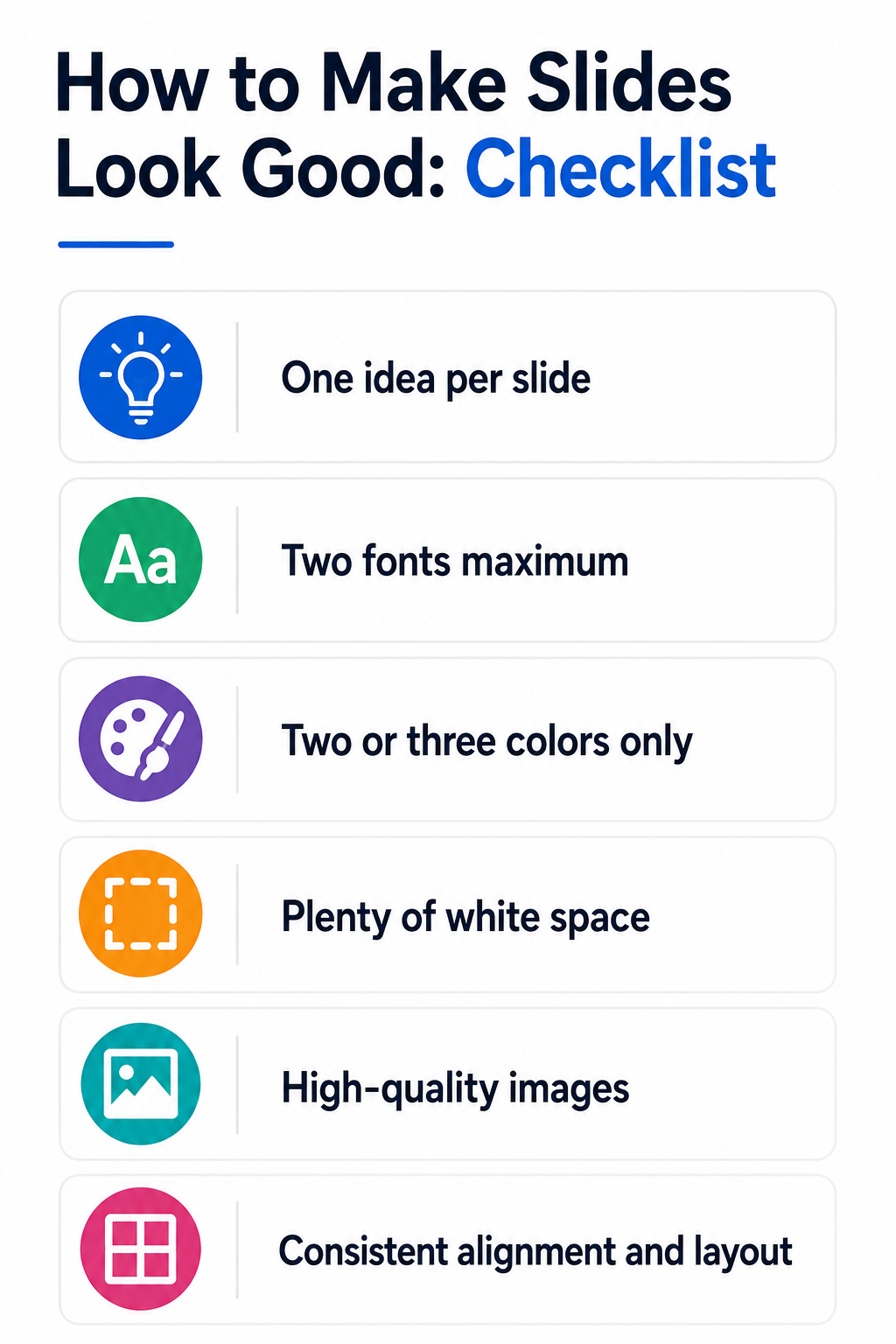
1. One Idea Per Slide
The strongest rule for clean slides is simple. Have just one idea per slide. When a slide tries to cover three points at once, none of them land clearly. Split crowded content across multiple slides instead. Slides are free, so there is no reason to cram.
Keeping to one idea also holds your audience's focus. They read one point, absorb it, and move on with you. Your pacing improves, and your deck feels intentional rather than rushed.
2. Cut the Clutter
Once you have one idea per slide, remove anything that does not support it. Long paragraphs and decorative shapes add noise more often than meaning. Ask a quick question of every element. Does this help the audience understand the point? If not, delete it.
Here are quick clutter cutters you can apply right now.
- Replace full sentences with short phrases or keywords
- Limit each slide to three or four bullet points maximum
- Remove clip art, drop shadows, and unnecessary borders
- Delete any element you added just to fill space
Pro Tip: After building a slide, remove one element and check if the message still works. It usually looks better with less.
Simplicity is the foundation on which every other design tip is built. Get this right, and clean fonts, smart color, and balanced layouts become far easier to apply.
Choose Fonts for Your Slide That Are Easy to Read
Fonts shape the first impression your slides make. The right typeface feels clean and professional, even before anyone reads a word. The wrong one looks dated or hard to follow. Design training is unnecessary to get this right, just a few reliable rules.
Start by treating readability as your top priority. A slide exists to be read from across a room. If your audience has to squint to make it out, the design has already failed.
1. Stick to Two Fonts
Using too many fonts makes slides look chaotic and unplanned. Choose two and use them consistently across your entire deck. One font handles headings, the other handles body text. This creates contrast without confusion.
Simple, clean sans-serif fonts work best for most presentations. Arial, Helvetica, and Calibri read clearly on screen. Save decorative or script fonts for personal projects, and keep professional slides simple.
If you are building a deck with an AI slide creator like Presentations.AI, this pairing is handled for you automatically, so you can skip the guesswork and go straight to your message.
2. Size and Spacing Matter
Small text is one of the most common slide mistakes. When people cannot read it, the point is lost. Keep body text large and headings even larger to create a clear hierarchy.
Use these font guidelines as a starting point.
- Headings: 28 to 40 points, depending on slide size
- Body text: At least 20 to 24 points for easy reading
- Line spacing: Slightly loose, so text does not feel cramped
Pro Tip: Stand back from your screen. If you cannot read the slide from a few steps away, increase the font size.
Consistent fonts and generous sizing instantly make slides look more polished. This combination is one of the easiest wins for any beginner.
Use Color With Purpose
Color can make slides look sharp or completely overwhelm them. Beginners often add too many bright shades, hoping to seem creative. The result feels loud and distracting. A small, intentional palette does far more for a professional look.
Color works best as a tool for guiding attention. Used well, it highlights what matters and ties your slides together visually.
1. Build a Simple Palette
Limit yourself to two or three main colors across your whole deck. Pick one dominant color, one accent, and a neutral like white or gray. This keeps every slide consistent and calm, avoiding a busy, cluttered feel.
Borrowing from your brand or logo colors is a reliable starting point. Those colors already work together and add a professional touch. When in doubt, lean toward simple combinations over bold experiments. Some AI slide tools, Presentations.AI included, can pull these colors straight from your company website and apply them across the deck automatically, which saves the step of hunting down exact hex codes.
2. Contrast Keeps Text Readable
Strong contrast between text and background is essential for readability. Dark text on a light background, or light text on a dark one, always works. Avoid placing colored text on colored backgrounds that blend together.
Watch out for these common color mistakes.
- Light gray text on a white background that disappears
- Bright color combinations that strain the eyes
- Red and green are used together, which some viewers cannot distinguish
- Adding a new color to every single slide
Callout: When picking colors, ask one question. Does this help the audience read and focus? If not, simplify it.
A restrained, high-contrast palette makes slides feel intentional and easy to absorb. This quiet detail separates amateur decks from professional ones.
Give Slides Room to Breathe With White Space
White space is the empty area around your text and images. Beginners often see it as wasted room to fill. In reality, it is one of the most powerful design tools available. It makes slides feel calm, focused, and easy to read.
White space requires no particular color. It is simply the breathing room between elements. This space guides the eye and gives each item importance.
1. Don't Fear Empty Space
Empty space signals confidence. When elements have room around them, they stand out clearly. A single headline surrounded by space feels far more powerful than a crowded slide.
Resist the urge to stretch content to fill the edges. Leave comfortable margins around every slide. Push elements away from the corners and give your content a clear frame.
2. Group Related Items
White space also organizes information visually. Place related elements close together, and separate unrelated ones with space. Your audience instantly understands what belongs with what, without any explanation.
Use these white space habits on every slide.
- Keep generous margins around all edges of the slide
- Add space between blocks of text and images
- Avoid packing elements tightly against one another
- Let one main element be the clear focal point
Did You Know: Many polished, minimalist slides are built simply. They use white space and restraint exceptionally well.
Once you apply white space consistently, your slides feel more professional almost automatically. It is the finishing touch that makes simplicity, fonts, and color truly shine.
Place Images Thoughtfully in Your Slides
Images can lift a slide or drag it down instantly. A sharp, relevant photo adds polish and emotion. A blurry or stretched one signals carelessness. Beginners often add images just to fill space, which usually backfires. Choose visuals that support your message, then place them with care.
Treat every image as part of the design from the start. Where and how it sits on the slide matters as much as the image itself.
1. Use High-quality Visuals
Low-resolution images are one of the fastest ways to look unprofessional. Pixelated or fuzzy photos undermine even great content. Always use crisp, high-resolution visuals that stay sharp on a large screen.
Free stock sites offer plenty of clean, professional images. Pick photos that feel relevant and specific to your content. When in doubt, one strong image beats several weak ones.
2. Never Stretch or Distort
Stretching an image out of shape is an obvious, common mistake. Faces widen, objects warp, and the slide looks sloppy. Always resize images proportionally to keep their natural dimensions intact.
Keep these image habits in mind on every slide.
- Lock proportions before resizing an image
- Crop images instead of squashing them to fit
- Align images cleanly with text and slide edges
- Give each image enough space to stand out
Pro Tip: Let one large image dominate a slide instead of scattering several small ones. It looks bolder and cleaner.
Thoughtful image placement adds professional weight to your slides. Paired with white space, strong visuals make your message far more memorable.
Keep Your Slide Layout Balanced
Layout is how everything on a slide fits together. A balanced layout feels stable and easy to scan. An unbalanced one feels off, even when viewers cannot explain why. The good news is that balance follows a few simple rules anyone can apply.
Think of each slide as a grid. Elements that align with invisible lines instantly look more organized and intentional.
1. Align Everything
Clean and consistent alignment is one of the secrets behind clean-looking slides. When text and images line up along shared edges, the slide feels tidy. When they sit slightly off, it feels careless and rushed.
Use your software's alignment tools and guidelines to snap elements into place. Left-align body text for easy reading in most cases. Keep titles in a consistent position across every slide in your deck.
2. Balance Visual Weight
Balance means spreading elements so no side feels heavier. A large image on one side can pair with text on the other. Avoid crowding everything into one corner while the rest sits empty. Apply these layout habits to keep slides balanced.
- Align elements to consistent edges and margins
- Distribute content evenly across the slide space
- Use the same layout structure for similar slide types
- Keep title and content positions consistent throughout
Callout: Consistency is what makes a deck feel designed. Repeat the same layout patterns, and the whole presentation looks professional.
A balanced, aligned layout ties all the other tips together. It transforms a collection of slides into one cohesive, polished presentation.
Avoid These Common Design Mistakes
Even with good intentions, a few habits quietly ruin slides. Knowing them in advance saves you from the most common traps. Beginner mistakes come down to doing too much. Spotting them early keeps your slides clean and professional.
Run through this quick list before you finish any deck. Fixing these issues takes minutes but makes a noticeable difference.
The mistakes below recur in beginner presentations.
- Too much text: Dense paragraphs lose your audience fast. Cut to short phrases.
- Tiny fonts: If it cannot be read from the back, it is too small.
- Too many colors: A rainbow deck looks chaotic. Stick to your palette.
- Cluttered slides: Empty space is your friend on a crowded slide.
- Distorted images: Stretched photos look sloppy. Always resize proportionally.
- Inconsistent layouts: Shifting fonts and positions feels messy. Repeat your structure.
Pro tip: Slide mistakes come from adding too much. When unsure, simplify, enlarge, and align before you finalize.
Avoiding these mistakes is easier than chasing perfect design. Clean out the obvious problems, and your slides already look far better.
Suggested read: 10 Common Presentation Mistakes (And How to Fix Each One)
Let an AI Slide Creator Do the Heavy Lifting

Applying every tip by hand takes time and attention. An AI slide creator changes the game for beginners by delivering professional results with far less manual effort.Drop in a topic, an outline, or a rough document, and Presentations.AI builds a full deck in under 60 seconds, applying consistent fonts, colors, and layouts automatically so you can focus on your message while the design stays clean and cohesive.
A few specific features worth knowing about:
- Auto brand kit: Paste a company URL and the tool pulls colors, fonts, and logo directly from the site, then applies them across every slide.
- Data and chart formatting: Drop in numbers or a rough data point and the tool builds a properly formatted chart or data slide around it, complete with legible labels and a layout that fits the rest of the deck.
- Layout variety for data-heavy slides: Metrics, takeaways, and supporting context get separated into distinct zones automatically, so a dense slide still reads as one clear idea rather than a wall of numbers.
- PowerPoint export that holds up: The finished deck exports as a native, fully editable .pptx file, so fonts and layouts stay intact instead of shifting on export.
- Browser-based editing for any change: Reworking a whole deck, swapping a single layout, or fixing one line of copy takes the same handful of clicks, all inside the browser. No design software or plugins required.
- Speaker notes included: Along with the slide copy and layout, the tool drafts speaker notes for each slide, so there is a starting point for talking through the deck, not just presenting it.
- Works in 14+ languages: Content, notes, and layouts can be generated directly in the language you are presenting in, which is useful for teams working across regions.
Pro Tip: Start with an AI-generated deck, then apply these design tips to fine-tune it. You get speed and control together.
For beginners in particular, an AI slide creator removes the guesswork. It turns solid design habits into automatic, repeatable results.
Suggested read: How Does an AI Presentation Maker Work?
Building Slide Design Habits That Stick
Making slides look good is achievable without talent or expensive tools. The whole approach rests on restraint. Keep each slide simple, choose two readable fonts, use color with purpose, and give your content room to breathe. Strong images, careful alignment, and consistent layouts do the rest, quietly signaling that you know what you are doing.
Progress matters more than perfection here. Mastering every principle at once is unnecessary to see results. Apply a few habits, notice the difference, then build from there. Over time, good slide design stops feeling like a task and becomes instinct.
Start small on your next presentation. Pick two tips from this guide and put them to work. As they become second nature, your slides will improve on their own. When speed matters, an AI slide creator like Presentations.AI can carry the design load for you, whether you start from a blank topic or one of its ready-made templates for pitch decks, sales proposals, and board reviews, so you spend your energy on the message that actually moves your audience.




![Chronicle Pricing, Plans, Token Limits [2026]](https://cdn.prod.website-files.com/63ca9a06fdc83037fe5f6073/6a4de6cddcee8e4e86939b49_chronicle-pricing.webp)