TL;DR
- AI presentation makers turn rough inputs such as prompts and messy documents into structured, designed slide decks in seconds.
- The best tools understand the goal of the deck and organize the narrative. They choose layouts and apply brand rules. They refine output with plain-language instructions.
- For business teams, the real value is speed. You spend less time formatting slides and more time shaping the argument behind the deck.
- Presentations.AI adds business-ready features like Brand Sync and anti-fragile layouts. It also includes Clip-E for conversational refinement and reliable PowerPoint export.
- Export quality separates tools. A deck that looks great in the app but breaks in PowerPoint falls short of professional use.
You have a rough prompt or a pile of notes from the last strategy call. The meeting is tomorrow, and the deck still needs a clear story and clean slides.
In the old workflow, that meant hours inside PowerPoint. You copied text and cleaned up broken formatting. An AI presentation maker changes that workflow. It takes the raw material you already have and turns it into a structured, designed deck you can refine instead of rebuilding from scratch.
AI earns its value by removing the repetitive work that slows business teams down. Think formatting slides and rebuilding charts. Think applying brand rules and updating decks when the data changes.
This article walks through how that process works in practical terms. AI reads your input and understands the goal. It structures the story and chooses layouts. It applies brand rules and hands you a first draft you can refine by hand.
What is an AI Presentation Maker?
An AI presentation maker is software that turns your input into a structured, designed slide deck. In practical terms, it decides what story the deck should tell and how the slides should be organized. It also picks which layouts fit the content and how the final deck should look.
Most people think of it as a smarter version of a template library. The better tools do something fundamentally different. They analyze what you are trying to communicate instead of filling blanks. They base design decisions on the content itself instead of coating a style over whatever you typed.
Tools like Presentations.AI are built around this idea. You provide the direction and the goal. The tool handles execution across layout and brand consistency.
The best AI presentation makers work less like static design tools and more like presentation assistants. They turn raw inputs into a narrative and make layout decisions. They apply your brand and keep refining the deck through plain-language instructions.
How Does an AI Presentation Maker Work?
An AI presentation maker moves from messy input to a branded first draft in six steps.
Step 1: The User Provides a Prompt, Document, or URL
Everything starts with an input. That might be a short prompt or a longer block of text covering your key points. It might be a document you have already written, like a Word file or a PDF. It might be a URL from a website you want to turn into slides.
For business teams, that input rarely starts clean. A sales leader may start with CRM notes and pipeline numbers. A marketer may start with campaign results. A customer success manager may start with product usage data and renewal risks. A founder may start with a rough investor narrative. The point stays the same. The AI turns messy source material into a clear, stakeholder-ready story while you skip rebuilding every slide by hand.
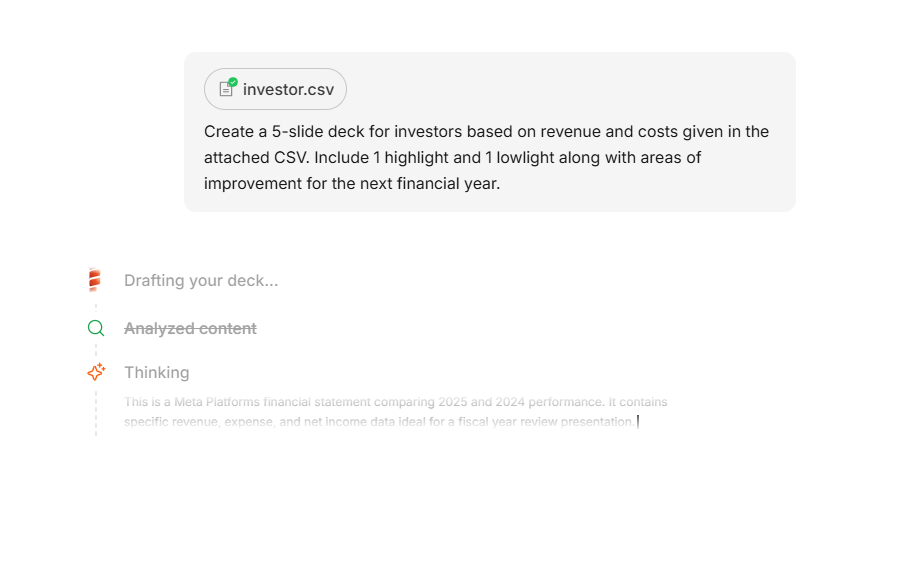
Tools like Presentations.AI can process different file types as inputs.
Different tools accept different input types. The more flexible AI presentation makers can handle all of the above. This matters because real work rarely starts with a perfectly worded prompt. You might have a messy document full of notes. You might also have a competitor page you want to reference.
A good tool should work with what you have. If you are still figuring out what your presentation should be about, this guide to choosing a presentation topic is a useful place to start before you open any tool.
Step 2: The AI Detects Intent, Audience, and Presentation Type
Before any content gets written, the AI works out the purpose of the presentation. This is called intent detection.
If you type "Investor pitch for a SaaS startup," the AI infers a pitch structure that opens with the problem and closes with your funding ask. If you start with "QBR for an enterprise customer," it recognizes a different flow that moves from business goals to renewal opportunities and next steps. A campaign recap and a sales proposal each deserve a distinct structure.
If you upload a research report, the AI reads it and identifies the main arguments. It then works out a logical slide sequence that compresses the key points while keeping the thread intact.
In practical terms, the AI does more than match keywords. It works out what kind of deck you need and who it is for. It also finds the structure that makes your message easiest to follow. The better it understands that context, the less rebuilding you have to do later.
Why this matters: If the AI understands the goal of the deck, you spend less time fixing the structure later. That saves you from reworking a misaligned outline the night before the meeting.
Step 3: The AI Generates the Outline, Slide Copy, and Speaker Notes
Once the AI understands the topic, it writes the text for each slide. That includes slide titles and bullet points, plus speaker notes when you want them.
This is powered by a large language model, the same underlying technology behind tools like ChatGPT and Claude. The model has trained on a huge amount of text, so it understands how presentations get structured. It knows what belongs on a title slide versus a body slide. It knows how to write a tight bullet point and move from one section to the next.
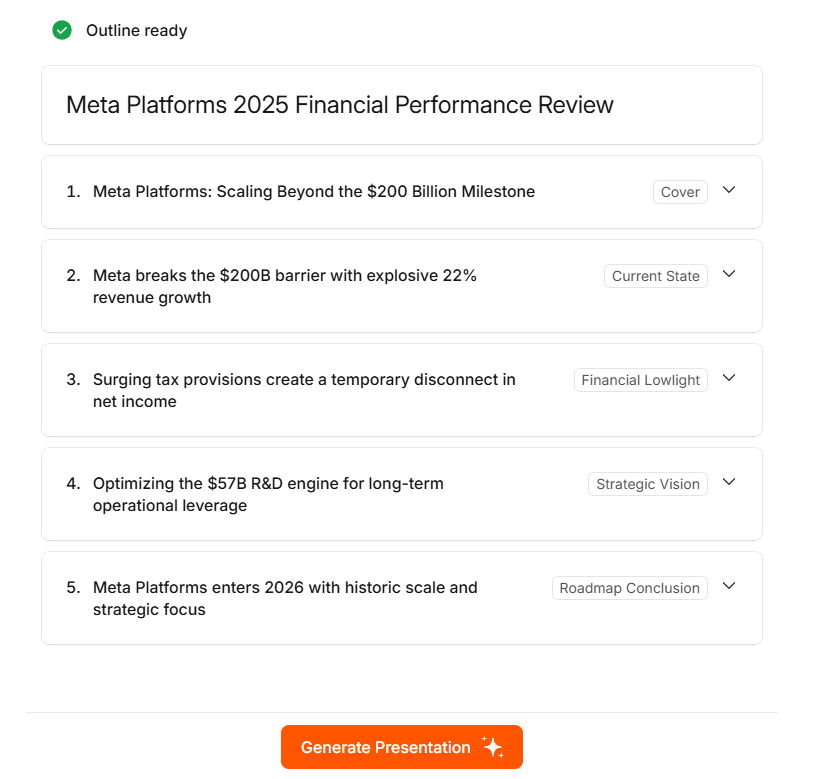
Tools can structure a presentation with the given inputs
It produces new text based on your input, written fresh instead of copied from somewhere else. The output follows presentation conventions. Headlines stay short and bullet lists keep parallel structure. Content builds from slide to slide.
The quality difference between tools shows up here. A deck where each slide makes sense alone but the whole thing wanders signals a weaker model. A deck with a clear throughline, where slides set up the next and build toward a conclusion, signals the AI understood your point.
If this is new to you, the Presentations.AI guide to building a presentation outline offers a practical walkthrough.
Step 4: The Tool Chooses Slide Layouts Based on Content
With the text ready, the AI decides how each slide should look. A slide with one big statistic gets a different treatment from a slide with five bullet points. A comparison slide needs columns. A process slide might need numbered steps or a visual flow.
The AI maps each piece of content to a layout pattern. It considers how much text sits on the slide and what type of content it is, whether a stat or a chart. It checks how the slide fits the sequence and whether the balance looks easy to scan.

Presentation templates play a role here, though differently from what most people expect. The better tools vary the template instead of applying one uniformly. They select from a library of layout options and match each one to the content type. Presentations.AI uses what it calls "anti-fragile" layouts. These designs stay intact when your content changes, so adding a word or removing a bullet keeps the slide clean.
Step 5: Design, Branding, Fonts, Colors, and Images Are Applied
Once layouts are set, the visual layer goes on top. That covers colors and fonts, plus spacing and imagery.
If you have connected your brand to the tool, this step applies your color palette and logo automatically. Presentations.AI does this through a feature called Brand Sync, which extracts your visual identity directly from your website URL. You skip manual configuration entirely. The AI reads your site and applies your brand across every slide from the start.
Why this matters: For teams creating decks every week, brand consistency counts as essential. It saves review cycles and keeps off-brand slides away from clients. It also reduces dependency on design teams.
Want to see this workflow on your own content? Upload a document or paste a prompt, and let Presentations.AI generate the first draft.
If you skip connecting a brand, the tool applies its own design system. That means a color scheme and font pairing that read clean by default. Some tools also pull in relevant imagery at this stage, either from a built-in library or through stock image integrations. The better ones make sensible choices, selecting visuals that complement the slide content instead of grabbing something loosely tied to a keyword.
Step 6: The User Reviews, Edits, and Refines the AI-Generated Deck
The review and refine stage is where tools diverge most.
Basic AI presentation makers generate a deck and then drop you into a manual editor. If you want a change, you click and retype, the same as any traditional tool, though from a better starting point.
The more capable ones keep the AI loop open after the first draft. You can tell it what to fix in plain language: "Make slide 4 simpler," or "Add a competitor comparison after the market slide." The AI interprets the instruction and makes the change across the relevant slides.
Presentations.AI does this through an AI assistant called Clip-E. Instead of switching between an AI panel and a manual editor, you keep talking to the tool. The iteration becomes fast and conversational, which helps when you turn a solid first draft into a stakeholder-ready deck.
Why this matters: Conversational refinement replaces manual editing cycles. You fix tone and structure in seconds instead of reworking each slide by hand before a stakeholder update.
At that point, the AI has done its job. What happens in the room is on you. If you want to brush up on the delivery side of things, the expert presentation tips on the Presentations.AI blog cover how to hold attention once you are presenting.
How to Use an AI Presentation Maker
The technology earns its keep only when the workflow stays simple. Here is the sequence business teams follow.
- Choose the goal. Decide what the deck needs to do, whether a pitch or a report.
- Enter a prompt or upload source material. Paste a prompt or point the tool at a URL.
- Review the generated outline. Check that the structure matches the message before the slides are built out.
- Refine the slides. Use plain-language instructions to tighten copy and simplify dense slides.
- Apply your branding. Connect your brand or company URL so every slide is on-brand automatically.
- Export or present. Download a clean PowerPoint file or present directly from the tool.
AI Presentation Prompt Examples
The quality of your first draft depends heavily on the quality of your input. A strong prompt follows a simple formula:
Audience + goal + topic + source material + tone + slide count + output format.
Use this checklist when writing a prompt: audience, goal, topic, key points, source material, tone, slide count, visual style, and a call to action.
- Investor pitch: "Create a 12-slide investor pitch for a B2B SaaS startup. Cover problem, solution, market size, traction, team, and the ask. Confident, data-backed tone."
- Sales proposal: "Build an 8-slide sales proposal for an enterprise prospect using the attached discovery notes. Focus on their pain points, our solution, ROI, and next steps."
- Quarterly business review: "Turn this usage report into a 10-slide QBR: goals, adoption trends, wins, risks, renewal opportunities, and recommendations."
- Training deck: "Create a 15-slide onboarding training deck from this document. Clear, instructional tone with step-by-step sections."
- Lesson plan: "Build a 10-slide classroom lesson on photosynthesis for high-school students. Simple language and a quiz slide at the end."
- Marketing campaign recap: "Summarize these campaign results into a 9-slide recap: objectives, channels, performance metrics, learnings, and next steps."
What Features Should an AI Presentation Maker Have?
When you evaluate a tool, look for the components that determine output quality:
- Input flexibility: Prompts, documents, PDFs, URLs, and raw notes.
- Outline generation: A logical structure before slides are built.
- Slide copywriting: Tight headlines and parallel bullet points.
- Layout selection: Content-matched slide formats instead of one uniform template.
- Image and data support: Relevant visuals, charts, and diagrams.
- Brand controls: Automatic brand application from a company URL.
- Collaborative editing: Real-time teamwork and access controls.
- AI refinement: Conversational editing after the first draft.
- Export quality: Clean, editable PowerPoint output.
- Privacy controls: Clear handling of uploaded business files.
Where Does the AI's Design Sense Come From?
The AI's design sense comes from pattern recognition, built on exposure to large amounts of design content. People assume the AI is "creative" in some deeper sense. In truth, it applies learned patterns.
The models that power these tools have trained on thousands of presentations and design systems. Over time, they have learned what works. They know how much text fits before a slide becomes hard to read. They know which color combinations feel professional and where a headline belongs.
The result is a well-calibrated set of rules applied consistently and quickly. For most people building presentations for work, that is exactly what they need. They want a deck that looks professional and reads clearly. They want one that holds up in front of real people in a real room.
How to Tell If an AI Presentation Maker Is Ready for Real Business Work
A business-ready AI presentation tool clears a short checklist before you trust it with real work. Use this checklist before you rely on one for a client meeting or a board update.
- Input flexibility: Can it work from prompts, documents, PDFs, URLs, and rough notes?
- Narrative structure: Does it understand whether you are building a pitch deck, board update, sales proposal, or campaign recap?
- Adaptive layouts: Do slides adjust to the content instead of breaking when text changes?
- Automatic brand application: Can it apply your company identity without manual setup?
- Conversational refinement: Can you keep editing with AI after the first draft?
- Reliable export: Does the deck still work when opened in PowerPoint or shared with stakeholders?
The New Workflow: Think More, Format Less
AI presentation makers take the mechanical work off your plate. They structure content and choose layouts. They apply design rules and keep your brand consistent across every slide. That part of the job, the part that used to eat hours, now takes seconds.
That is the shift: from manually building every slide to directing the outcome. Instead of resizing boxes and cleaning up formatting for hours, you spend your time clarifying the story. You pressure-test the message and prepare for the conversation the deck should drive.
The thinking still belongs to you. The story and the argument you want to drive: you bring that. Presentations.AI handles the repetitive work around layout and revision. You spend more time on the message and less time wrestling with slides.