Why Convert Excel to PowerPoint?
Raw data doesn't present itself. Manually selecting ranges, building charts in PowerPoint, and writing summary copy takes hours — and static screenshots of your spreadsheet are unreadable in a conference room and impossible to edit afterward.
Upload your .xlsx or .csv. Our Excel to PPT converter identifies the trends, selects the right chart types, and builds a professional deck with editable PowerPoint charts and data-driven insights.
If you're working from a PDF report instead, you can also convert a PDF to PPT in the same workflow. And if the numbers only exist as an idea so far, the AI presentation maker builds the deck straight from a prompt.
Finance teams turn quarterly reports into board-ready decks. Sales managers convert pipeline dashboards into client-facing proposals. Analysts transform KPI exports into executive briefings. Whatever your data, Presentations.AI converts it into a structured, visually clear presentation — without a single manual chart.
It is all part of the same presentation app teams use to build every kind of deck.
Why Choose Presentations.ai to Convert Excel to PPT?
AI Picks the Right Chart for Your Data
The AI doesn't just move your table onto a slide. It reads your data and selects the right visualization automatically — bar charts for comparisons, line graphs for trends, tables for detailed breakdowns. No manual chart building required.
Native PowerPoint Charts — 100% Editable
Every chart output is a native PowerPoint object, not a static image. Change colors, update axis labels, edit data ranges, and adjust fonts directly inside PowerPoint after export. Full control, no locked elements.
AI Generates Insights, Not Just Charts
AI generates headline copy and bullet-point summaries from your data trends automatically. Each slide tells the story behind the numbers — so your audience understands the data, not just sees it. You can also use our AI slide creator to build entirely new decks from scratch.
Handles Multi-Sheet Workbooks and Pivot Tables
Working with multi-tab workbooks or pivot table exports? Presentations.AI processes complex Excel structures — reading across sheets, parsing pivot data, and organizing it into a coherent slide flow without losing structure.
Brand Sync — Your Colors, Fonts, and Logo Applied
Enter your company URL once. Brand Sync automatically pulls your brand colors, fonts, and logo and applies them across every slide. Every chart, every layout, every heading — on-brand from the first slide.
SOC 2 Type II — Encrypted Data Processing
SOC 2 Type II certified with end-to-end encrypted processing. Your financial reports, sales data, and customer information are processed securely and never used to train public AI models.
How to Convert Excel to PowerPoint
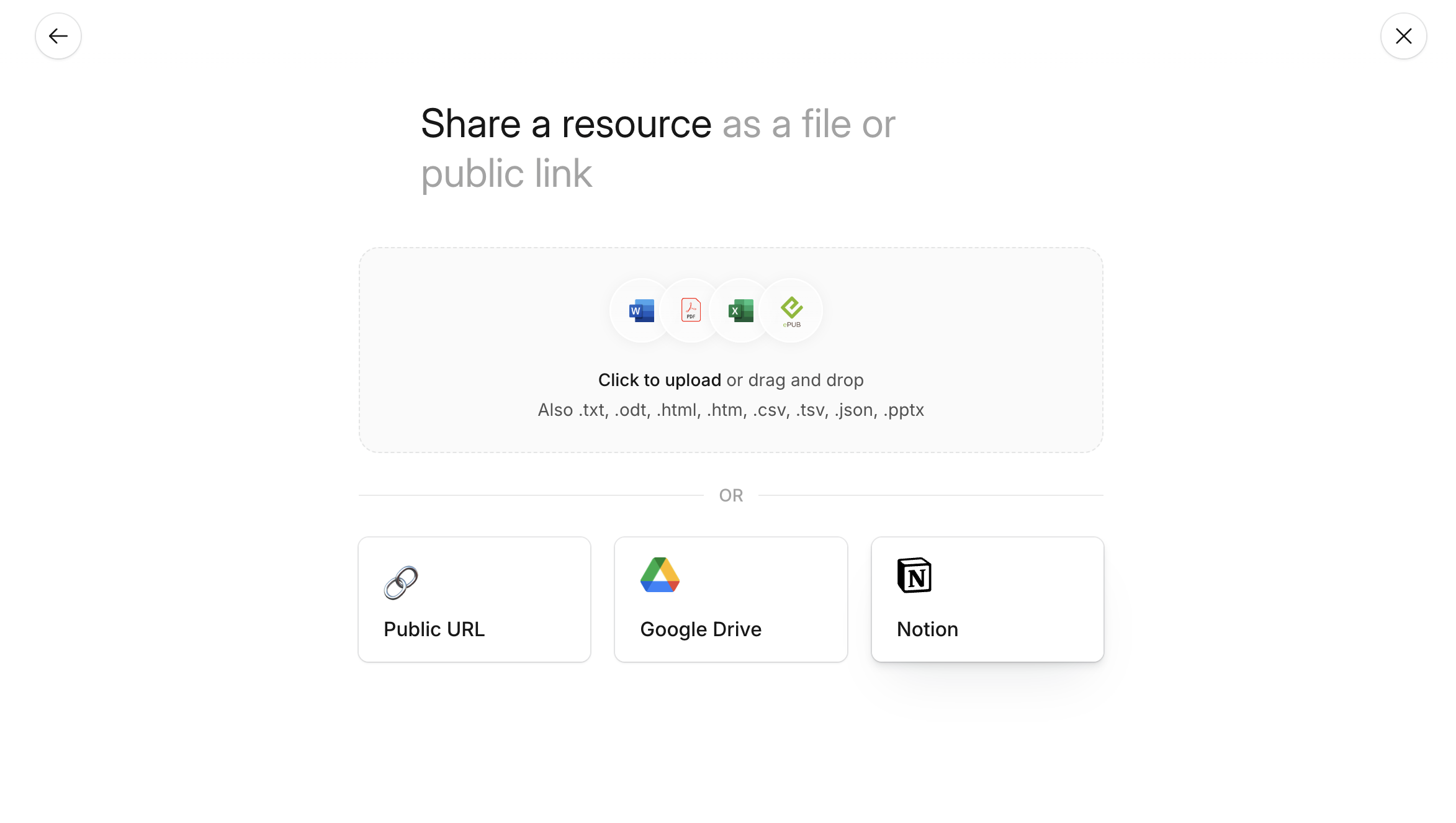
Step 1 — Upload your Excel, CSV, or XLS file
Go to your dashboard and select Import. Drag and drop your .xlsx, .csv, or .xls file to begin. Supports Excel workbooks, CSV exports, and legacy .xls formats.
Step 2 — AI parses your data and builds charts
The AI scans your columns, identifies categories and values, and selects the right chart type for each dataset — bar charts for comparisons, line graphs for trends, tables for detailed breakdowns. Your data structure becomes a fully organized slide deck.
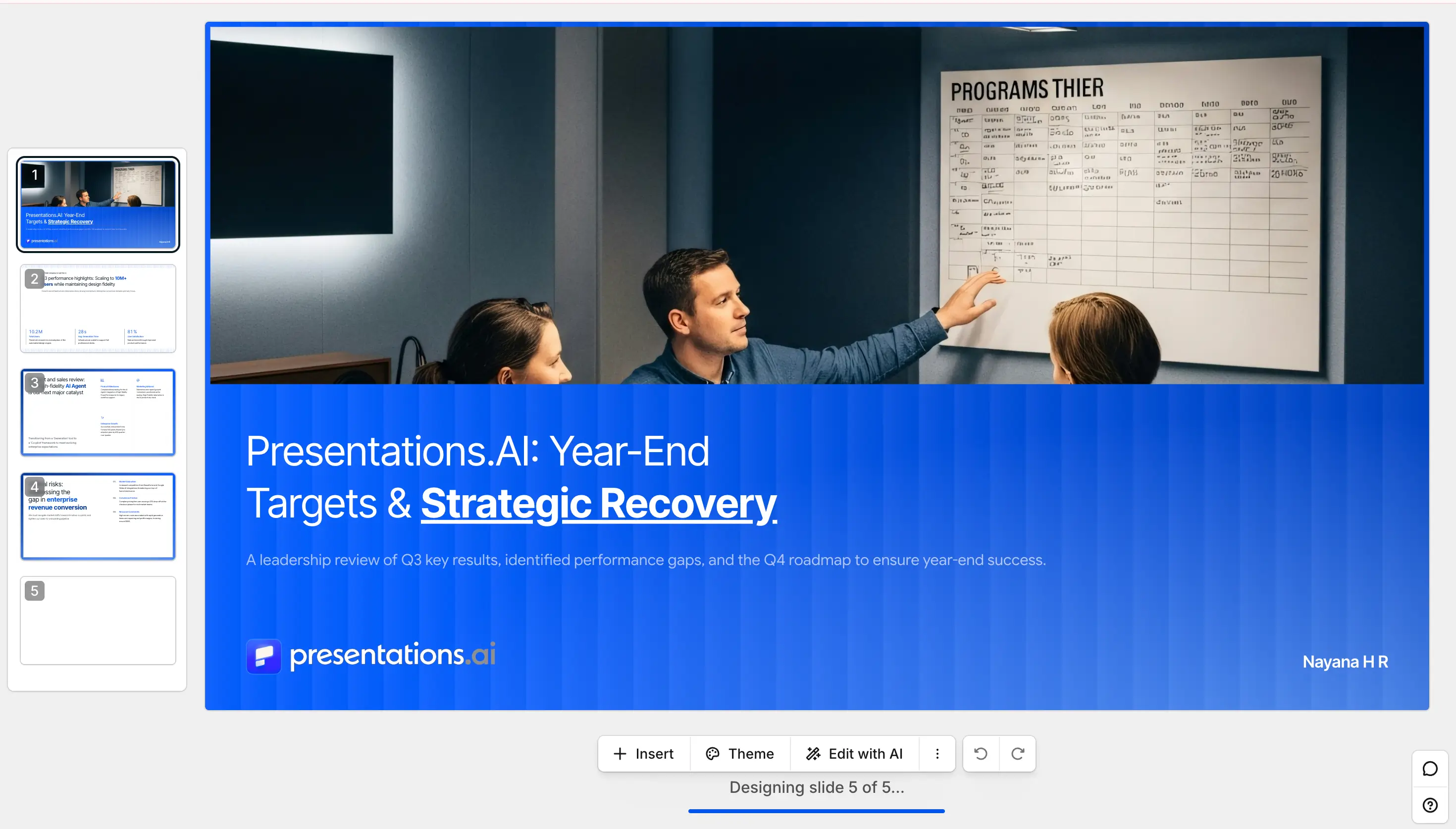
Step 3 — Edit, export as PPTX, or share a link
Preview your deck, adjust chart types, edit copy, or apply your brand with Brand Sync. Export as a fully editable PowerPoint (.pptx), download as PDF, or publish as a shareable link for stakeholders. Check our pricing page to see what's included in the free plan.

Presentations.ai vs Other Excel to PPT Converters
Supported Formats & Specifications
- Input: XLSX, XLS, CSV
- Max file size: 50MB (Free), 200MB (Pro)
- Output: PPTX (native editable charts), PDF, share link
- Chart types: Bar, line, pie, tables